Adding a new token profile

Add a custom token profile which can be used for example to tokenize certain data of your SaaS application.

About this task

Important: Please note the following:
  • You may create and use as many token profiles as required. However, please keep in mind that a large number of token profiles can affect the overall performance of the eperi sEcure Platform.
  • Please make sure that your custom token profiles are compatible with the respective target cloud application. For example, the field type Email in Salesforce allows to enter and save a (tokenized) email address with a maximum of 80 characters.
  • The input value will not be tokenized, if the output token is larger than the maximum size of the corresponding column in the token database.

Procedure

  1. Select the Token Profile page in the main menu.
  2. Click + New in the upper right corner.
    The pop-up menu Create Token Profile is displayed, prompting you to enter the details for the new token profile. The fields to be configured depend on the selected Type.
    Figure 1: Details of new token profile
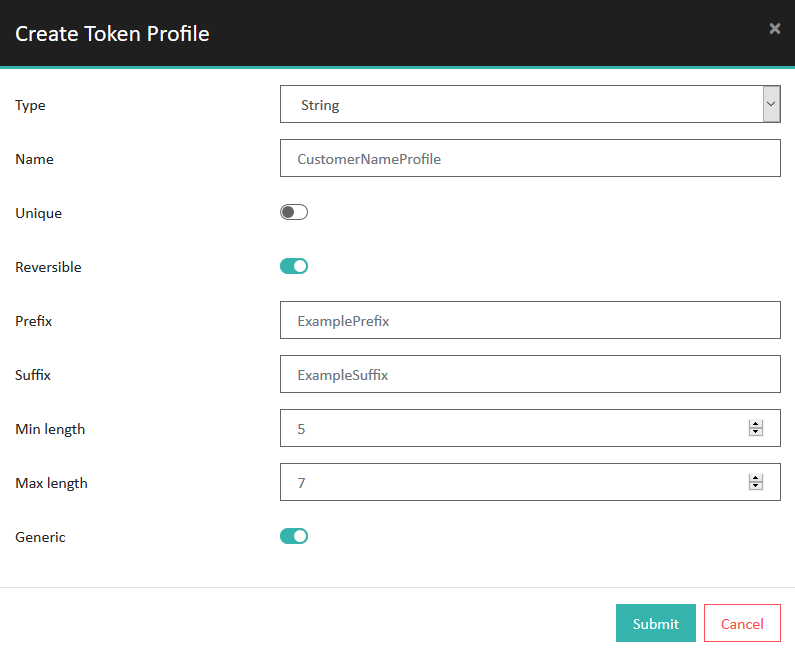
    Details of new token profile
  3. In the Type drop-down box, select the desired tokenizer method, e.g. String.
    Important: In Salesforce data protection policies, only token profiles using the following tokenizers can be configured: Date, Email, PLZand String.
  4. Provide the required information and then click Submit.
    Note: Depending on the selected tokenizer method, different options are available.
    Option Required/available for Tokenizer Description
    Type All tokenizers Select the desired tokenizer method, e.g. String.
    Name All tokenizers
    Enter a unique name for the token profile.
    Note: Once a token profile is created, the name is not editable any more.
    Unique All tokenizers Turn it on if a unique token is to be generated for each input value. In this case, a unique token is generated even for an already known input value.
    Important: Unique tokens are not available for Salesforce data protection policies.
    Reversible All tokenizers By default, the option is turned on so that tokens generated with the profile can be detokenized again. Turn off this option if token original values should not be saved along with the tokens.
    Note: In that case, the original values of the corresponding tokens cannot be determined.
    Infix PLZ Enter 3 to 4 characters as Infix. Only upper case letters are allowed. PLZ tokens are generated according to this schema:

    <first two characters of input>_<infix>_<max length random characters>

    Prefix Email, String, Pronounceable String Enter a token prefix (optional for Email and Pronounceable String Tokenizer).
    Note:
    • A prefix has to be unique for all token profiles.
    • If the String Tokenizer is selected, the minimum prefix length is 3 characters.
    • A prefix is not allowed to be a substring of another token profile, e.g:
      • Prefix1: "TOK", Prefix2: TOR --> okay
      • Prefix1: "TOK", Prefix2: "TOKEN" --> not okay
    • The Email tokenizer only allows lowercase letters as a prefix.
    Suffix Email, String, Pronounceable String Enter a token suffix (optional).
    Note: The Email tokenizer only allows lowercase letters as a suffix.
    Min length Email, String, Pronounceable String Enter the minimum length of the token value to be generated.
    Note: The length specification refers only to the generated token value and does not include other components, such as prefix or suffix.
    Max length Email, String, Pronounceable String Enter the maximum length of the token value to be generated. The maximum length must be equal to or higher than the minimum length.
    Important: The possible number of tokens is determined by the configuration of the minimum and maximum length. We therefore recommend setting the maximum length to at least 5. A smaller value should only be chosen if only a few tokens are needed.
    Note: The length specification refers only to the generated token value and does not include other components, such as prefix or suffix.
    Min year Date Enter the minimum year in YYYY format from which token values are to be generated, e.g. 2300.
    Max year Date Enter the maximum year in YYYY format up to which token values are to be generated, e.g. 2500.
    Pattern Pattern Enter an expression which describes a pattern for the tokens to be generated. For the notation to be applied, please refer to the Syntax for the pattern tokenizer.
    Domain Email Enter the domain-part of the tokenized e-mail address, e.g. example.com.
    Note: The same domain name cannot be used in multiple profiles.
    Generic All tokenizers except:
    • Pattern
    • Number18
    • CreditCard
    • PronounceableString
    Turn it on to let the eperi sEcure Platform create "generic" tokens when using this token profile.

    If a token is generic, the eperi sEcure Platform tries to detokenize the token regardless of in which response of the cloud application the token is contained.

    Always turn Generic on if you want to use this token profile in a data protection policy for a cloud application (e.g. Salesforce).
    Warning: Depending on how a token profile is configured, generic decryption can de-tokenize (break) values that are actually not tokenized. When saving it back to your cloud application the original value of the pretended token would be saved back instead of the real value.
  5. Go to the Dashboard page and restart the reverse proxy.
  6. In the case of a cluster setup, restart the reverse proxy in every eperi sEcure Platform instance.

Results

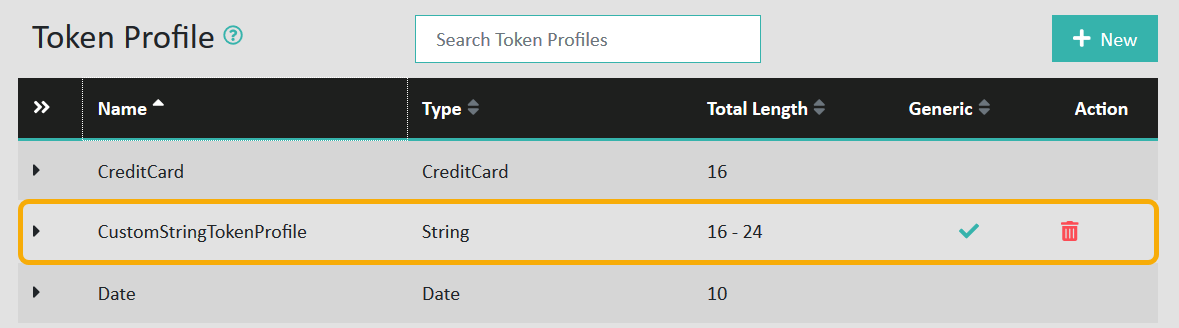
You have successfully created and configured a custom token profile. The new profile is displayed in the list of available profiles.
Figure 2: New token profile
New token profile
Furthermore, the following options are available:
Table 1. Token profile actions
Option Description
Delete Delete a token profile. Please note the following constraints:
  • The default token profiles cannot be deleted.
  • A custom profile cannot be deleted once
    • it is used in a Salesforce data protection policy.
    • there is at least 1 token that has been generated with it.
Important: After deleting a token profile, you must restart the reverse proxy in every eperi sEcure Platform instance.
View details of a token profile View the details of a token profile by clicking the small arrow left to the token profile name.