
Configuring a separate database for token values
By default, eperi sEcure Platform stores its configuration and the token values together in a single database. If necessary, you can configure eperi sEcure Platform to store the token values in a separate database.
Before you begin
About this task
Procedure
-
Enable the checkbox in the Enable Token DB property
field and then click Submit.
Figure 1: Enable Token Database 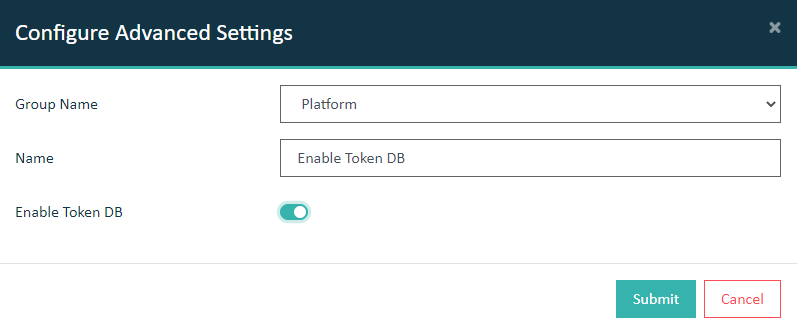 The new Token Database setting is available in the Settings Tab.
 -
Click the Token Database setting and then click
Edit. Provide the information needed and click
Submit.
Figure 2: Connection details of token database 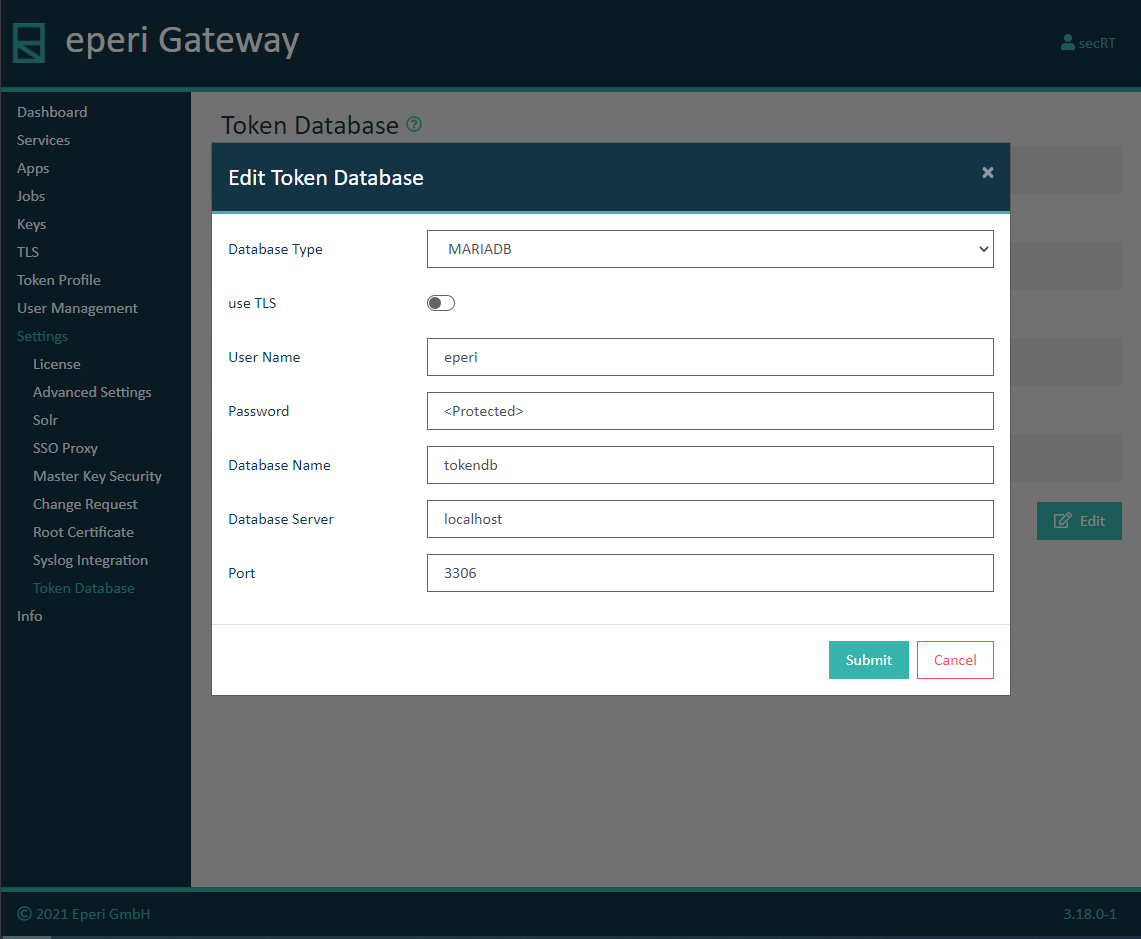
Option Description Database Type Select the appropriate Database Type for your DBMS: Database Type Your DBMS MariaDB MariaDB 10.2 or higher Microsoft SQL Server Microsoft SQL Server 2008 or higher Oracle Oracle 11, 12 or 18c Use TLS Choose whether to secure the JDBC connection between eperi sEcure Platform and the database with TLS: - No (default) = Do not use TLS for the JDBC connection
- Yes = Use TLS for the JDBC connection. In this case, additional fields are displayed to provide the credentials for the JKS truststore and keystore.
If TLS is used, please note the following:- For all databases it is required that TLS v1.2 is activated.
- The Common Name of the server certificate must correspond to the FQDN, which is entered as the host name in the Database Server field.
- Not supported is the following mode: Two-way SSL with Client-Auth without username + password.
For Oracle databases Two-way SSL with Client-Auth and username + password is supported.
For MariaDB databases the following TLS options are supported:
Option Description REQUIRE NONE TLS is not required for this account, but can still be used. REQUIRE SSL The account must use TLS, but no valid X.509 certificate is required. REQUIRE X509 The account must use TLS and must have a valid X.509 certificate. REQUIRE ISSUER 'issuer' The account must use TLS and must have a valid X.509 certificate. Also, the Certificate Authority must be the one specified via the string issuer. REQUIRE SUBJECT 'subject' The account must use TLS and must have a valid X.509 certificate. Also, the certificate's Subject must be the one specified via the string subject. REQUIRE CIPHER 'cipher' The account must use TLS, but no valid X.509 certificate is required. Also, the encryption used for the connection must use one of the methods specified in the string cipher. For Microsoft SQL Server, TLS is supported, but it is not possible to provide a JKS keystore. The reason for this is that Microsoft SQL Server does not support Two-way SSL.
Path to JKS truststore file Enter the absolute path (+ filename) to the JKS truststore file. (Example: /opt/eperi/gateway/keystores/truststore.jks) The JKS truststore file must contain certificates from trusted Certificate Authorities (CA) and - if available - all intermediate CA certificates.
Important: The file must be available on the target server and eperi sEcure Platform needs read permission on this path and file.Tip: If you use Oracle Fusion Middleware 11g Release 1, you can export the JKS truststore and keystore from the Oracle Wallet. Instructions can be found here: https://docs.oracle.com/cd/E28280_01/core.1111/e10105/walletmgr.htm#ASADM10617Alternatively, you may use the standard Java truststore. In this case, leave this field empty. When you install eperi sEcure Platform with the automated installation package, the standard Java truststore is available here: /opt/eperi/gateway/java/jre/lib/security/cacertsJKS truststore password Enter the password of the JKS truststore. Leave it empty, if you are using the standard Java truststore. Path to JKS keystore file Enter the absolute path (+ filename) to the JKS keystore file. (Example: /opt/eperi/gateway/keystores/keystore.jks) The JKS keystore file must contain the X.509 client certificate and the client private key which will be used to authenticate the client on the server. This is required for Two-way SSL with Client-Auth. If you are - for example - using MariaDB, you must provide a JKS keystore for all TLS options where the account must use TLS and must have a valid X.509 certificate.
Important: The file must be available on the target server and eperi sEcure Platform needs read permission on this path and file.JKS keystore password Enter the password of the JKS keystore (required for Two-way SSL with Client-Auth). Authentication Mode This field only appears if you have selected Microsoft SQL Server as the database type. Select one of the following options: - SQL Server Authentication: eperi sEcure Platform should use SQL Server Authentication to connect to your Microsoft SQL Server.
- Windows Authentication (via Kerberos): eperi sEcure Platform should use Windows Authentication to connect to your Microsoft SQL Server.
If you have selected Windows Authentication (via Kerberos), please review the Important notes about Windows Authentication (via Kerberos) for MS SQL Server.
Username Enter the name of the database user. This is the special database user for connecting eperi sEcure Platform to the database, e.g., eperi_dbuser. Password Enter the password of the database user. Database Name Enter the database name, e.g. eperi. Database Server Enter the host name of the database server, e.g. localhost (if the database is located on the same machine as eperi sEcure Platform). Note: For Microsoft SQL Server, when connecting to a specific Instance, the backslash must be escaped when entering the Database Server, e.g. SERVER\\INSTANCEDatabase Port Enter the port of the database, e.g. 3306 for MariaDB. Note: The database port may be different, if you configure to use TLS for the JDBC connection. Which port is used depends on the configuration of the database.Note: For Microsoft SQL Server, the Port can also be set to -1 to pass on the Instance name instead of the Port to the JDBC driver for MSSQL, making it possible to connect to a different Instance than the default while using Port auto-detection.The successful configuration is confirmed with a corresponding message.