
Importing a PKCS #12 key store
Use this option to import a PKI SSL certificate, which is required for the reverse proxy. This ensures that all communication between the end user and the eperi sEcure Platform is fully encrypted.
Before you begin
Procedure
-
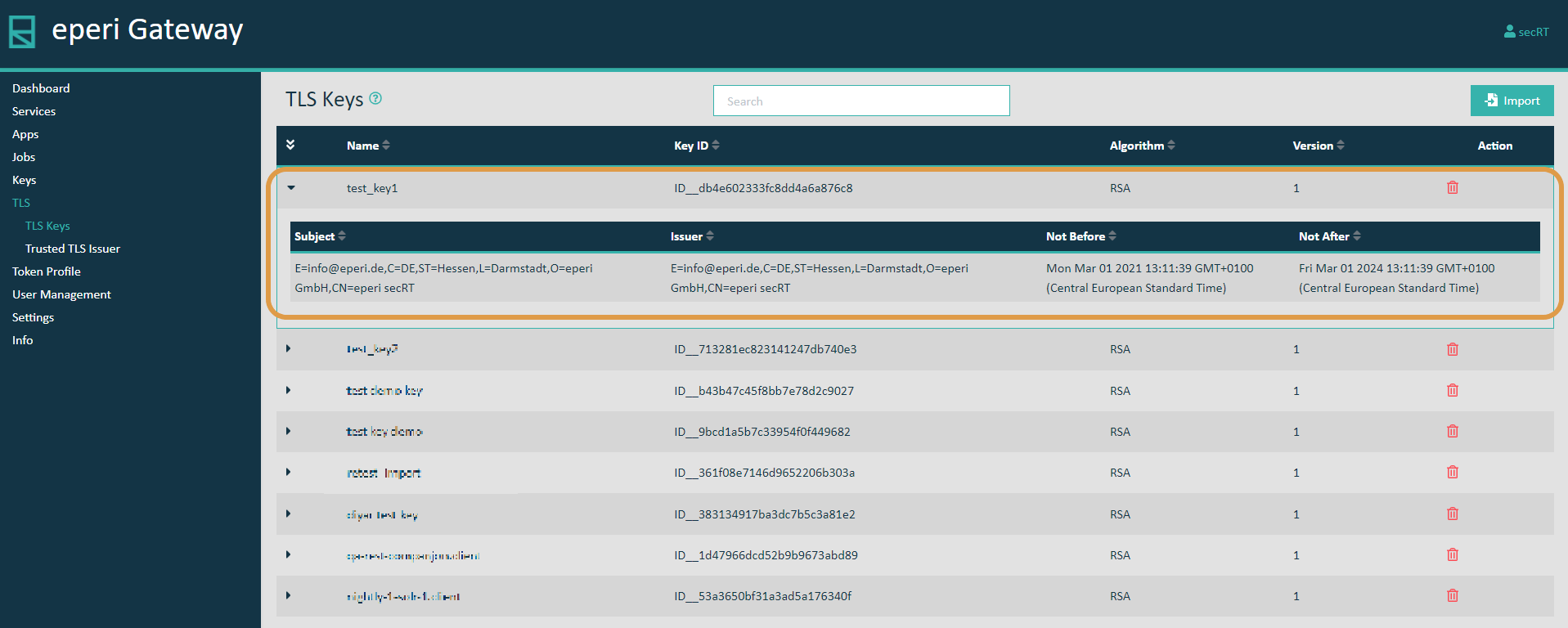
Click Import.
Figure 1: Import Key Store 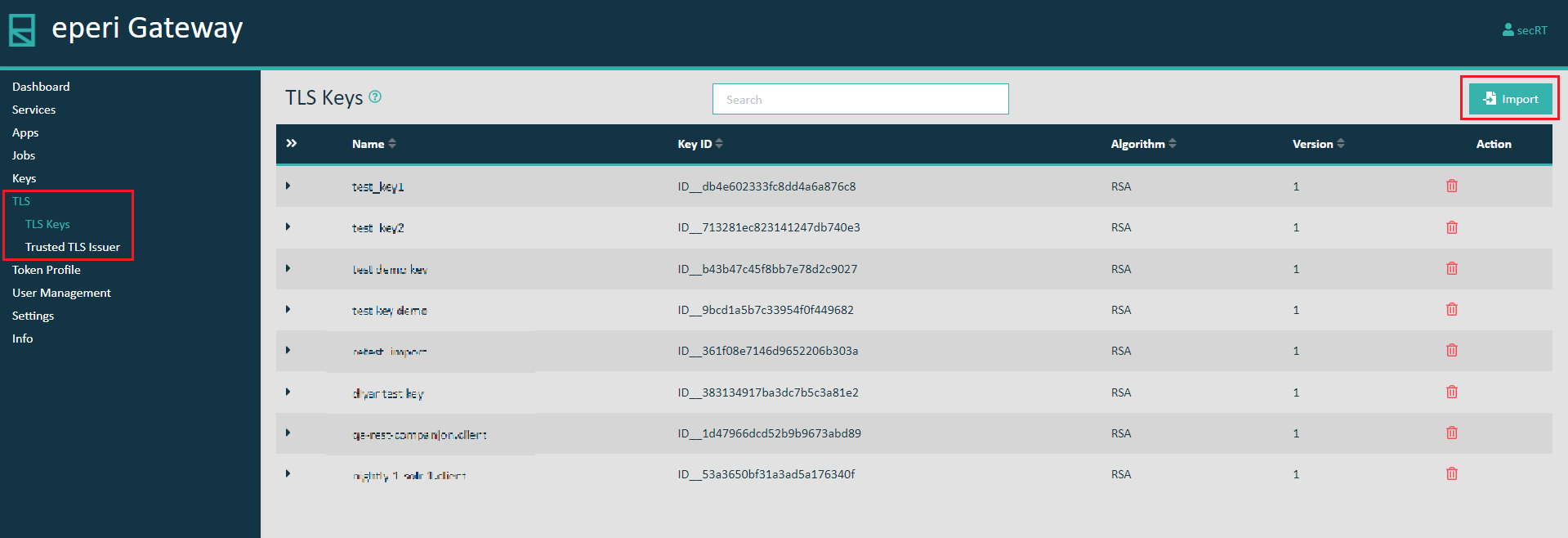
-
In the pop-up menu, provide required data:
- Select your PKCS #12 Key Store file you want to import.
- Enter the Key Store's password.
- Click Next.
In our example, the name of the Key Store file is swdemo.eperi-cdp.de.p12.Figure 2: Select PKCS #12 key store file 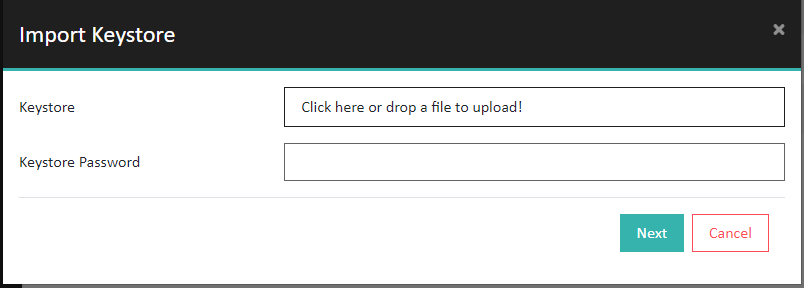
-
In the next dialogue, please perform the following steps:
- Select the Key Alias you want to use.
- Enter the password for the Key.
- Enter the (display) name of your PKCS #12 Key Store.
- Click Submit.
Figure 3: Credentials of the PKCS #12 key store 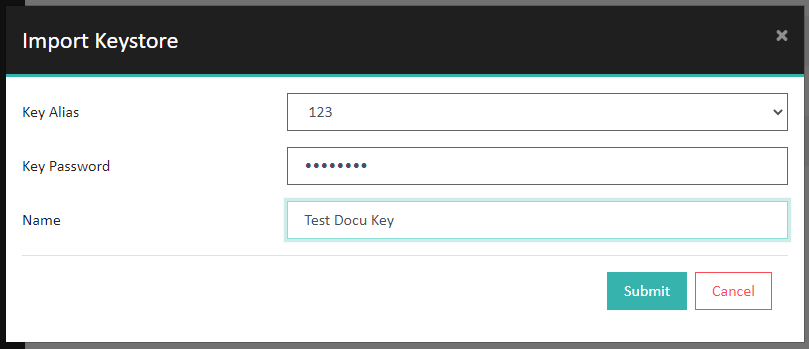
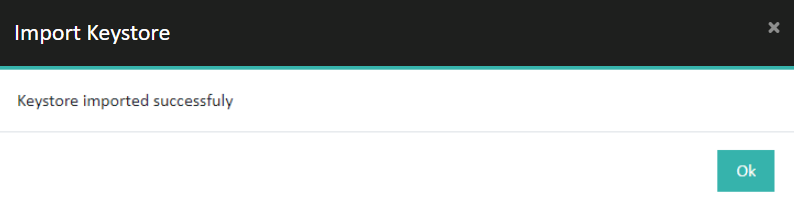
Results
Important: Keep the PKCS #12 key store file secure since it contains
the private key of the CA!