
Testing the installation and configuration
The following section provides some basic guidelines around some initial tests to prove that the eperi sEcure Platform is intercepting and encrypting sensitive data in your Microsoft 365 instance.
Before you begin
Note: The procedure
described below is only valid if the eperi sEcure Platform has been configured as
reverse proxy, see section Configuring eperi sEcure Platform as a reverse proxy for Microsoft 365.
Procedure
-
Log into Microsoft 365 via the eperi sEcure Platform:
- Open a web browser, and enter the appropriate URL (login. followed by your eperi sEcure Platform hostname) e.g. https://login.demo.eperi-cdp.com.
- Enter the username / password of your test user (e.g. test.user@demo.eperi-cdp.com).
Once logged in, you should see the Microsoft 365 home screen with a number of application tiles.The URL in your browser should show something like this: https://office.demo.eperi-cdp.com.If your eperi sEcure Platform hostname does not show in the URL, then your configuration may be wrong, and sensitive data may not get encrypted.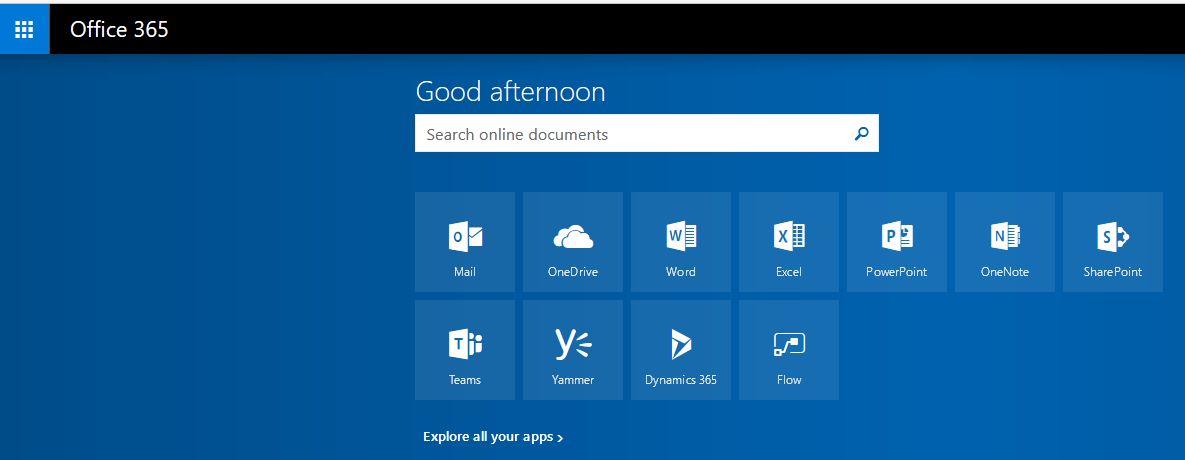

-
Test the email encryption:
-
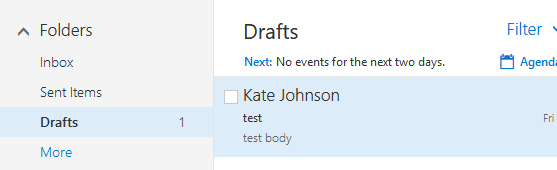
Click Save draft, and the newly composed item
should be saved to the Drafts folder. This will
be sent later.
-
Click Save draft, and the newly composed item
should be saved to the Drafts folder. This will
be sent later.
-
Log into Microsoft 365 directly to confirm that the email is encrypted:
-
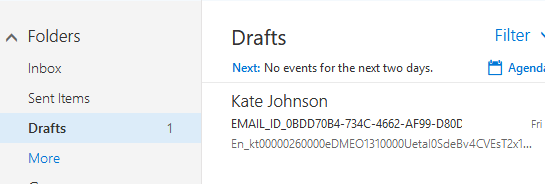
Open up the Drafts folder, and confirm that the
previously created email is saved in Drafts, and
that the email is encrypted.
-
Open up the Drafts folder, and confirm that the
previously created email is saved in Drafts, and
that the email is encrypted.