Freeing your license in offline mode
If you run eperi sEcure Platform on a server which has no Internet access, you can free your license in the offline mode.
Procedure
-
In the eperi sEcure Admin Console select .
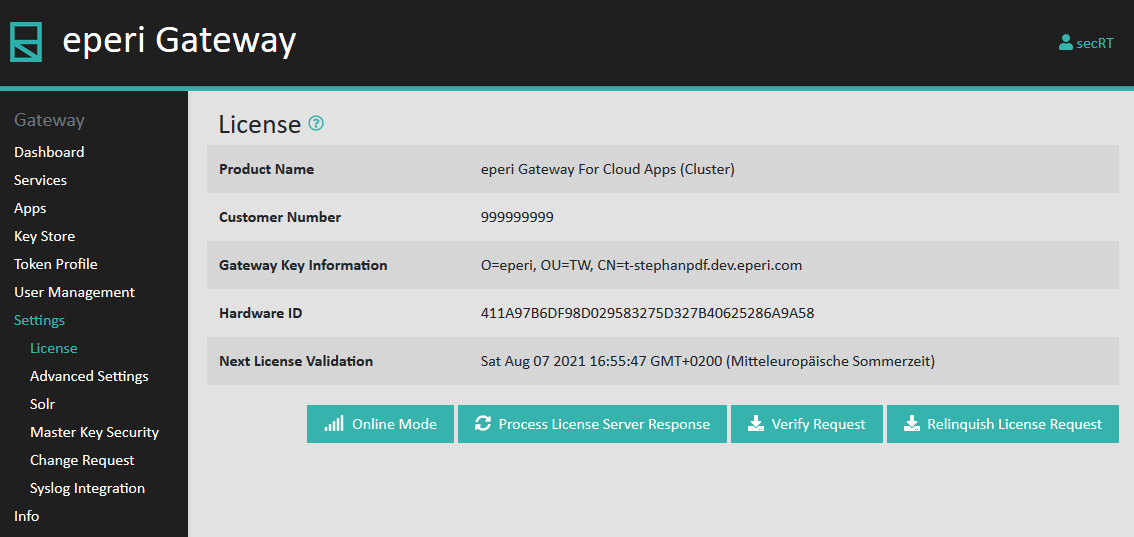
-
Confirm the safety query with Yes.
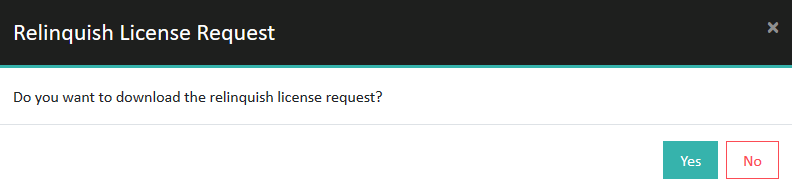
-
Download the file FreeLicenseRequest.req.
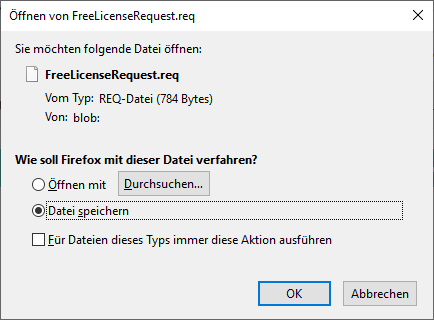
-
In the ACTIVATE LICENSE menu click Upload
Free-License-Request.
Figure 1: License - Upload Free-License-Request 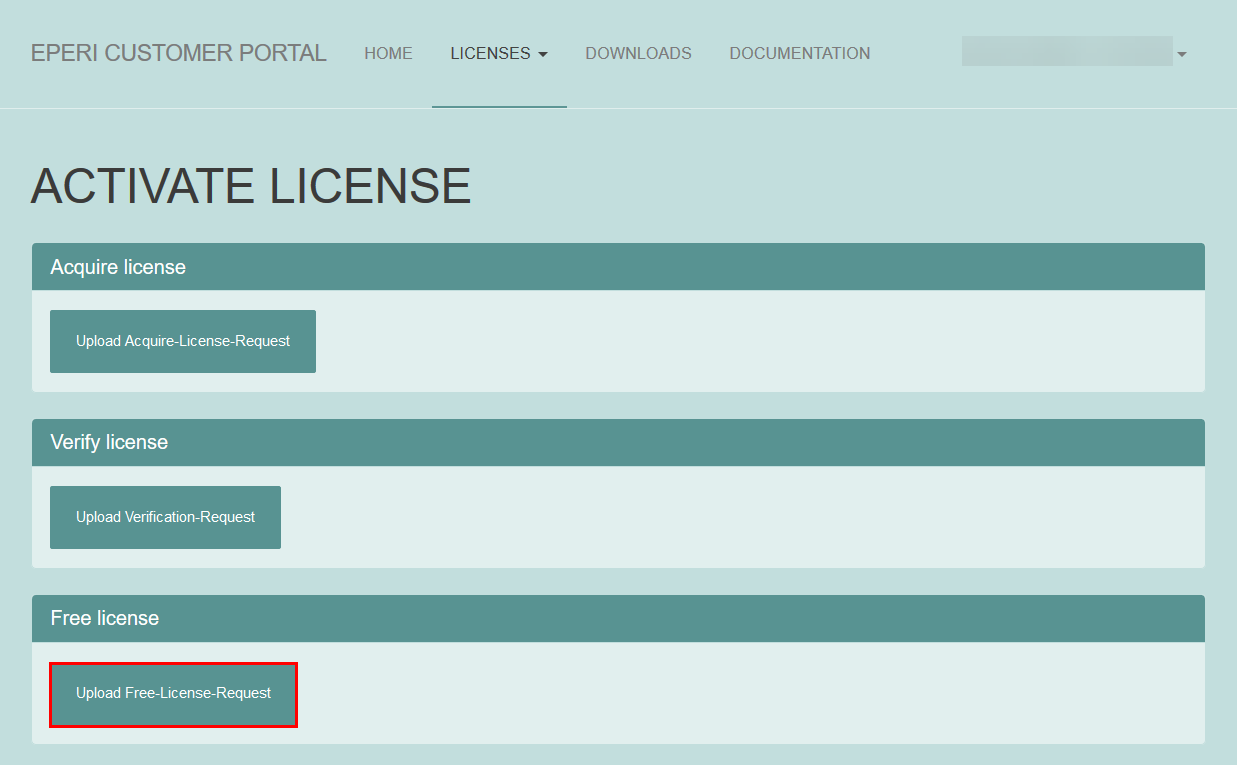
-
Select the FreeLicenseRequest.req file from the location
where you previously saved it.
Figure 2: License - Select request file 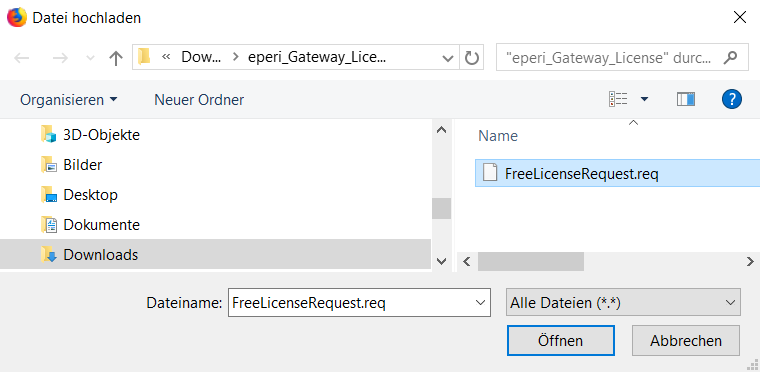 The successful upload to the eperi Customer Portal will be confirmed with a corresponding message.
Figure 3: License - Request file successfully uploaded 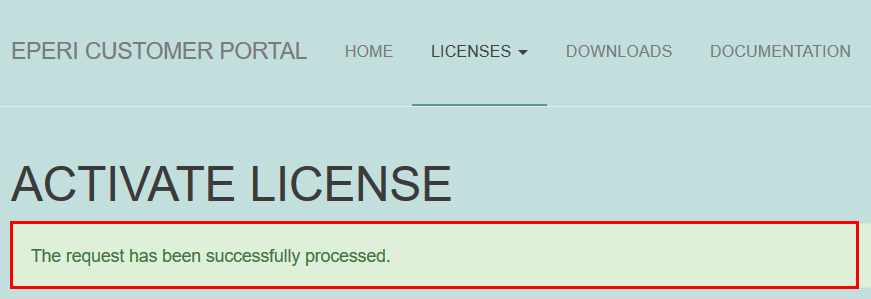
-
Click Download Free-License-Response.
Figure 4: License - Download Free-License-Response 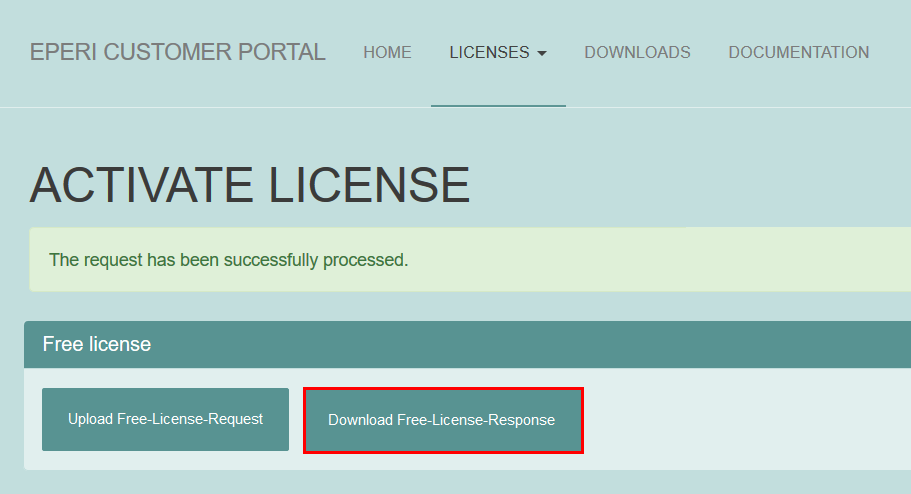
-
Download the FreeLicenseResponse.resp file.
Figure 5: License - Download response file 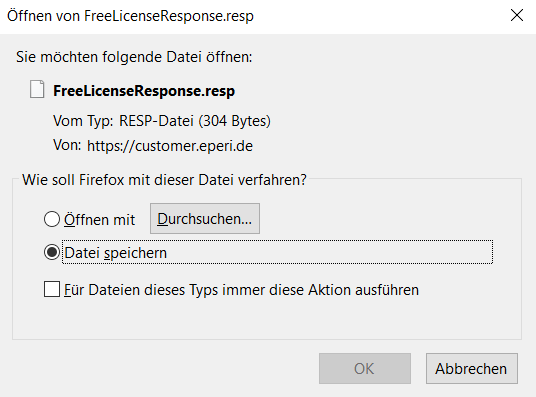
-
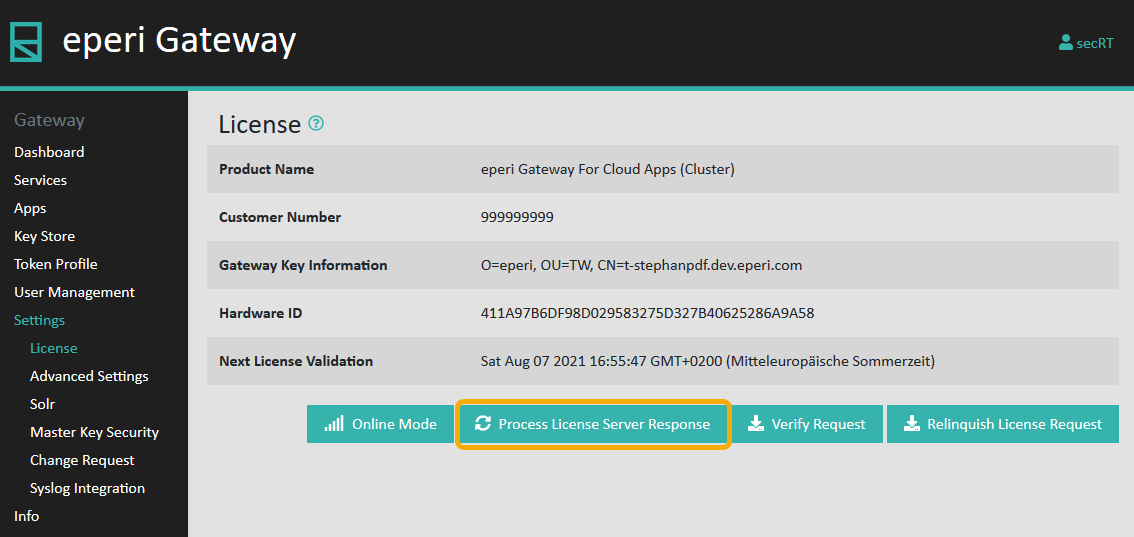
Switch back to the eperi sEcure Admin Console and click
Process License Server Response.
-
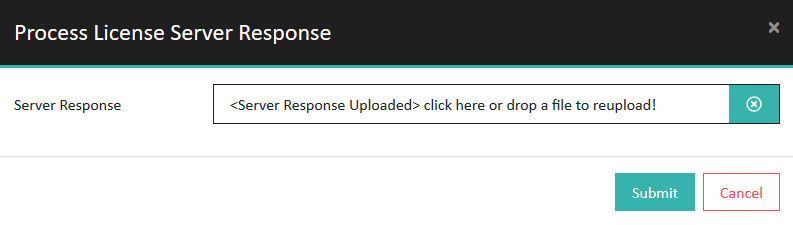
In the pop-up menu select the FreeLicenseResponse.resp
file from the location where you previously saved it and then click
Submit.
 A success message indicates that you successfully freed your license: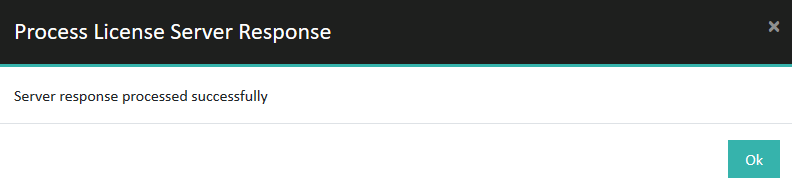
Results