
Configuring and scheduling the background indexing of Salesforce data
Learn how to configure and schedule a background indexing task of your Salesforce data in the eperi sEcure Platform.
Before you begin
About this task
- On a single cluster node, only one indexing task is allowed at a time. If you have a cluster, you could for example index Account data on one node and Contact data on another. In this case you need to create two different tasks to achieve that.
- If a task hits the API limits of the Salesforce Bulk API it is stopped for 1 day (if the job limit is reached) or 1/2 day, if the batch limit is reached. After that it should be resumed normally.
Procedure
-
In the eperi sEcure Admin Console, select the
Indexing Tab and click New Background
Indexing Task.
Figure 1: Admin Console - New Background Indexing Task 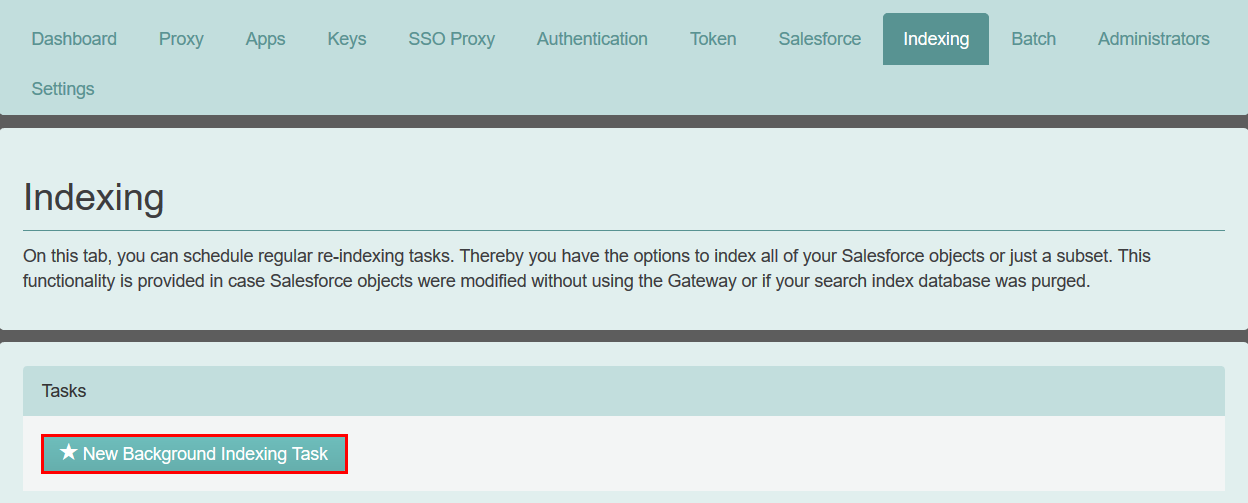
-
In the pop-up menu New Indexing Task provide the
required information and then click OK.
Figure 2: New Indexing Task details 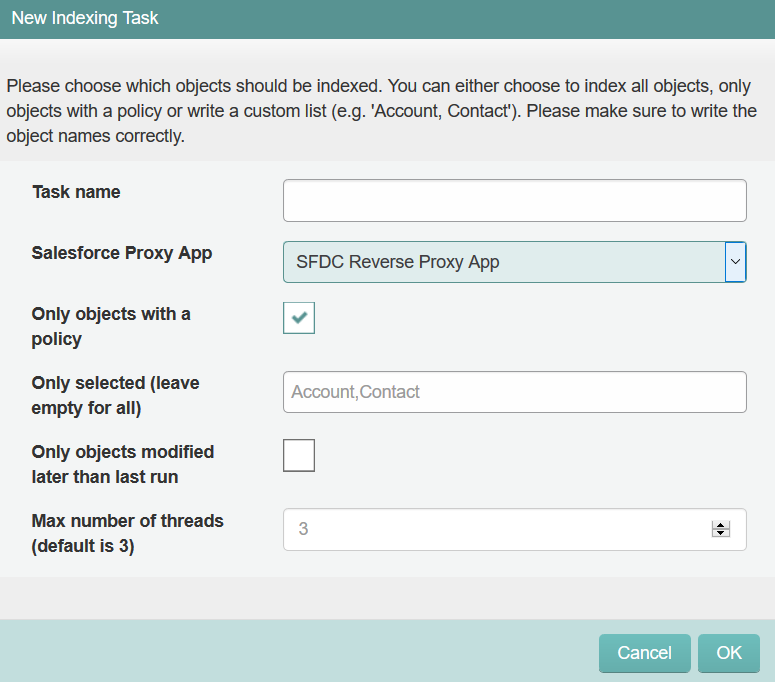
Option Description Task name Enter a unique and meaningful name for the task. Salesforce Reverse Proxy App Select the Salesforce reverse proxy app (Indexing will be done for the Salesforce instance configured in this app). Only objects with a policy (Default option) Only objects are indexed for which a Salesforce Data Protection Policy is configured. This setting is recommended, since it will reduce time for indexing significantly. Only selected (leave empty for all) If Only objects with a policy is unchecked, enter the API NAMES of the objects to be indexed (as comma separated list). For standard objects, LABEL and API NAME are identical. Indexing will only be done for these objects. Important: Since for Custom Objects LABEL and API NAME are different, please be sure to enter the object's API NAME. You can find the API NAME of the corresponding object in the Salesforce Object Manager in the API NAME column.Figure 3: Example: API NAME of a custom object 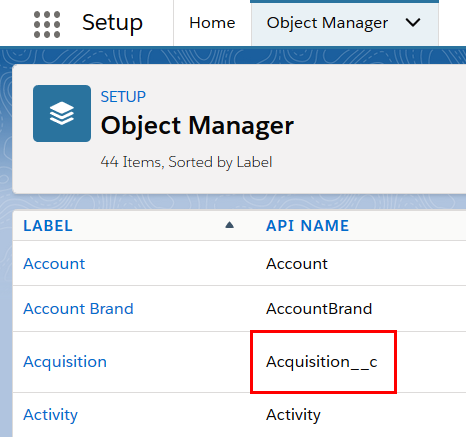 Note: The background indexing of the ObjectType ContentVersion (= files) is currently not supported.Note: Please be sure to write the object names correctly.
Only objects modified later than last run Check this option to retain the existing index and only index object data which has changed since the last run of the indexing task. Important: Please note the following limitation: If you have checked this option and the list of objects to be indexed is modified before the next run of the indexing task (manually or by adding/removing a policy on an object after "Only objects with a policy" is selected), the last execution time of the task is not updated. This means that the new object type will only get delta updates as well.Max number of threads (default is 3) Enter the maximum number of processor cores to be used. It is not recommended to assign more than half of the available resources in sum to all tasks running simultaneously. If empty, the default 3 will be configured. The new Indexing Task is created and displayed:Figure 4: New Indexing Task created 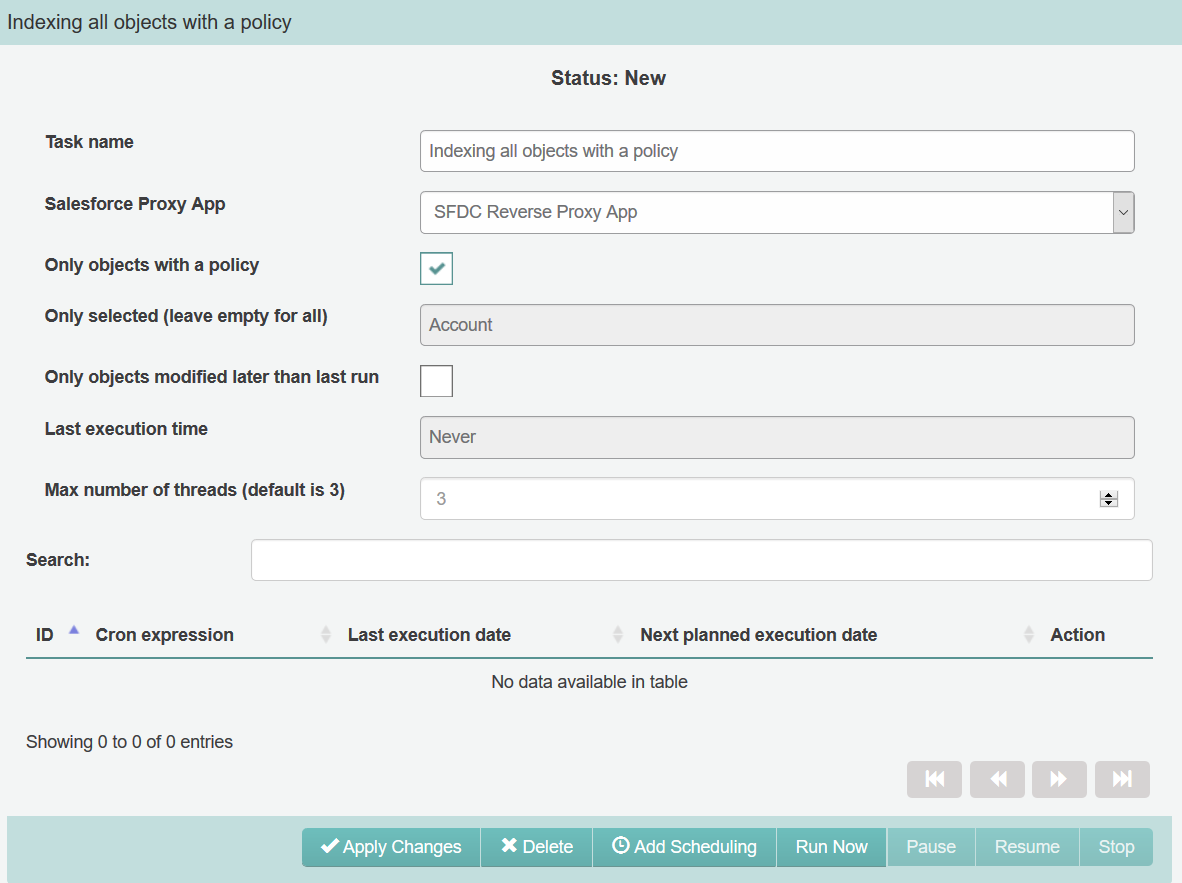
The following options are available (see the buttons below the Indexing Task):
Option Description Apply Changes Apply changes made to the task configuration. Delete Delete the task and all respective schedulings from the DB. Add Scheduling Open the dialog for scheduling when the task should run. Run Now Run the task now (if it is currently not running). Pause Pause a running task. The task can be started again by means of scheduling or by clicking the Resume button. Resume Resume a paused task. Stop Stop a running task. The task can be started again by means of scheduling or by clicking the Run now button. Once you have clicked on Stop, you are requested to choose between a Soft Stop or a Force Stop. A Force Stop may be necessary, if the task is running on a different eperi sEcure Platform node.
-
In the pop-up menu Add Scheduling enter the time
schedule using the well known cron syntax and then click
OK.
Note: A cron syntax is used which is extended by the field seconds.
Figure 5: Enter details of task scheduling 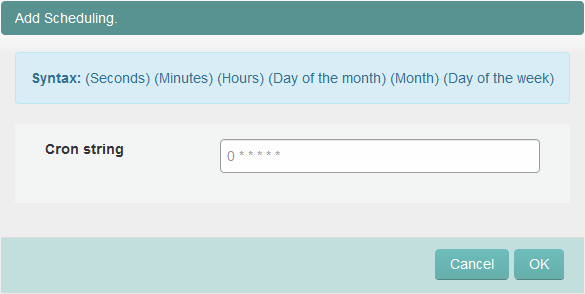 For example, enter the cron expression 0 45 23 * * 6 to run the task every Saturday at 23:45:00 p.m.Details about the task scheduling are available below the task:
You may add or delete schedules for the task as required.
Note: If a task is already running or paused at the scheduled date and time, the execution of the task will be skipped.
Results
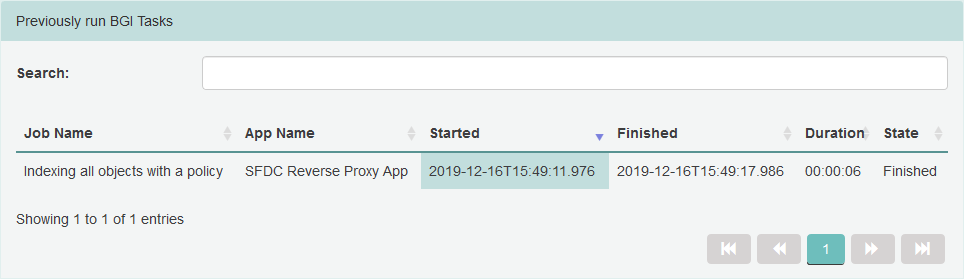
At the end of the page you will also find a history of tasks that have already been executed with details on the duration and status. The history shows all tasks that have been executed within the past 30 days:
| Parameter | Description | Default value |
|---|---|---|
| de.eperi.ca.salesforce.bi.quota.batch.interval | If the batch quota of the Bulk API is exceeded, wait the specified time in seconds before resuming the indexing task. | 12 * 60 * 60 (=12h) |
| de.eperi.ca.salesforce.bi.quota.interval | If the job quota of the Bulk API is exceeded, wait the specified time in seconds before resuming the indexing task. | 24 * 60 * 60 (=1d) |
| de.eperi.ca.salesforce.bi.querybatches.interval | How many milliseconds BGI waits if the processing of batches was interrupted (e.g. because of batch size exceeded). | 10000 (=10s) |
| de.eperi.ca.salesforce.bi.requested.interval | How many seconds a BGI task which has been paused manually cannot restart automatically. | 24 * 60 * 60 (=1d) |
| de.eperi.ca.salesforce.bi.timeout.interval | How many seconds a BGI task which has been paused through timeout cannot restart automatically. | 30 * 60 (=30min) |
| de.eperi.ca.salesforce.bi.batchesperjob | How many batches may be processed per BGI job. | 5000 |
| de.eperi.ca.salesforce.bi.chunksize | How many Salesforce objects are downloaded per batch. | 250000 |
| de.eperi.ca.salesforce.bi.jobduration | How long one BGI job may take (if exceeded, a new one is started and resumes at the same point). | 24 * 3600 (=1d) |
| de.eperi.ca.salesforce.bi.serializer.chunksize | How many objects may be deserialised per batch. | 20000 |
| de.eperi.ca.salesforce.bi.decoding.timeout | How many seconds a BGI indexing task may take to decode a batch of objects. | 120s (=2min) |
| de.eperi.ca.salesforce.bi.encryptresults | If set to 1, BGI will encrypt temporary results. | 1 |