
Creating a new background indexing task
Learn how to create and configure a background indexing task for your Microsoft 365 data in the eperi sEcure Platform.
Before you begin
- Using background indexing requires that Apache Solr has been previously installed and configured. Details regarding the Solr installation & configuration are described in the Administrator Manual for the eperi sEcure Platform.
- You have created and configured a new app for the eperi sEcure Platform in your Azure Active Directory, as described in section Registering a new app in Azure Active Directory.
- You have configured the credentials of the app (Client ID, Tenant ID, and Client Secret) in .
About this task
To enable high-performance searching, filtering and sorting, the eperi sEcure Platform indexes the data of your Microsoft 365 tenant. In certain cases, it may be necessary to update the search index in the background (for example, for data imports or in the case of a broken index). Then you have the option to create and schedule a background indexing task, so that the search index of the eperi sEcure Platform is updated or restored.
Procedure
-
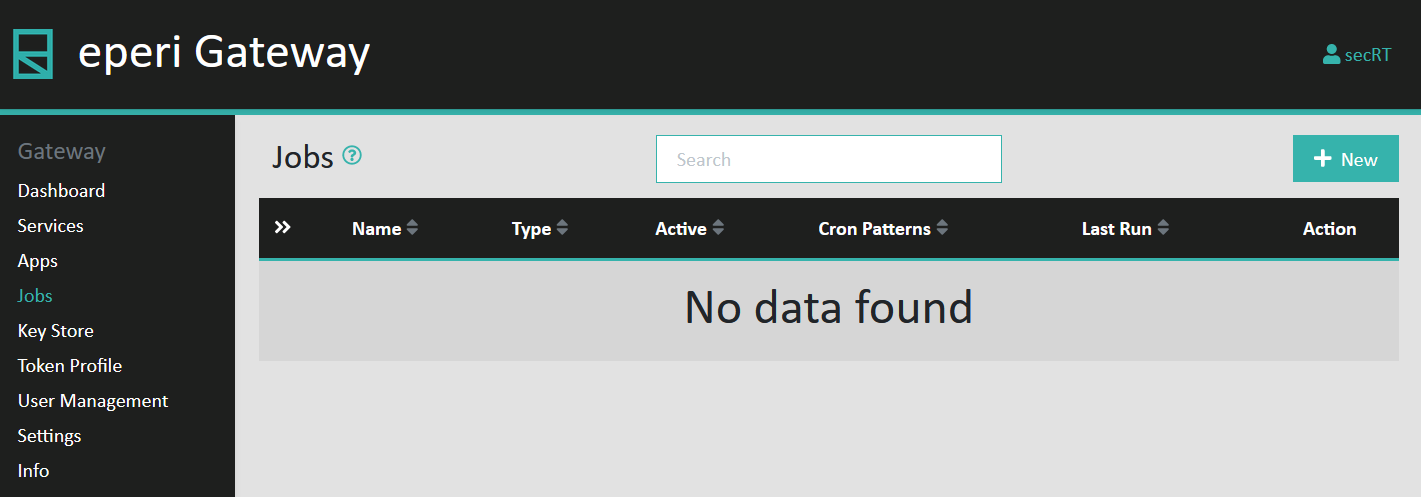
Access the eperi sEcure Admin Console and select Jobs:
-
In the pop-up menu Create Job provide the required
information and then click Submit.
Figure 1: New Indexing Task details 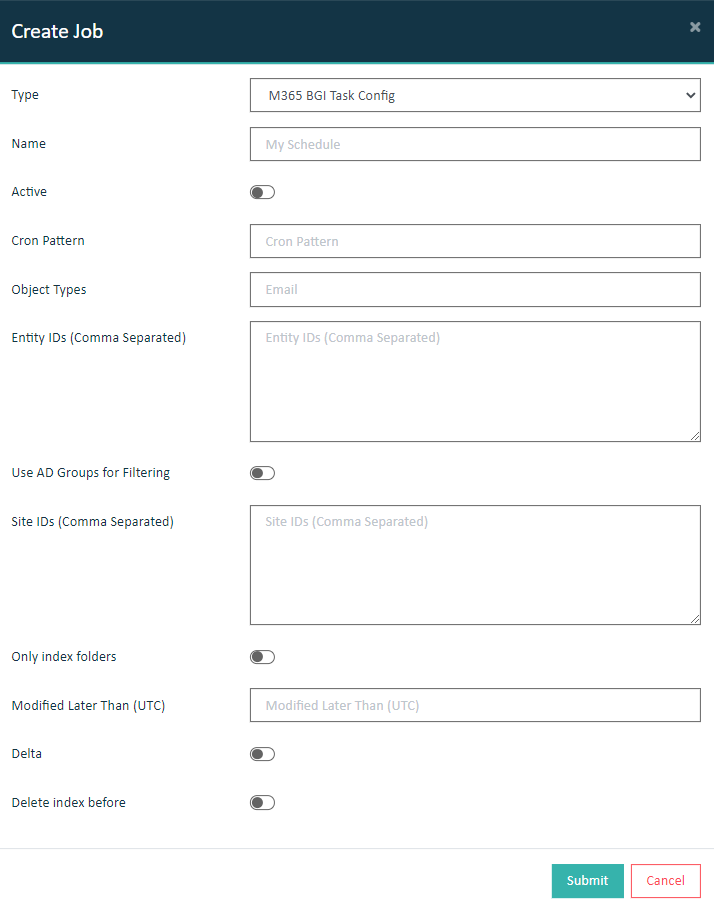
Option Description Type Select M365 BGI Task Config for indexing of Exchange, OneDrive, SharePoint data or Teams BGI Task Config for indexing of MS Teams data. Name Enter a unique and meaningful name for the task. Active Optionally, enable the switch to make the indexing task run on a schedule based on the cron expression defined in the Cron Pattern field. If not enabled, the task is not executed automatically. Cron Pattern Optionally, enter a launching rule for the task. A launching rule is expressed with a cron4j scheduling pattern, whose syntax is equal to the one used by the UNIX crontab entries. You may enter several rules, each separated by a semicolon. Example of a launching rule: 0 45 23 * * 6
This pattern causes the task to be launched every Saturday at 23:45:00 p.m.
Further information about the cron syntax and more examples are for example available here: https://www.baeldung.com/cron-expressions#cron-expression
Object Types Specify the object types to be indexed (as comma-separated list). Possible values for M365 BGI Task Config are: - Email (for the indexing of e-mail data)
- Event (for the indexing of calendar events)
- OneDrive (for the indexing of files stored in OneDrive)
- SharePoint (for the indexing of files stored in SharePoint; currently only files in Document libraries are indexed.)
- Chat (for the indexing of chat messages)
- Channel (for the indexing of channel messages)
Entity IDs (Comma Separated) Optionally, enter a comma-separated list of Entity IDs. If specified, only the object data of the corresponding entities will be indexed. Supported Entity IDs are: - User Principal Name (e.g. xyz@demo.eperi-cdp.com)
- M365 User Object ID (e.g. 123456ab-1234-56c7-de8f-9a0123b4567c)
- The value of an AAD attribute defined via the Advanced Setting BGI Attribute for filtering entity Ids. For more information, please refer to Advanced Settings - Microsoft365 Adapter.
Use AD Groups for Filtering Optionally, specify the Display Name or M365 Group Object ID of one or more Azure AD Groups. If specified, only data of members of the defined group(s) is indexed. Site IDs Optional and only relevant for SharePoint: Enter Site IDs or Site Names of SharePoint Sites (as comma-separated list). If specified, only files inside the corresponding SharePoint Sites will be indexed. If nothing is specified, all available SharePoint Sites are taken into account for indexing. Only index folders Optionally, enable the switch to only index folders in OneDrive and SharePoint. If turned off, both folders and files will be indexed. Modified Later Than (UTC) Optionally, enter a point in time to only index object data which has been modified after the given point in time. The entry here is only taken into account if the Delta checkbox is ticked (see below). Enter date and time according to the ISO 8601 standard. For example: 2020-07-23T11:14:15Z
Delta Optionally, enable the switch to activate delta background indexing. When activated, the existing index is retained and only object data is indexed which has changed since the last indexing run or since the point in time specified in the field Modified Later Than (UTC) (see above). Delete index before Optionally, enable the switch to delete the current search index before the indexing task is executed. When enabled, all indexed objects of the configured Object Types are deleted from the index. This may be further limited for Emails and Events to certain user ids by entering them in the User Ids field. Note: Please note that Delete Index Before cannot be used together with- Delta indexing
- partial indexing for files (e.g. with a set of User Ids specified for OneDrive)
The new Background Indexing Task is created and displayed in the Jobs list:Figure 2: New Indexing Task created 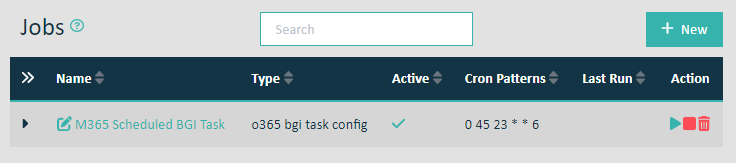
The following actions are available (see the icons in the Action column of the Indexing Task):
Option Description Run now Run the task immediately. Cancel Cancel a running task. Warning: Canceling a running task may result in a broken index and searching not working anymore in Microsoft 365 applications. After you have canceled a task it may be necessary to re-execute it to have a consistent search index.Delete Delete the task and all respective schedulings. Furthermore you may edit the indexing task by clicking on the task name.
Results
If necessary, you can adjust the BGI processing to your use cases. For details about those settings please refer to section Advanced Settings in the eperi sEcure Platform Admin Manual.