
Office365 SharePoint Forward Proxy App
This app is required for the functionality of SharePoint Online while eperi sEcure Platform is operating as a forward proxy.
Dependency
None.
App Settings
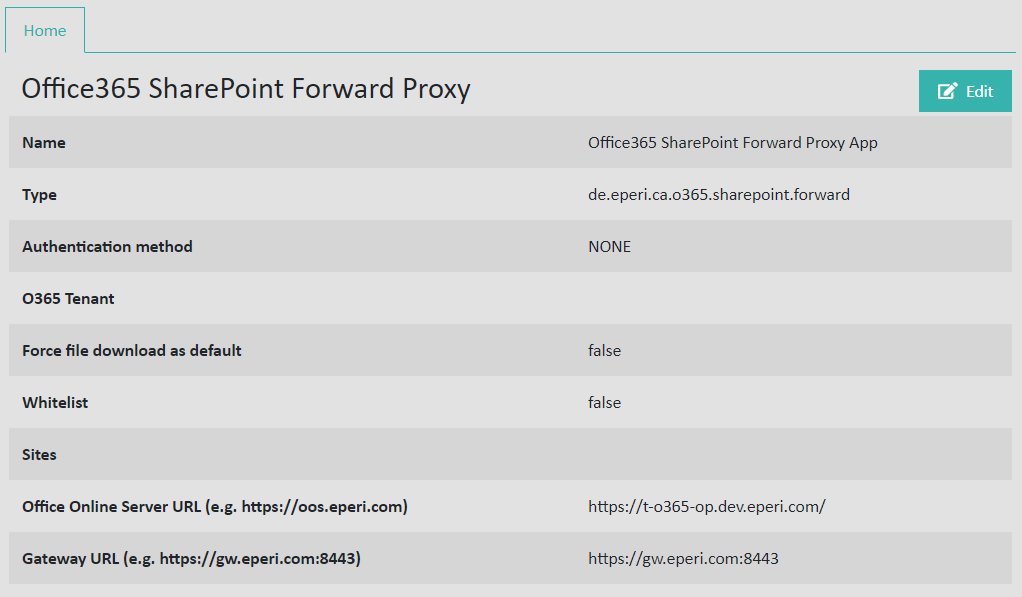
- Log in to the Microsoft 365 admin center.
- Select .
- Find the domain that ends with "onmicrosoft.com".
- The tenant name is the part before "onmicrosoft.com". For example, if your domain is mycompany.onmicrosoft.com, the tenant name is mycompany.
Force file download as default: Optionally set it to true so that upon left-click office documents on SharePoint and OneDrive are downloaded instead of being directly opened in Office Online. With the exception of Access, the download will work with all file types that are mentioned in the following Wikipedia article: List of Microsoft Office filename extensions. We recommend to activate this option, since opening files directly may cause problems in a "gated" Microsoft 365 environment.
In the default configuration (Whitelist set to false and nothing entered in the Sites field), eperi sEcure Platform will encrypt every site collection. If you wish to modify this behavior, please use the options described below.
If Whitelist is set to false, the site collections entered in the Sites field are blacklisted. Those site collections will still be going through eperi sEcure Platform, but will not be encrypted.
Sites: Optionally enter a comma separated list of site collections which should be whitelisted or blacklisted (depending on the setting of the Whitelist option).
Office Online Server URL: Optionally enter the URL of an Office Online Server.
Gateway URL: Optionally enter the URL under which the Office Online Server can reach eperi sEcure Platform. It must be entered with the port on which eperi sEcure Platform is listening.
Adjusting the timeout for file uploads to SharePoint via WebDAV (as needed)
In case you need to upload a file to SharePoint via WebDAV that takes longer than 20 seconds to upload, it is necessary to adjust the value of the following Windows registry key:
HKEY_LOCAL_MACHINE\SYSTEM\CurrentControlSet\Services\WebClient\Parameters\SendReceiveTimeoutInSec
Without setting this key to a higher value, WebDAV will by default run into a timeout after 20 seconds. If your file takes more than 20 seconds to upload, it will fail. The actual fail of the upload will take more than 20 seconds though.
To avoid a timeout you may for example set the key to 1800 seconds which is 30 minutes. Then the upload will work, provided that the file can be uploaded in the given period of time.
Adjusting the filesize for downloads from SharePoint via WebDAV (as needed)
In case you need to download files > 50 MB from SharePoint via WebDAV, it is necessary to adjust the value of the following Windows registry key:
HKEY_LOCAL_MACHINE\SYSTEM\CurrentControlSet\Services\WebClient\Parameters\FileSizeLimitinBytes
By default, the FileSizeLimitinBytes is set to 50000000 bytes (= 50 MB).