Acquiring your license in offline mode
If the server where you want to install eperi sEcure Platform does not have internet access, you can activate your license in offline mode.
About this task
Note: Skip this section, if you have already activated your license in online mode
as described in the section Entering your license and activating eperi sEcure Platform.
Procedure
-
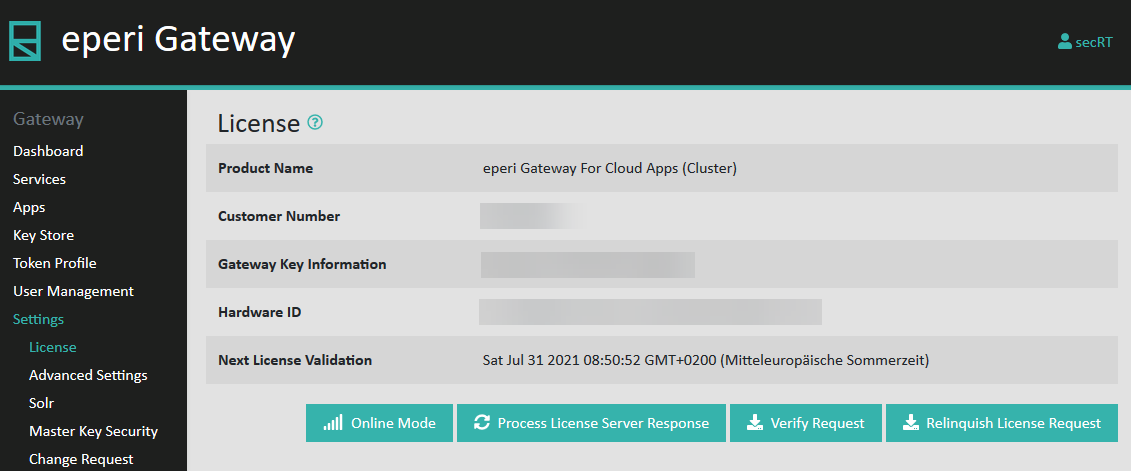
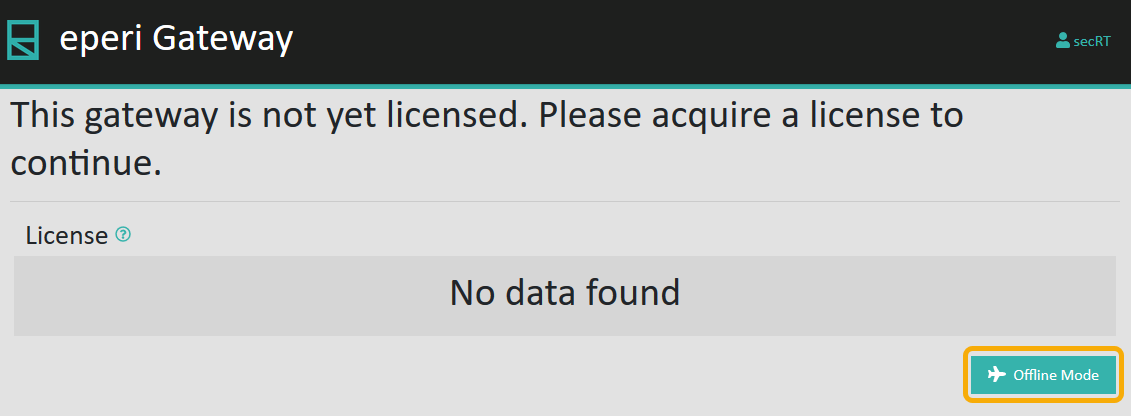
Click Offline Mode on the License
page and confirm the safety query with Yes.
-
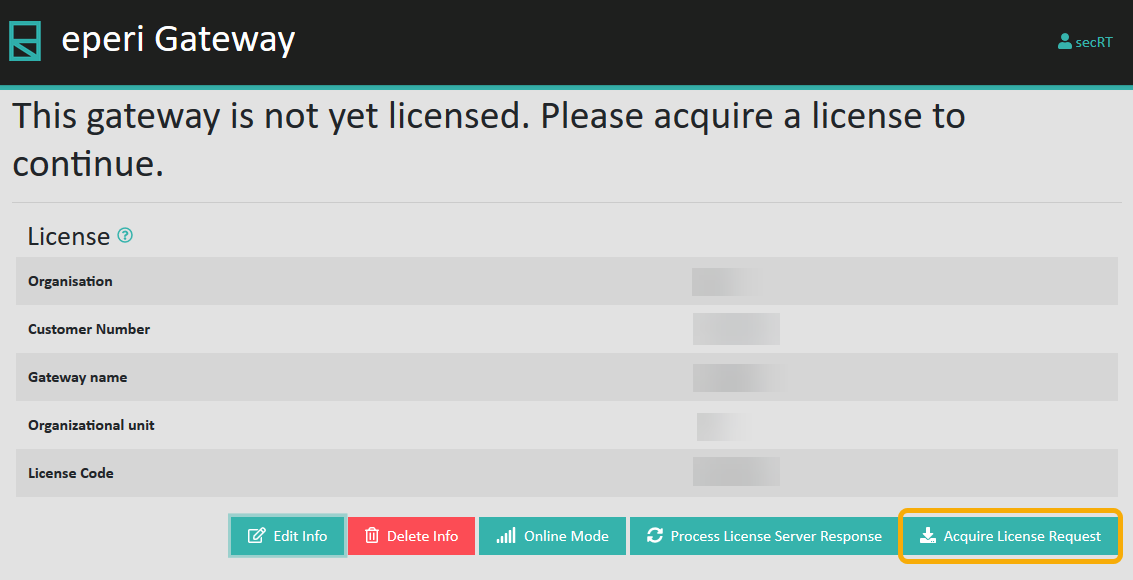
Click Acquire License Request.
-
Enter in the Max Active Nodes field how many eperi sEcure Platform nodes in your cluster should be licensed:
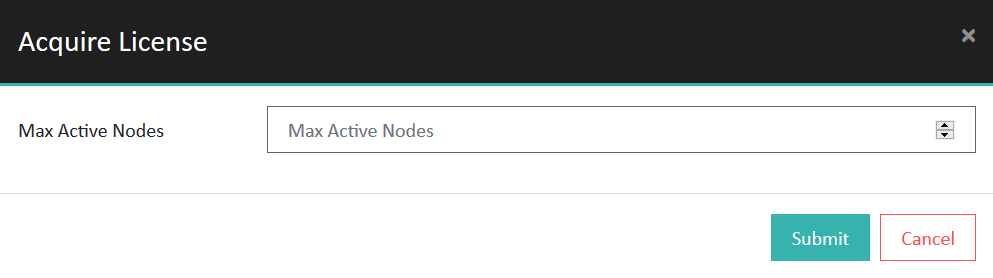 Note: In case of a cluster setup, additional nodes in the cluster that use the same database are now automatically licensed. Please note that only as many nodes are licensed as you specified in the Max Active Nodes field. An additional node only receives a license if an already licensed node is shut down. If you have any questions, please contact our eperi support.
 -
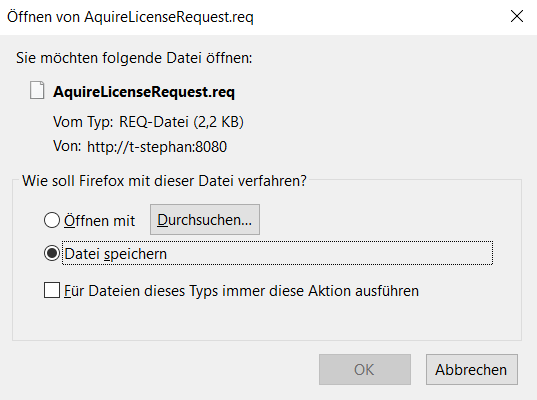
Download the file AquireLicenseRequest.req.
-
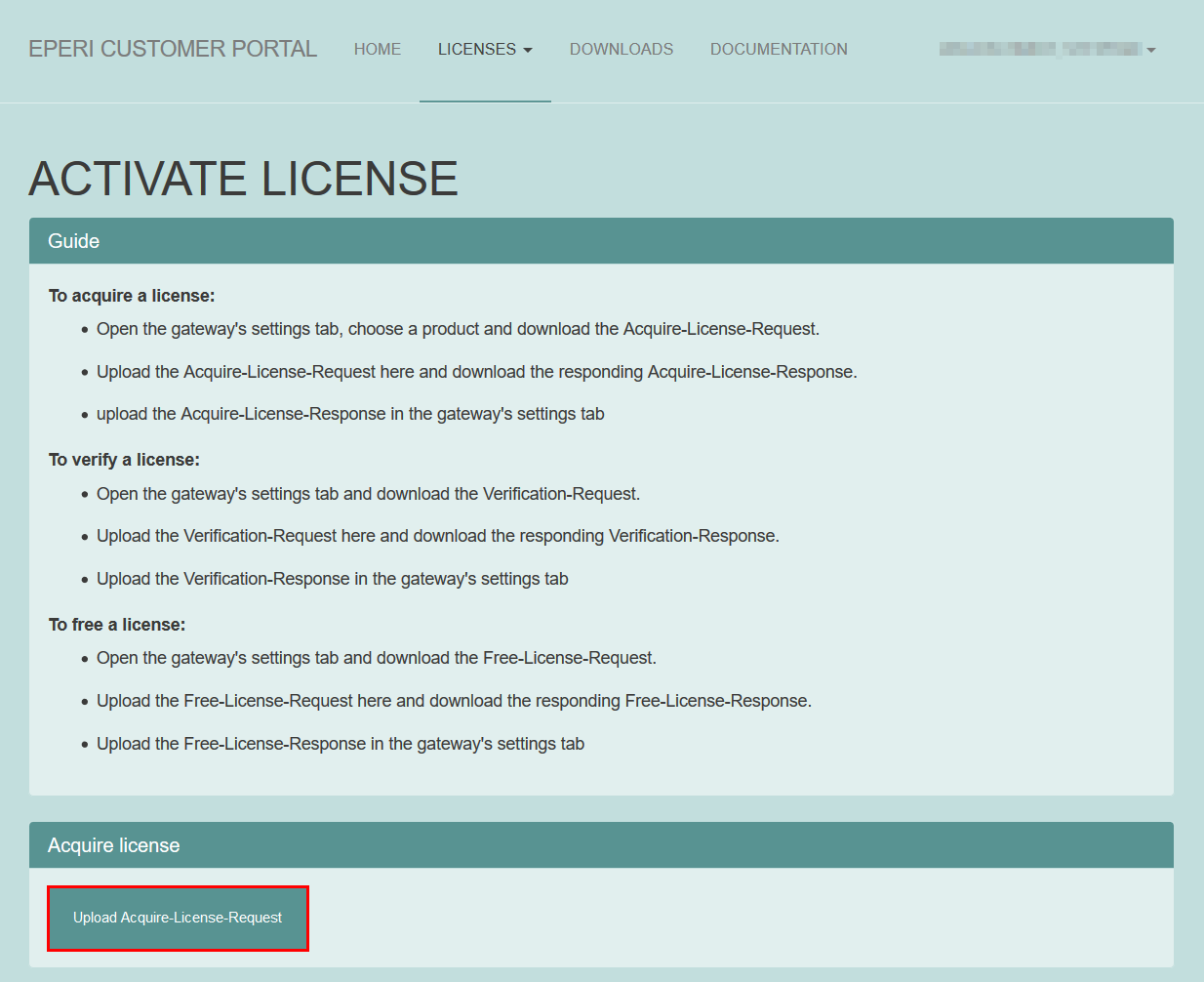
In the ACTIVATE LICENSE menu click Upload
Acquire-License-Request.
-
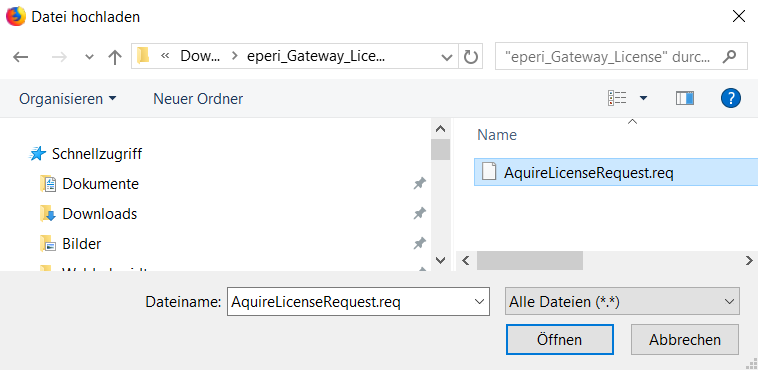
Select the AquireLicenseRequest.req file from the location
where you previously saved it.
 The successful upload to the eperi Customer Portal will be confirmed with a corresponding message.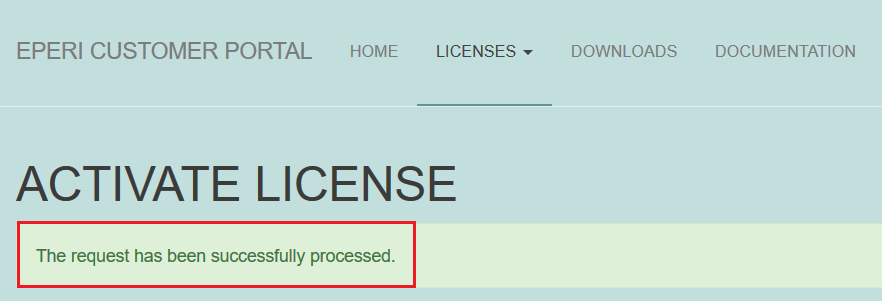
-
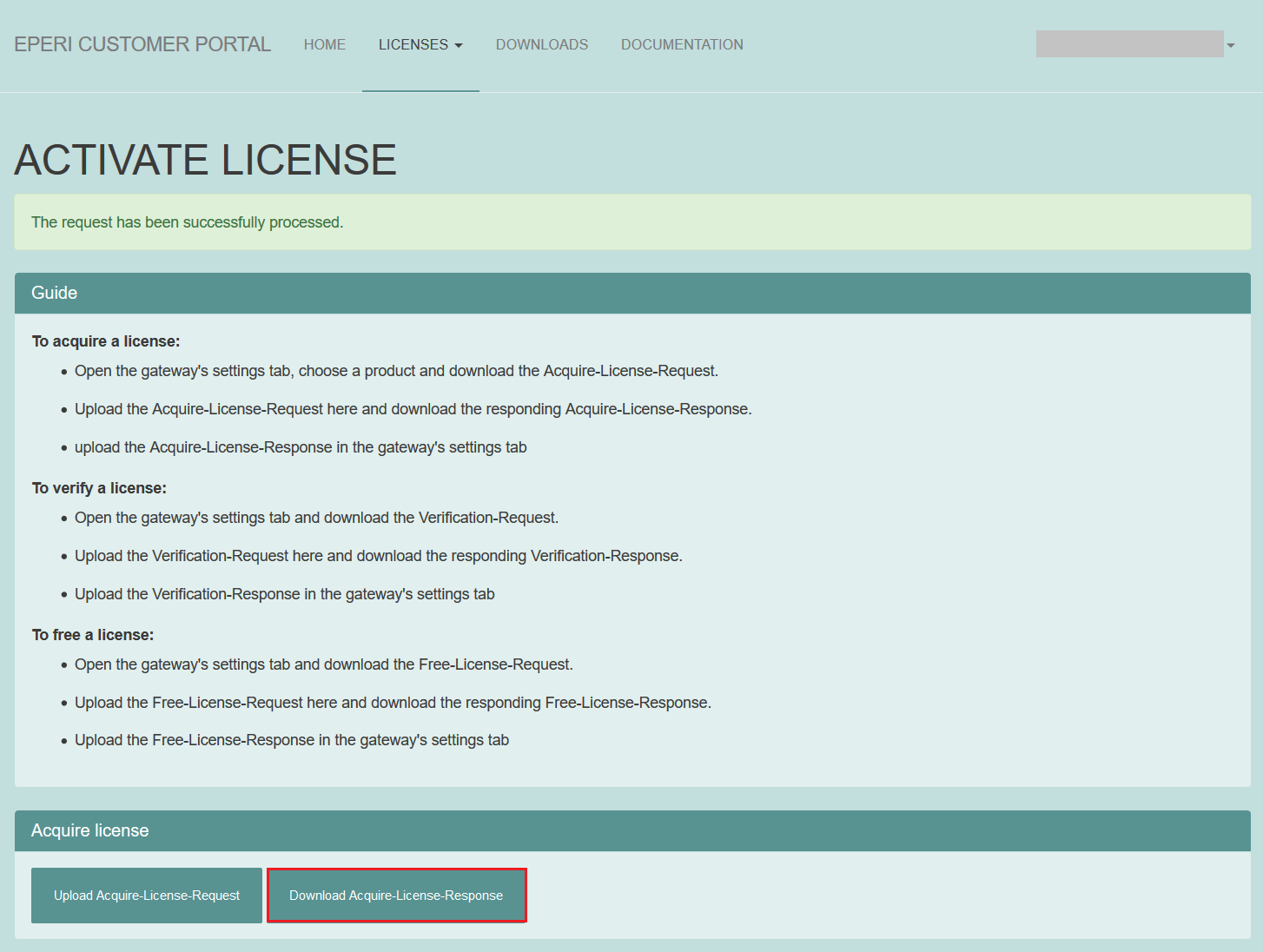
Click Download Acquire-License-Response.
-
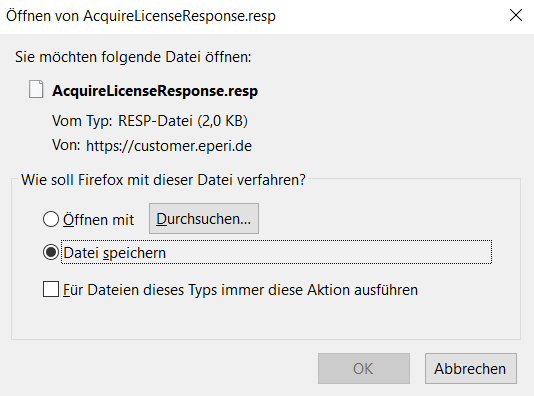
Download the AquireLicenseResponse.resp file.
-
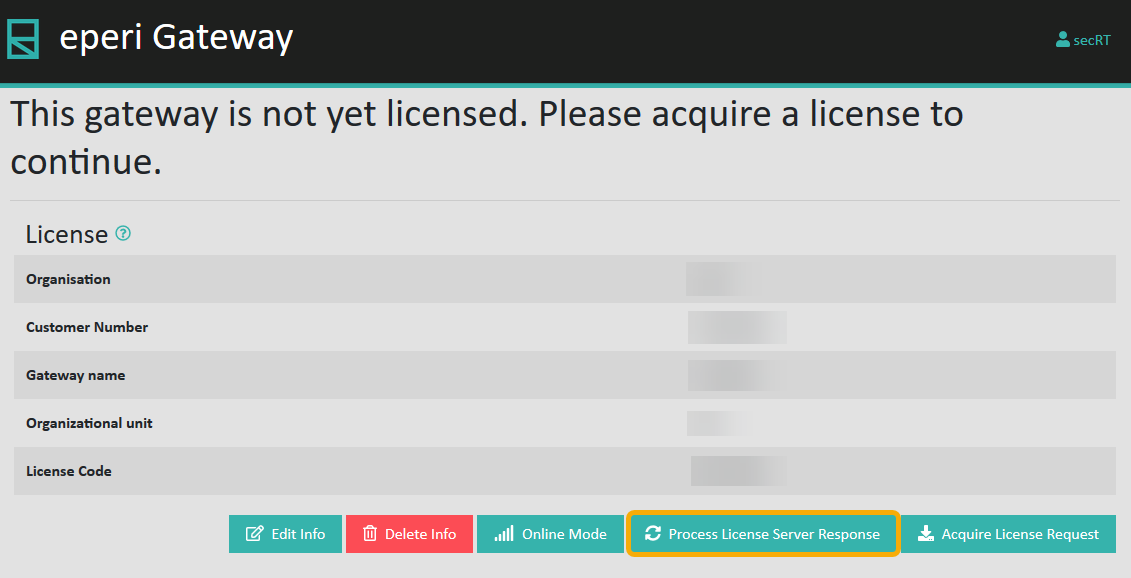
Switch back to the eperi sEcure Admin Console and click
Process License Server Response.
-
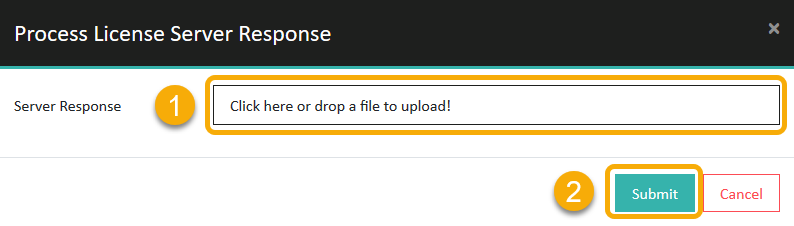
In the pop-up menu click the Server Response field and
select the AquireLicenseResponse.resp file from the
location where you previously saved it, then click
Submit.
 A message indicates that the server response was processed successfully: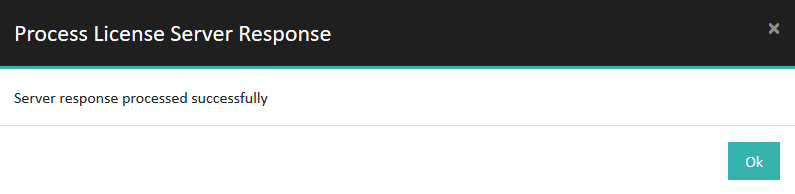
Results