Configuring the database connections

Configure the connections to the participating databases.

Before you begin

Please note the DBMS supported by eperi sEcure Platform and the respective requirements for the DBMS. For details, see section Installing the eperi sEcure Platform database.

Procedure

  1. Access the eperi sEcure Admin Console.
  2. Select the Apps page in the main menu.
  3. View the previously created In DB App.
  4. Select the Database Connection tab, then click + New.
    Figure 1: In-DB App - New Database Connection
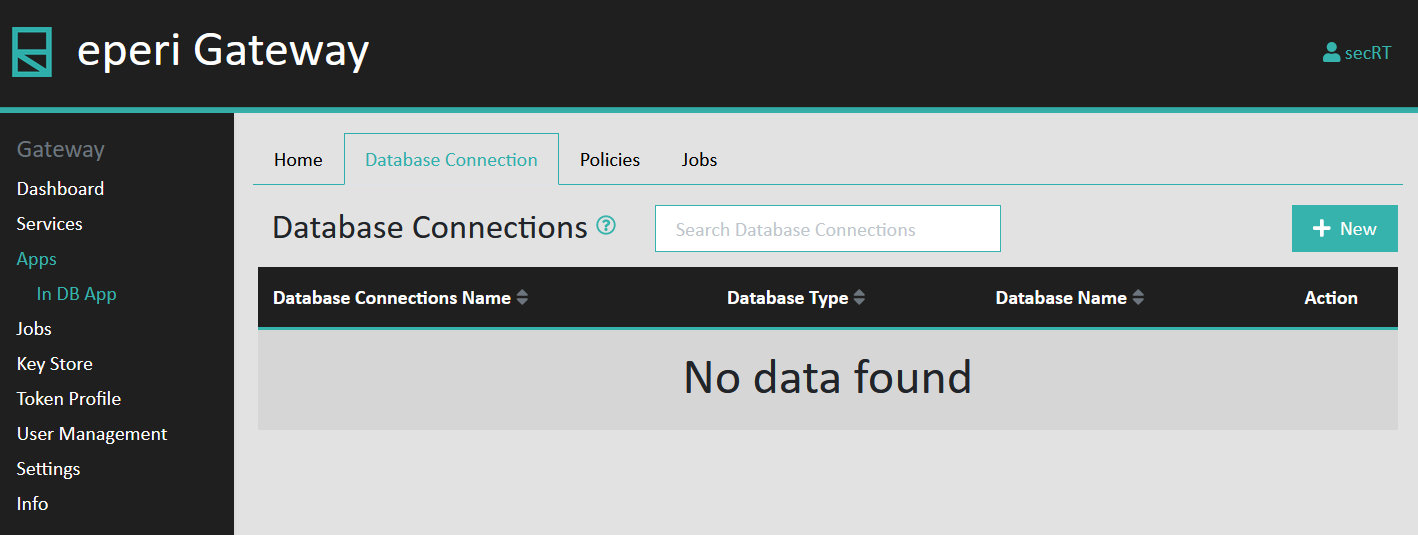
    In-DB app - New Database Connection
  5. Enter a name of your choice for the Database Connections Name, provide the connection details, then click Submit.
    Figure 2: Enter database configuration
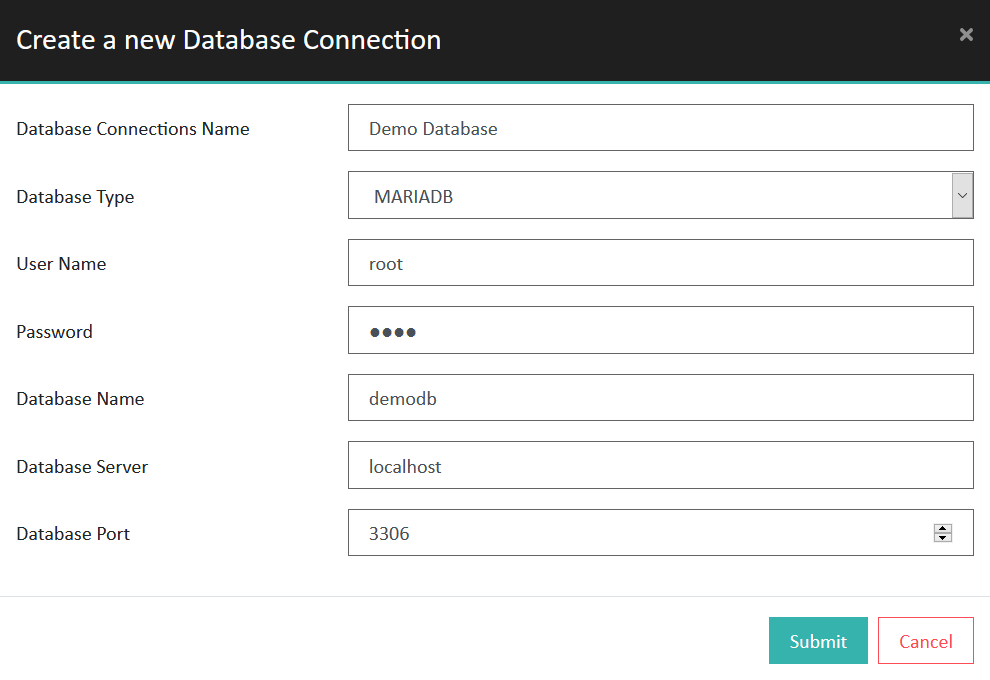
    Enter database configuration
  6. Configure the other databases involved.

Results

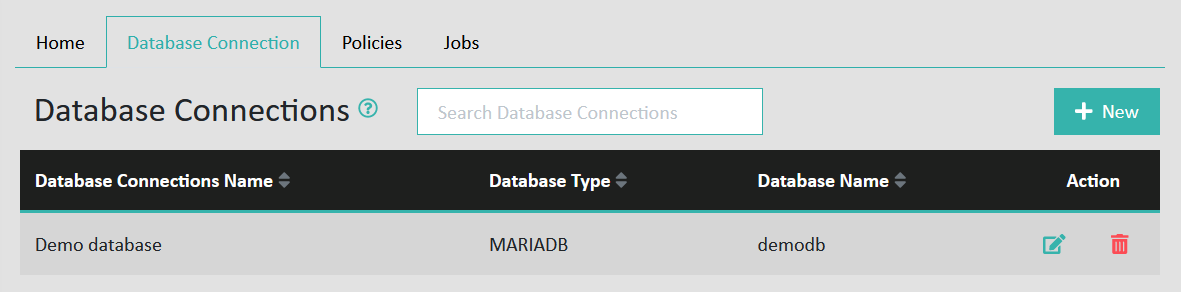
You have successfully configured the connections to the involved databases, as shown in the example below:
Figure 3: Example of configured database connections
Example of configured database connections

What to do next

Continue with Setting up the In-Database data protection policy.