
Setting up the In-Database data protection policy
Configure the source and destination database tables and which data in the source table should be tokenized or encrypted.
Before you begin
Procedure
-
Select the Database Connection tab, then click
+ New.
Figure 1: In-DB app - New In-DB Policy 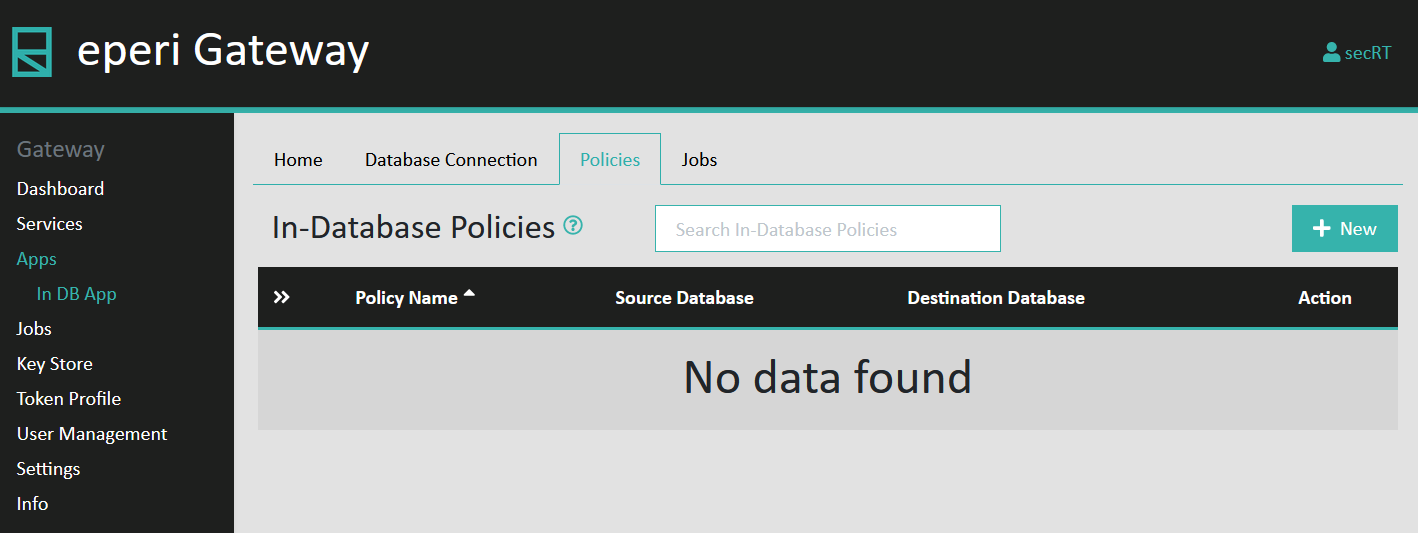 A pop-up menu is displayed, prompting you to enter the details for the new In-Database policy setting.
Figure 2: Details of new In-DB policy setting 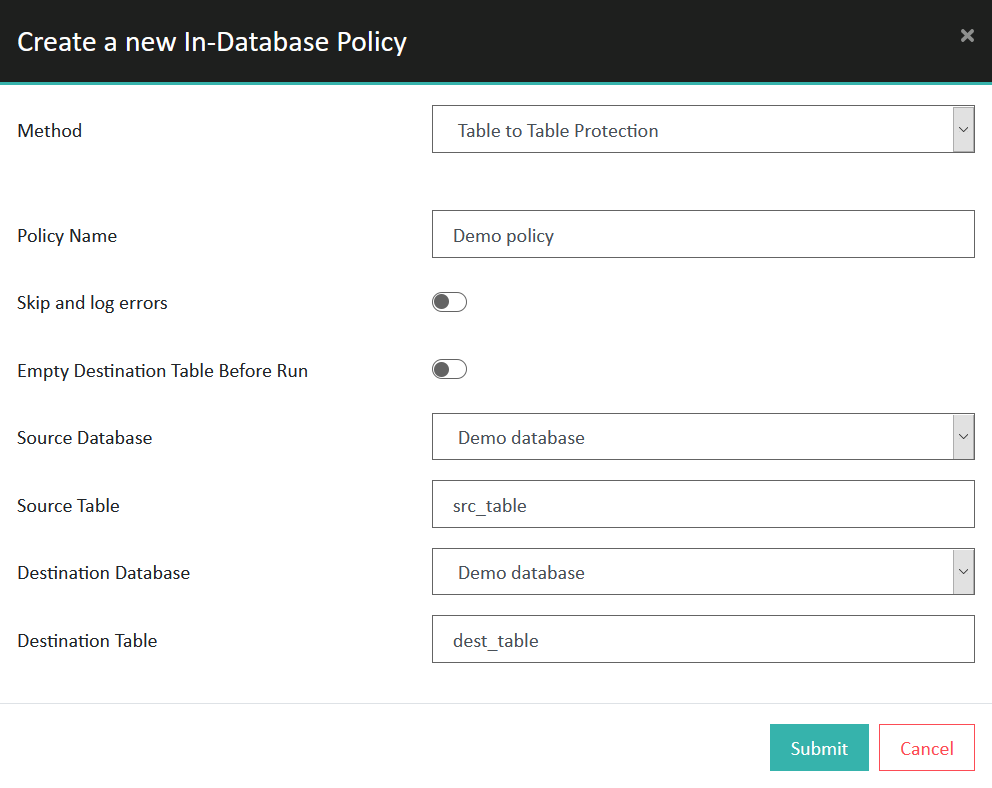
-
Provide the required information and then click
Submit.
Option Description Method Select the desired method for the In-Database Policy: - Table to Table Protection: If selected, the original value in the source table remains untouched and the encrypted/tokenized value is stored in the destination table.
- In-Table Replacement: If selected, the original value in the source table is replaced by the encrypted/tokenized value. In this case, the fields Destination Database and Destination Table are hidden.
Policy Name Enter a unique name for the policy. Skip and log errors (Optional) When activated, the eperi sEcure Platform will recognize errors during the tokenization process and logs the following error message:
RequestId: REQUESTID - Error creating token: Value: VALUE - Token profile: TOKENPROFILEID
Errors are logged in the catalina.out file.The tokenization process continues, even if errors occur in-between.
Note: It is only possible to recognize errors occurring while a token is created. Errors occurring while writing the tokenized data back to the destination database will not be captured and result in another error.Empty Destination Table Before Run (Optional) When activated, the destination table is emptied before the policy is executed. Source Database Select the source database. Source Table Enter the name of the source table. Destination Database Select the destination database. (Only required if method Table to Table Protection is selected.) Destination Table Enter the name of the destination table. (Only required if method Table to Table Protection is selected.) The new policy is displayed in the list.Figure 3: New In-DB policy created 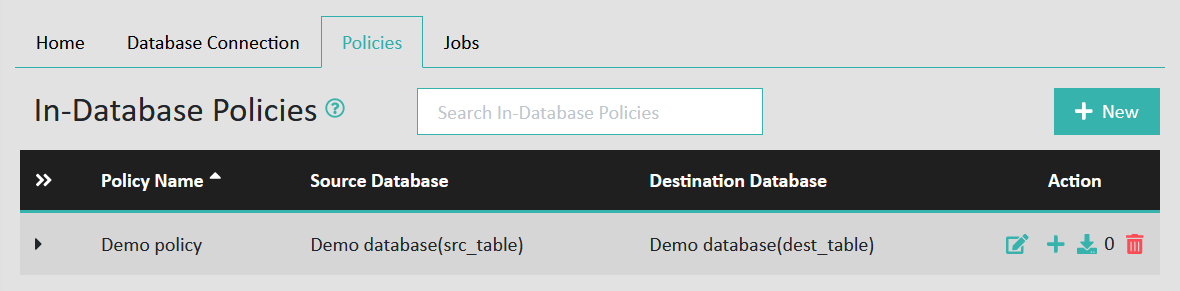
-
In the pop-up menu Add Column provide the required
information and then click Submit.
Important: If you are using Oracle as DBMS, please neglect any "GENERATED ALWAYS" identity column. Do not even configure it with the option Retain Values.
Figure 4: In-DB policy - Add table column 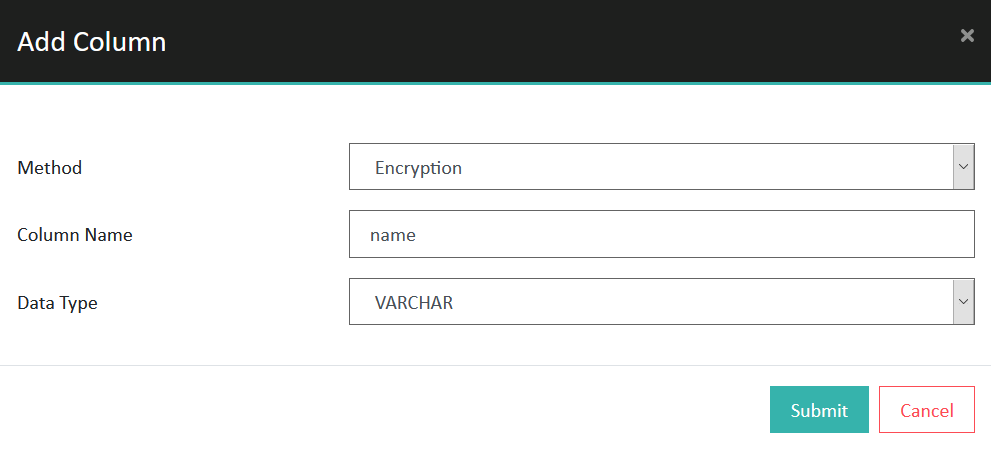
Option Description Method Select the desired data protection method for the column: - Retain Values: If selected, the values of this column should be retained.
- Encryption: If selected, the values of this column should be encrypted.
- Tokenization: If selected, the values of this column should be tokenized. If selected, please also select the Token Profile that should be applied.
- StaticReplacement: If selected, the values of this column are replaced by a static text.
Column Name Enter the name of the table column. Data Type Select the data type of the table column. Token Profile If you have selected Tokenization as token profile, select the token profile that should be applied. Replacement Text If you have selected Static Replacement as token profile, you can enter a text which should replace the original values of this column.