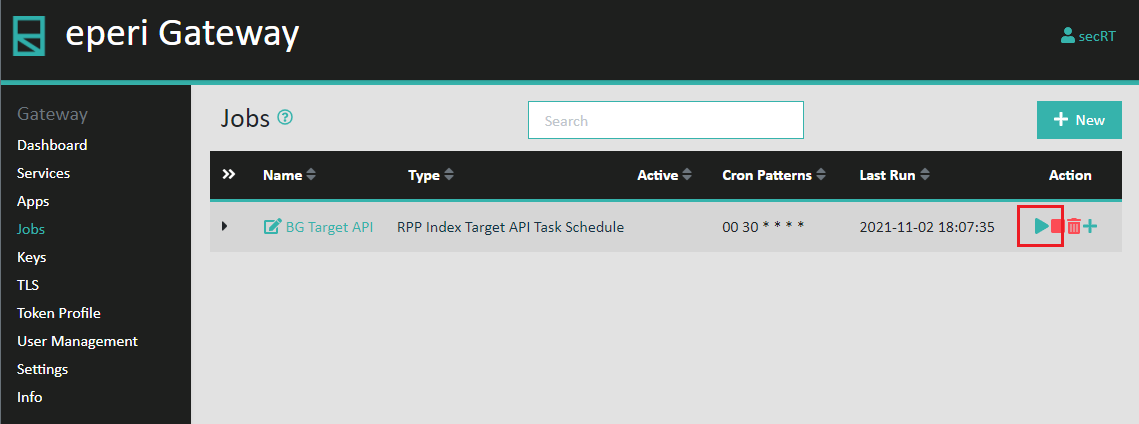
Setting up BG Task Schedules with Target API
This Background Task option calls the existing protected data from provided URI of an API and unprotects and indexes the retrieved data in a target collection.
Before you begin
About this task
Procedure
-
Select the Jobs tab and click on +New.
Figure 1: New BG Task Schedule 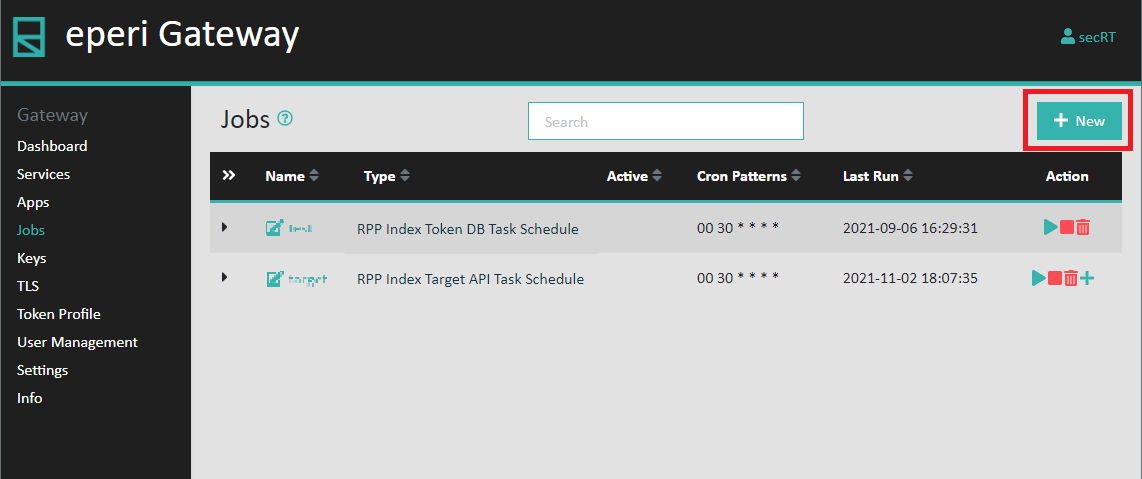
-
In the pop-up menu select the Type RPP BGI Target API Task Config and provide the required information and then click
Submit
Figure 2: New BG Task Schedule 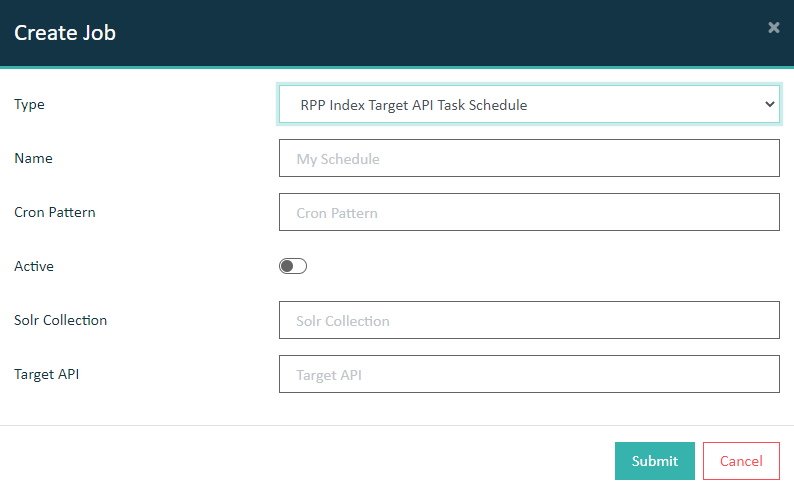
Option Description Name Provide a name of your choice for the endpoint. Active Set the switch on if you want BG Tasks to run on scheduled cron patterns. Cron Pattern Provide a cron pattern for the schedule Target URI Provide the URI of the target system to retrive the data to be indexed (e.g.,myapi.eperi/index) Solr Collection Provide the name of the Solr collection where the data should be indexed. -
Back to the Jobs tab select (+) Add
new field configuration to endpoint to configure the field to
unprotect and index.
Figure 3: New Field Configuration 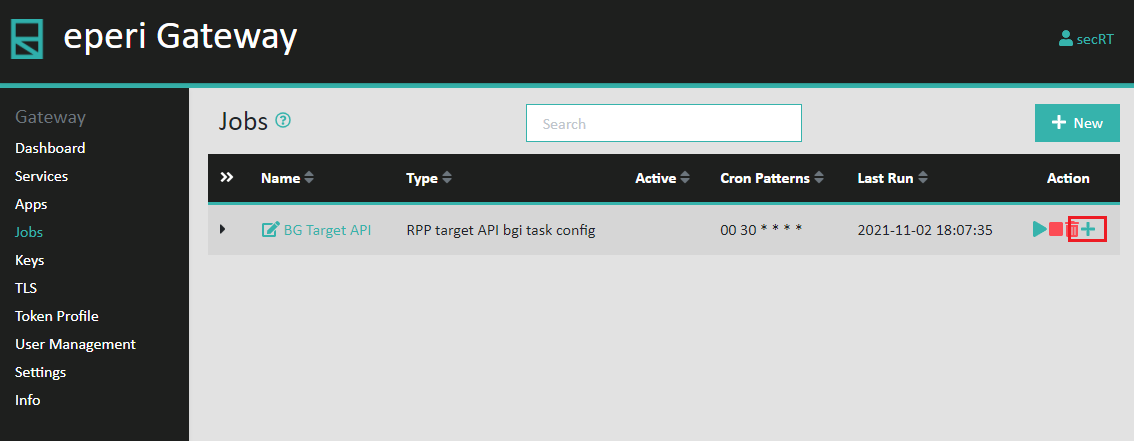
-
In the pop-up enter a valid JSON Path to the JSON Key in
your request body and select a Token Profile, then click
Submit.
Note: More information on how JSON Path works can be found in the official documentation right here https://github.com/json-path/JsonPath#path-examples "JSON Path on GitHub"
-
Endpoint configuration with encryption
Important: If you want to use search functionality, please use tokenization as your protection method.Select Encryption as method if you want your data to be encrypted.
Figure 4: Details for endpoint configuration with encryption 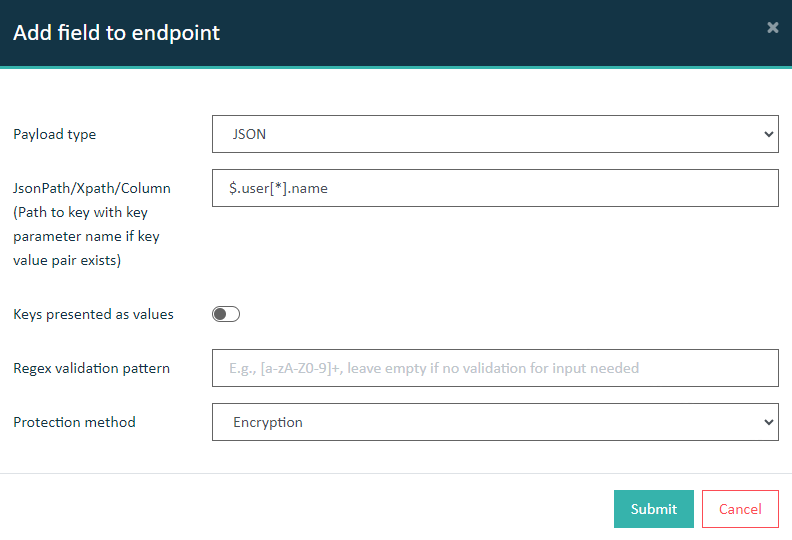
-
Endpoint configuration with tokenization
Select Tokenization as method and pick a token profile from the dropdown below if you want your data to be tokenized.
Figure 5: Details for endpoint configuration with encryption 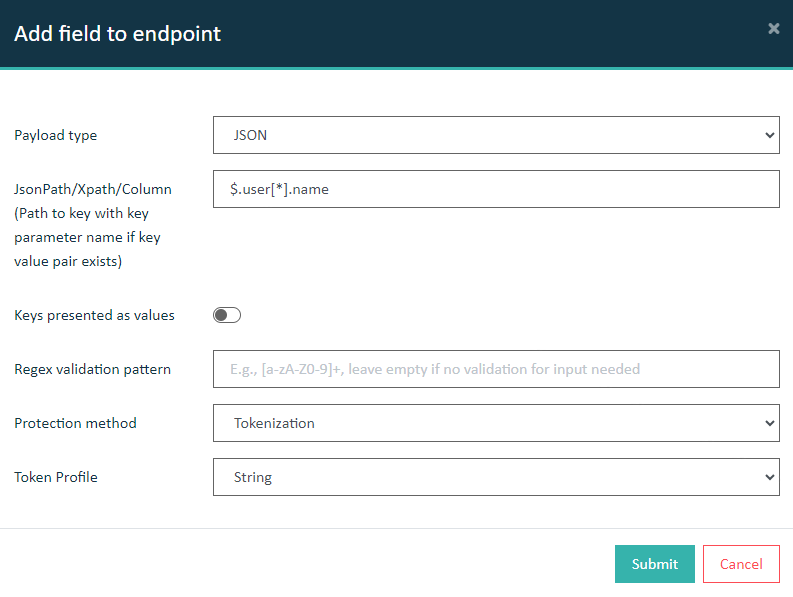
-
Endpoint configuration with encryption
-
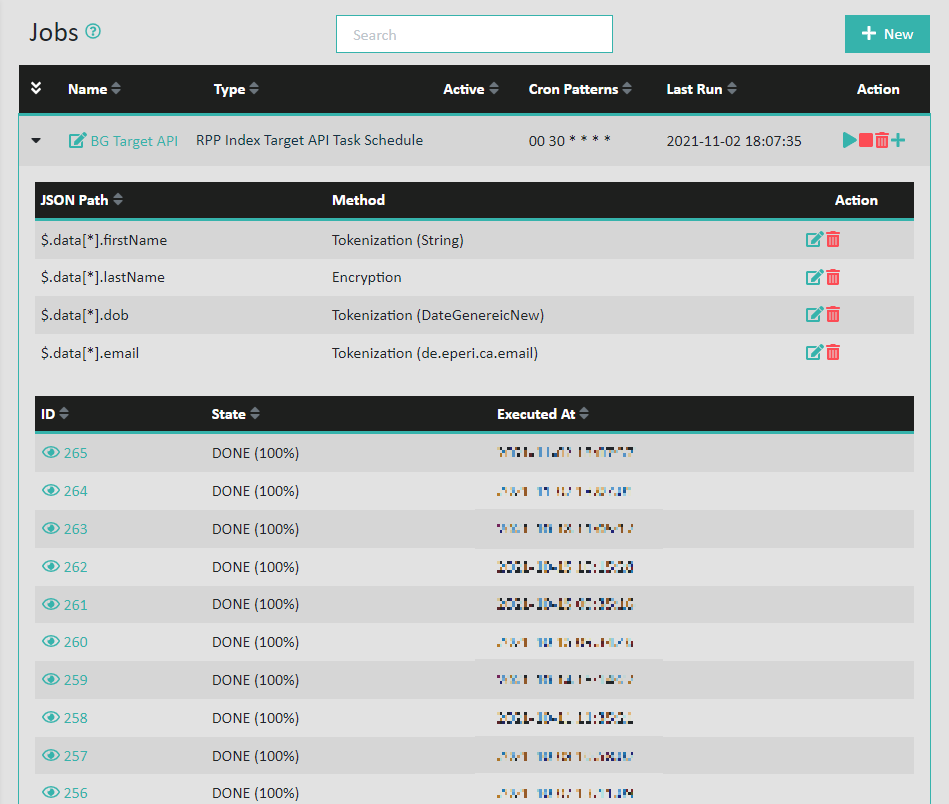
After the field configs are configured, they can be displayed using the Expand Button next to Schedule name,
created configs can be edited and deleted respectively on the left side of each field config.
Figure 6: Expanded Row 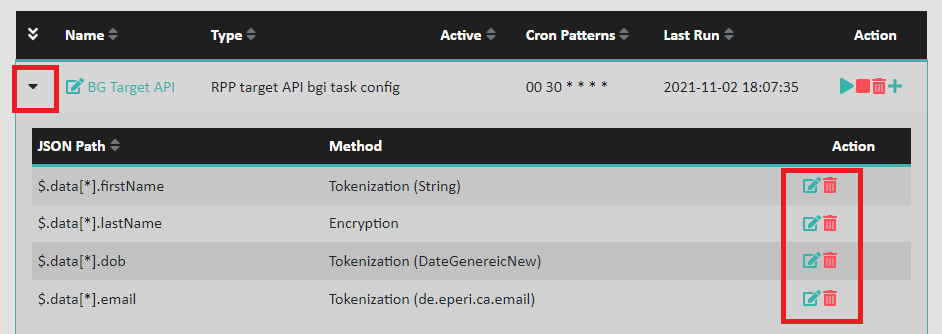
Results