Accessing the Admin Console

How to access the eperi sEcure Admin Console.

Procedure

  1. Launch a web browser and enter the URL for the eperi sEcure Admin Console using the following syntax: https://<eperi sEcure Platform hostname>:8443.
    For example, if eperi sEcure Platform is installed on a server with the hostname crm.example.com, access the Admin Console using the following URL: https://crm.example.com:8443.
  2. Log in with your administrator account.
    Note: After the initial installation you have to log in with the default user secRT.

Results

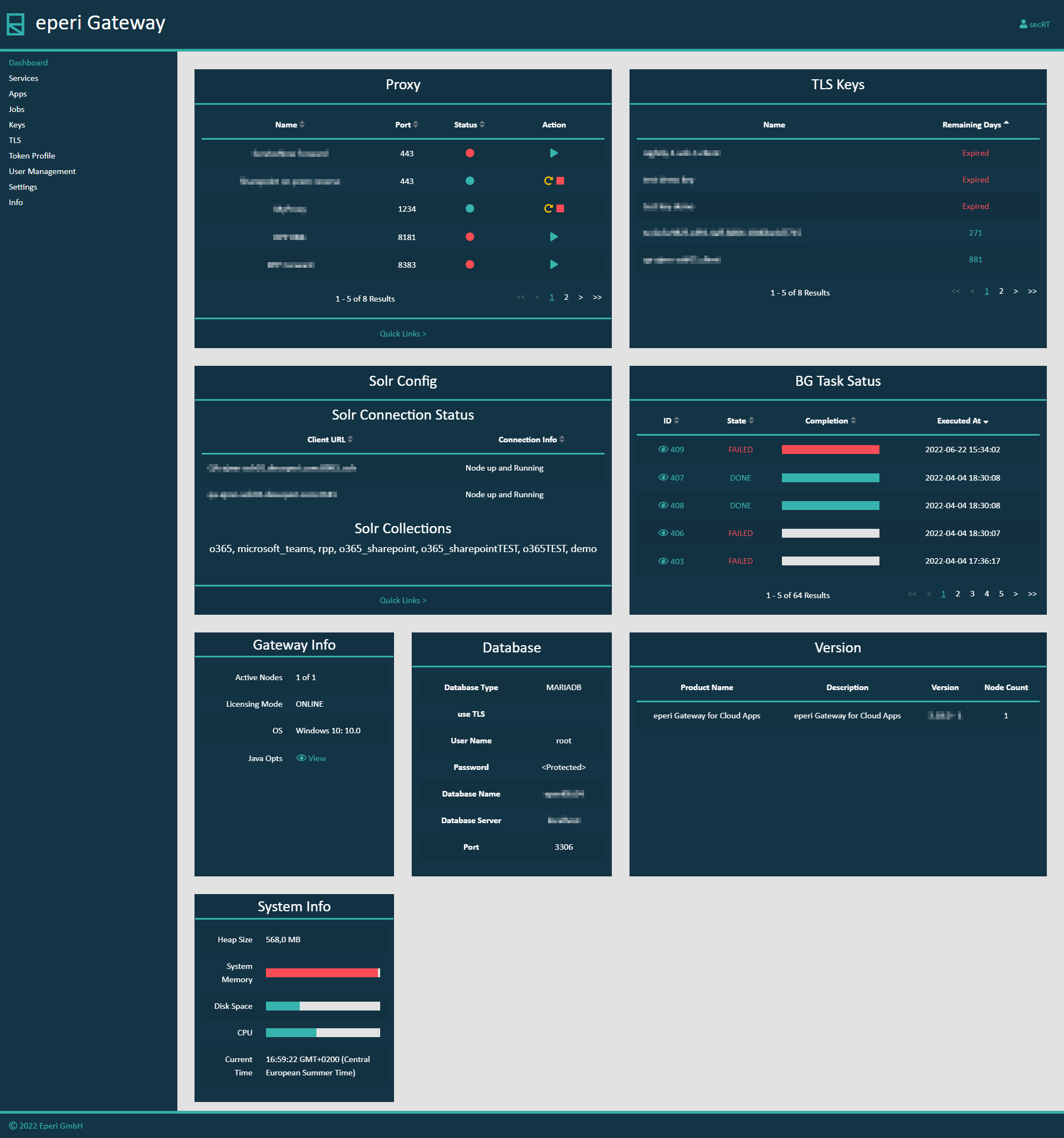
After logging in successfully, you are on the Dashboard page of the eperi sEcure Admin Console. You now have access to the administrative functions of the eperi sEcure Platform, according to the authorization roles assigned to your administrator account.
Figure 1: eperi sEcure Admin Console
eperi sEcure Admin Console
On this page, you will now see the following detailed metrics:
  • Proxy Status
  • TLS Keys Expiration Dates (and Warnings)
  • Solr Connection Status and Collection List
  • BG Task Status
  • Platform Info
  • Database Info
  • eperi sEcure Platform and Adapter Versions
  • System Info

You can get to the different pages either via the menu on the left or via Quick Links in the content area.