Managing encryption keys
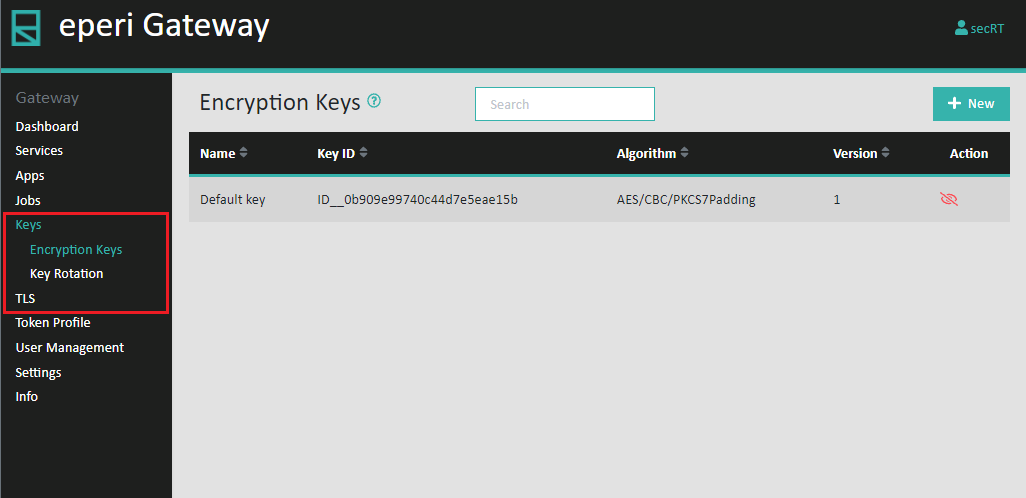
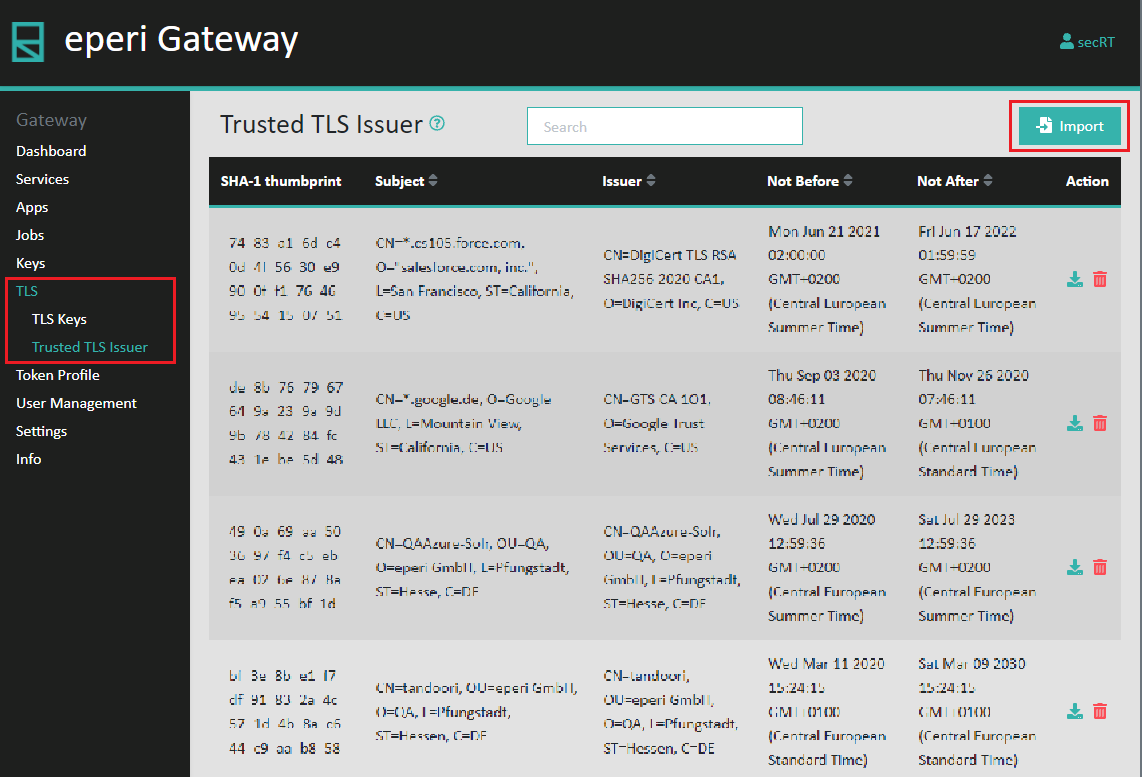
In the Keys and TLS tabs, you have a number of options, such as managing HSM encryption keys, importing certificates, creating new keys and changing the key rotation settings.
Note: Please note the following changes as of release 19.15.1.0:
- The option to manually create encryption keys is omitted. (Exception: Creating references to HSM encryption keys, see Configuring HSM encryption in eperi sEcure Platform.)
- When installing a new eperi sEcure Platform or upgrading to a release >= 19.15.1.0, 10,000 encryption keys are automatically generated at once. Those keys are not displayed in the Keys tab.
- In case of a new installation, the Key rotation settings are set by default to "choose a random key per encryption" and the automatically generated keys are used.
- In case of an upgrade, one of the existing encryption keys can still be used or the automatically generated keys. This can be configured in the Key rotation settings, see section Setting the key rotation.
Note: Please note the following changes as of release 20.5.1.0:
- There is a new option to create a set of 10,000 new encryption keys which are then used in random key mode, see Creating new encryption keys.
With the option Import option under TLS (TLS Keys) tab, you have the option to import a PKCS #12 keystore, that the eperi sEcure Platform can use for SSL / TLS encryption. This allows you to configure a reverse proxy for a dedicated certificate that is trusted within your corporate network, or to use a publicly trusted certificate that you may have purchased.