
Changing the password of your administrator account
You can change the password of your administrator account at any time via the admin user menu.
Procedure
-
To open the admin user menu, click the user icon in the top right corner of the
eperi sEcure Admin Console.
Figure 1: Open the admin user menu 
-
In the admin user menu select the Change Password
option.
Figure 2: Select Change Password option 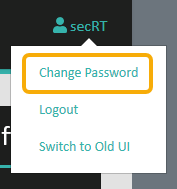
-
In the pop-up menu enter your current and your new password.
Figure 3: Enter old and new password 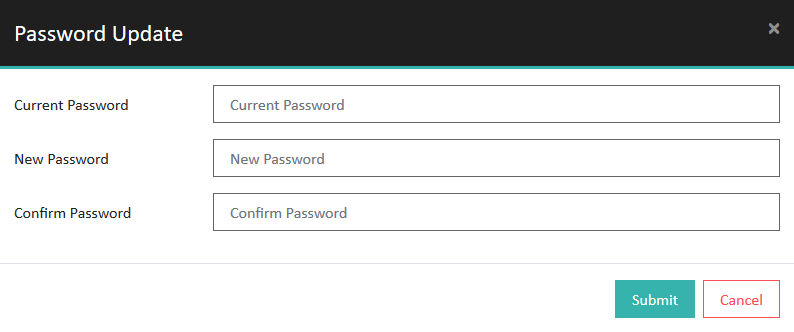 Note: The new password must adhere to the password policy as configured in the Admin Console settings. By default the password must adhere to the following rules:
- Must be at least 12 characters in length.
- Must contain an upper case character.
- Must contain a lower case character.
- Must contain a number.