
Performing a downgrade on eperi sEcure Platform

How to downgrade your current eperi sEcure Platform installation to a previous release.

Before you begin

  • eperi sEcure Platform has been installed using the automated installation packages.
  • A user with admin rights is required.

About this task

Important: In a cluster setup with multiple eperi sEcure Platform nodes proceed as follows:
  1. Shut down all eperi sEcure Platform nodes in the cluster.
  2. Back up the eperi sEcure Platform and Token database.
  3. Perform the downgrade of the first eperi sEcure Platform node as described below while keeping the other nodes offline.
  4. Proceed in the same pattern with all other eperi sEcure Platform nodes.
Important: Before performing the downgrade, please refer to the Upgrade Notes for the Release Notes of the version you wish to downgrade to.

Procedure

  1. Connect to the target server using your preferred ssh tool (e.g., PuTTY) and log in.
  2. Shut down the eperi sEcure Platform services by executing the following commands:
    Note: The systemctl command is valid for Ubuntu 16.04 and higher. For older versions, please use the service command.
    Important: In a cluster setup, shut down every eperi sEcure Platform instance! This is very important to keep the eperi sEcure Platform and Token database consistent!
    sudo systemctl stop eperi-gateway
    sudo systemctl stop eperi-milter
    sudo systemctl stop postfix
  3. Backup the eperi sEcure Platform and token database according to the procedures defined in your company.
  4. Download the installation packages of the desired release from the eperi Customer Portal.
  5. Upload the desired installation packages to the target system.
  6. Option 1: To downgrade the adapter for your respective SaaS application (e.g., Salesforce) manually, perform the following substeps (otherwise continue with the next main step):
    1. If applicable, copy the desired adapter file for your respective SaaS application (e.g., Salesforce) into the Tomcat WEB-INF/lib directory:
      sudo cp ca.salesforce-<version>.jar /opt/eperi/gateway/tomcat/webapps/ROOT/WEB-INF/lib
    2. Copy additional JAR files needed for the appropriate adapter into the .../WEB-INF/lib directory. For example, in the case of the Salesforce Adapter, they would be the following files:
      • rhino-1.7R4.jar
      • super-csv-2.4.0.jar
    3. Change to the .../WEB-INF/lib directory.
    4. Check if the user and the group of the adapter file, as well as the additional JAR files, is eperi.
    5. If this is not the case, change it as follows:
      sudo chown eperi:eperi ca.salesforce-<version>.jar
    6. Remove the current version of the adapter file:
      sudo rm ca.salesforce-<current-version>.jar
    7. Remove the current versions of the additional JAR files, for example:
      sudo rm rhino-<current-version>.jar
      sudo rm super-csv-<current-version>.jar
  7. Navigate to the directory where you copied the installation packages.
  8. Execute the package manager with root privileges to install the desired version of eperi sEcure Platform, for example:
    For Ubuntu:
    sudo dpkg -i eperi-gateway-<version>.x86_64.deb
    For RHEL:
    sudo rpm -U eperi-gateway-<version>.<RHEL-version>.x86_64.rpm
    For SLES:
    sudo rpm -U eperi-gateway-<version>-<buildnumber>.sles15.x86_64.rpm
    The current version of the application under /opt/eperi/gateway/tomcat/webapps/ROOT is automatically backed up to /opt/eperi/gateway/backup/<current date/time> and the desired version is installed.
    Note:

    For Ubuntu: During the setup, you may be asked, which version of a configuration file should be used. If you have modified such a configuration file before, please review the differences and merge them manually.
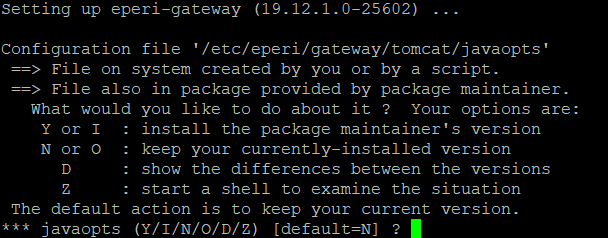
    Note: For RHEL: In case a configuration file has changed, the currently installed configuration file remains unaltered. The desired version of the file (from the installation package) is saved as <filename>.rpmnew.
  9. Option 2: To downgrade the Adapter for your respective SaaS application (e.g., Salesforce) with the installation package, execute the package manager with root privileges:
    For Ubuntu:
    sudo dpkg -i eperi-adapter-sfdc-<version>.x86_64.deb
    For RHEL:
    sudo rpm -U eperi-adapter-sfdc-<version>.<RHEL-version>.x86_64.rpm
    For SLES:
    sudo rpm -U eperi-adapter-sfdc-<version>-<buildnumber>.sles15.x86_64.rpm
    Note: If you are downgrading from a version without an adapter installation package, you must remove all of its JAR files before downgrading with the adapter installation package!
  10. Restart the eperi sEcure Platform services:
    Important: Before you (re)start the Postfix SMTP Relay, please make sure that the eperi sEcure Platform is up and running. This is the case if you can access the log-in page of the eperi sEcure Platform Admin Console.
    For Ubuntu:
    sudo systemctl start eperi-gateway
    sudo /etc/init.d/postfix start
    sudo systemctl start eperi-milter
    For SLES:
    sudo systemctl start eperi-gateway
    sudo systemctl start postfix
    sudo systemctl start eperi-milter
  11. For Ubuntu:When prompted to enter the Master Key on the command line, please enter it within 90 seconds. Otherwise you are requested to enter it later via the (old) GUI of the Admin Console.
  12. For RHEL:When prompted to enter the Master Key on the command line, please enter it within 90 seconds as follows (otherwise you will be requested to enter it later via the old Admin Console UI):
    1. Open a new SSH window (or PuTTY session).
    2. Enter systemd-tty-ask-password-agent
    3. Enter the Master Key.
  13. Launch eperi sEcure Admin Console and log in.
  14. Restart the proxy service on the Dashboard page.
    Figure 1: Restart the proxy service
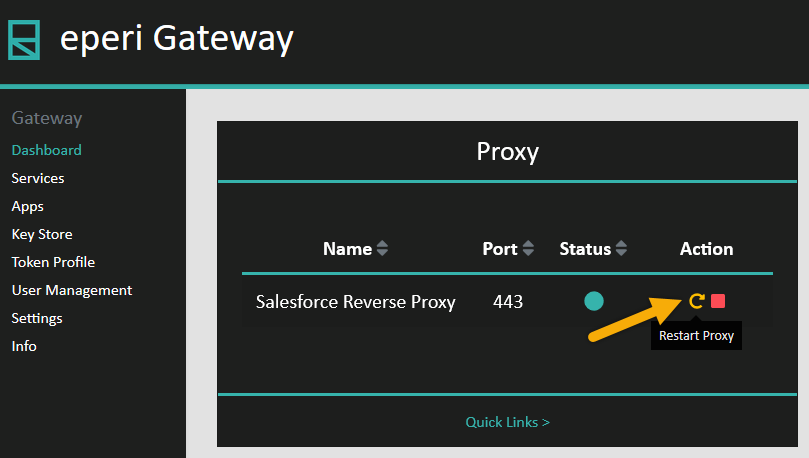
    Restart the proxy service

Results

You have successfully downgraded eperi sEcure Platform.