
Adding OneDrive or SharePoint paths for selective encryption
You can optionally configure paths to be included or excluded from eperi sEcure Platform encryption.
Procedure
-
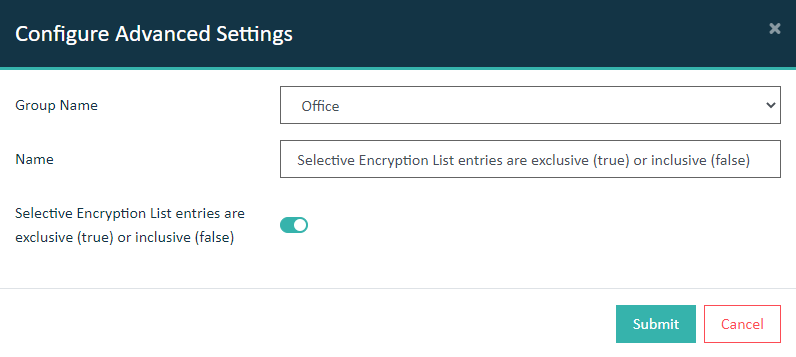
In the Configure Advanced Settings dialog, for Group Name select Office from the list, then click the Name input field to select Selective Encryption List entries are exclusive (true) or inclusive (false) from the list.
-
A check mark in the Value column for this new entry equates to true, i.e., your list of paths will be excluded from encryption.
A missing check mark in the Value column of this entry equates to false, i.e., your list of paths will be included for encryption.

-
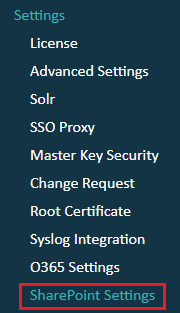
In the eperi sEcure Admin Console, go to
:
-
Click the Configure button, to edit the configuration.

-
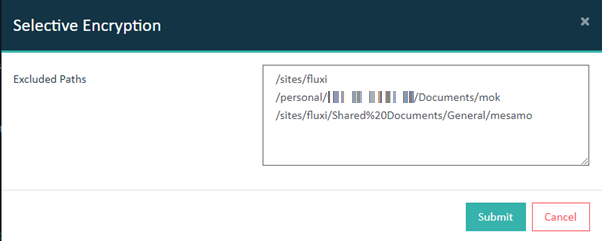
Fill the Excluded Paths field. Then click Submit.
 Note:
Note:- Despite the UI label Excluded Paths, depending on your Advanced Settings, this could also be your "Included Paths".
- Paths are absolute.
- The listed paths will be separated with line break.
- Paths should be URL encoded except for path separators, e.g., spaces should be replaced by %20.
- Regular expressions must match a document path, e.g., .*/sites/protected/shared%20documents(?:[/].*)?