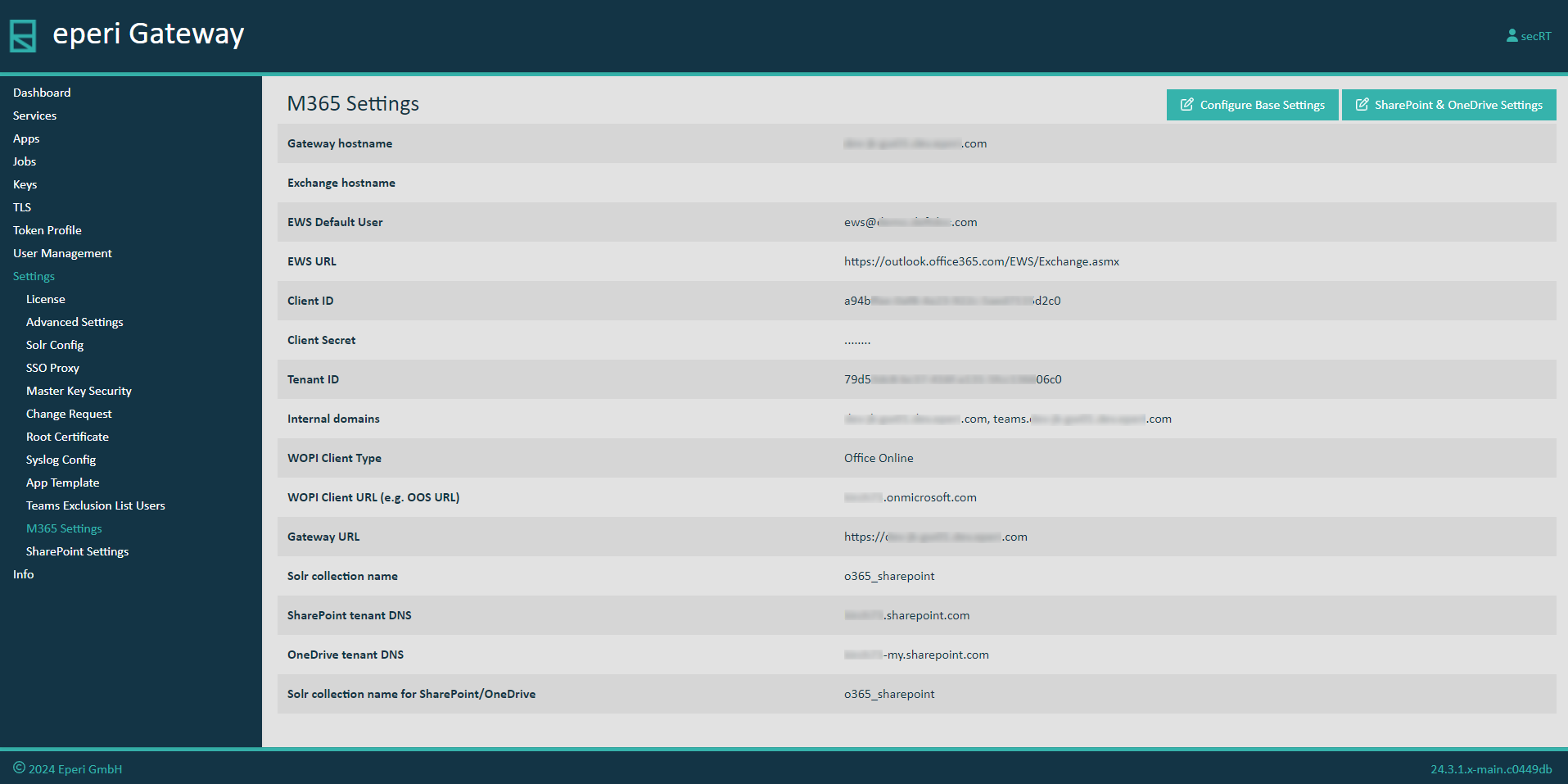
In eperi sEcure Platform settings, certain parameters of your Microsoft 365 tenant need to be configured.
Procedure
-
In the eperi sEcure Admin Console, select
:
-
Click Configure Base Settings.
Note: The parameters in the next step require lowercase values.
-
In the pop-up menu, enter the following parameters based on your environment, for example:
- Gateway hostname: Your custom Fully Qualified Domain Name for eperi sEcure Platform (e.g., demo.eperi-cdp.com)
- Exchange hostname: The Fully Qualified Domain Name of your Exchange On-Premises host (Please do not enter anything for Microsoft 365!)
- EWS Default User: A Microsoft 365 user which is used by the eperi sEcure Platform to impersonate users for the purpose of searching and getting user context for eperi sEcure Platform operations.
The user does not need to have a license or special roles.
- EWS URL: https://outlook.office365.com/EWS/Exchange.asmx (this value is always used)
- Client ID: Paste the value which you have copied from the field Application (client) ID of the eperi sEcure Platform app you registered in the Azure Active Directory.
- Client Secret: Paste the client secret value you copied from the Client secrets section of the eperi sEcure Platform app you registered in Entra.
- Tenant ID: Paste the value you copied from the Directory (tenant) ID field of the eperi sEcure Platform app you registered in Entra.
- Internal Domains: Your custom email domain (e.g., demo.eperi-cdp.com)
- WOPI Client Type: Either Office Online or Collabora Online (defaults to Office Online)
- WOPI Client URL (e.g., OOS URL): Optional URL to the WOPI client to display or edit MS Office documents in the web browser.
You can override this setting in the app configurations.
For instance, for SharePoint/OneDrive (e.g., https://oos.eperi-cdp.com).
- Gateway URL: The URL that the WOPI client can use for accessing eperi sEcure Platform.
You can override this setting in the app configurations.
For instance, for SharePoint/OneDrive (e.g., https://demo.eperi-cdp.com:8443)
- Solr collection name: The Solr collection to be used for indexing (defaults to o365)
-
Click Submit.
Important: Each time you change the credentials of the eperi sEcure Platform app in the Azure Active Directory (Client ID, Tenant ID, Client Secret), you need to adjust the above settings on one eperi sEcure Platform node and restart the proxy for Microsoft 365 on all eperi sEcure Platform nodes in your cluster.
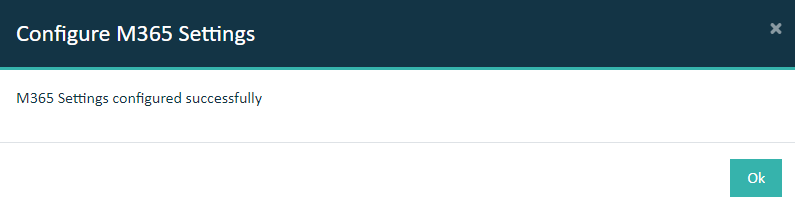
On success, the configuration is confirmed with the following message:
-
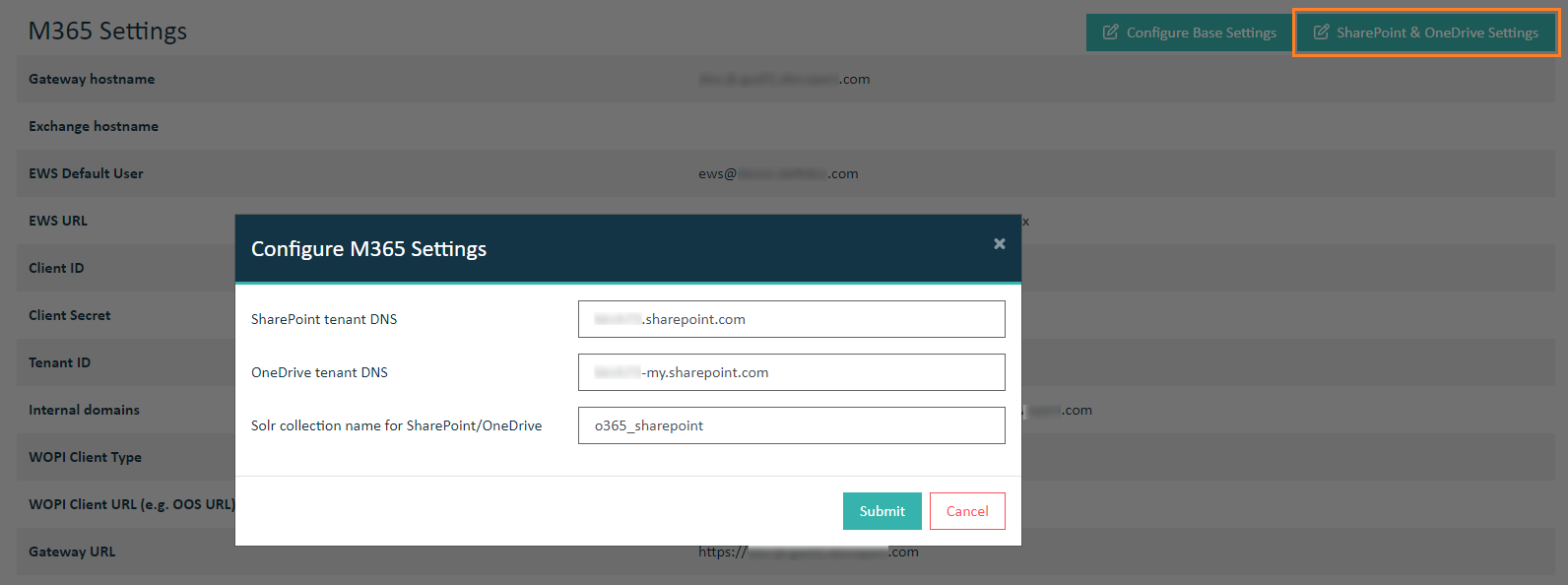
If you also want to protect SharePoint and OneDrive with the eperi sEcure Platform, click SharePoint Settings.
-
In the pop-up menu, enter the following parameters based on your environment, for example:
-
Click Submit.
The successful configuration is confirmed with a success message: