Installing the SSL/TLS certificates for your corporate network
In order to configure the reverse proxy to a publicly trusted or dedicated certificate that is trusted inside the corporate network, a PKCS #12 bundle consisting of the private key, certificate and the certificate chain is needed.
Procedure
-
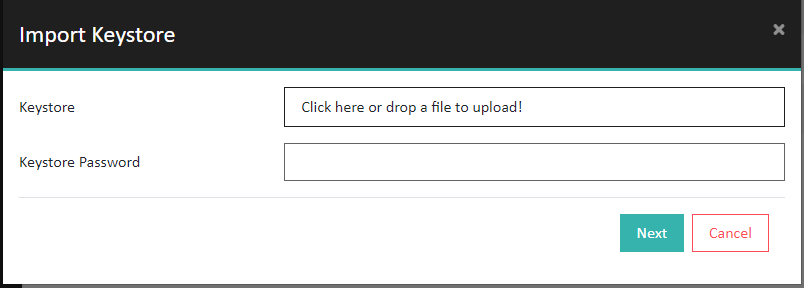
In the Import Keystore dialogue, select a PKCS#12
keystore file, provide the keystore password and click
Next.
-
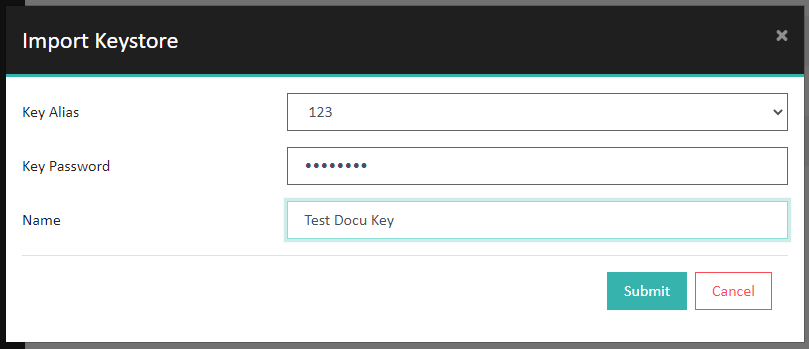
In the following dialogue, select the correct Key Alias and enter the (display)
name for your Key Pair.
 The newly uploaded certificate shows up in the Keys tab.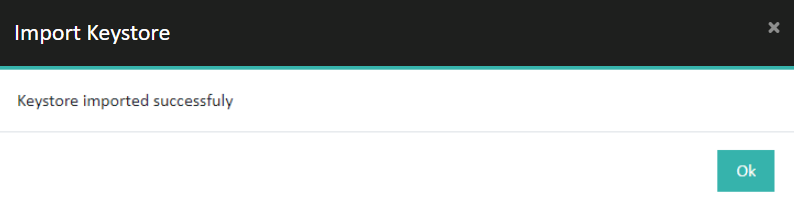
-
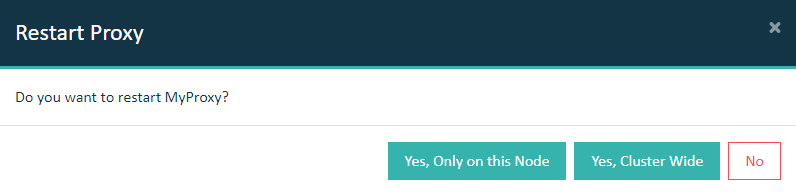
On the same page, restart the Reverse Proxy for the settings to take effect.
Important: In a cluster setup, the proxy must be restarted with Cluster Wide option.