
Configuring additional user authentication (optional)
Optionally, the eperi sEcure Platform allows you to configure an additional user authentication for Microsoft 365.
About this task
Procedure
-
From the drop-down box Authentication Method, choose your
desired authentication method (default is None):
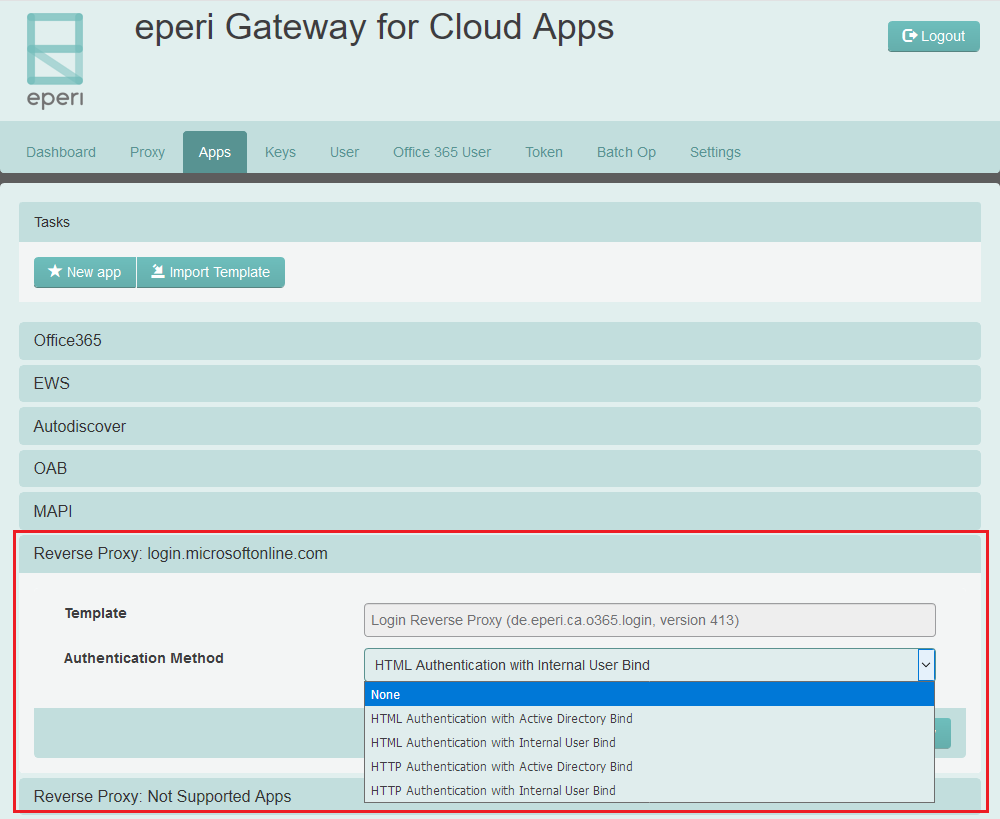
Depending on the chosen authentication method, additional configuration is necessary: -
If you have chosen HTML or HTTP
Authentication with Internal User Bind, you additionally need to
add internal users as follows:
-
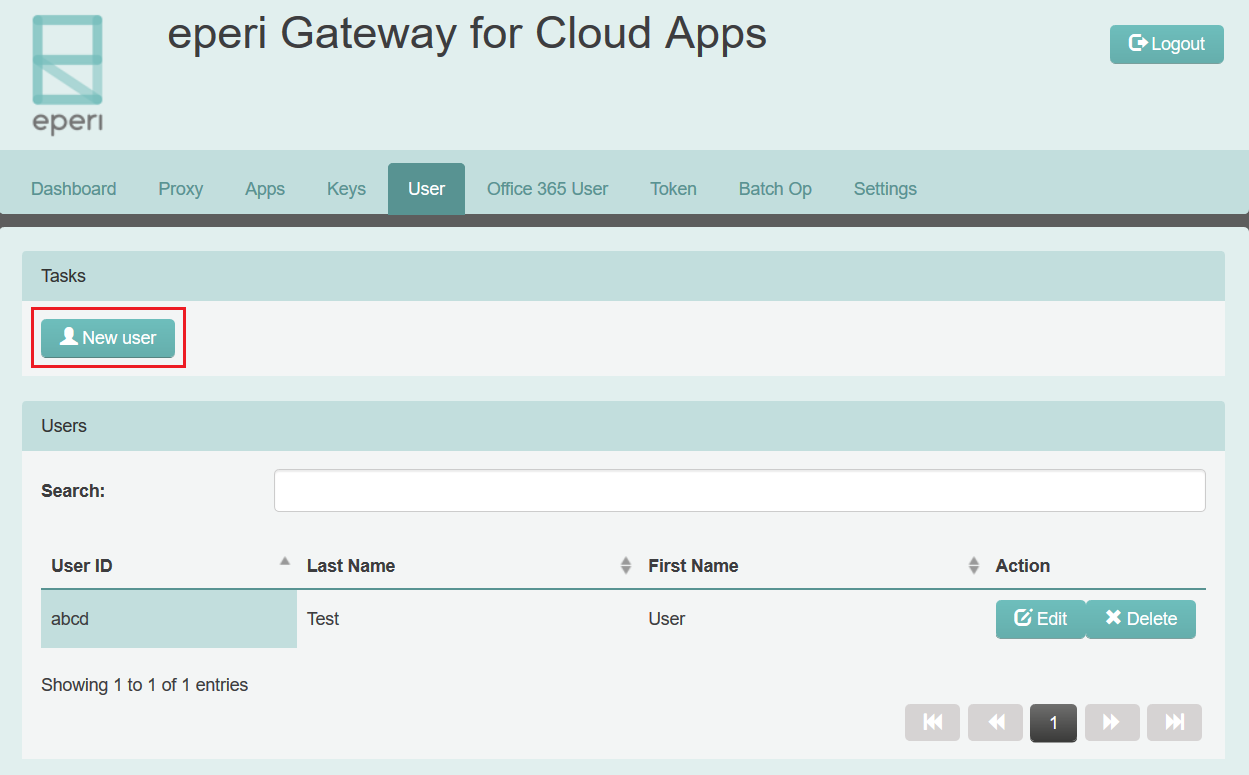
In the main menu, click the tab User.
-
In the main menu, click the tab User.
-
If you have chosen HTML or HTTP
Authentication with Active Directory Bind, you additionally need
to configure the access to your corporate Active Directory as follows:
-
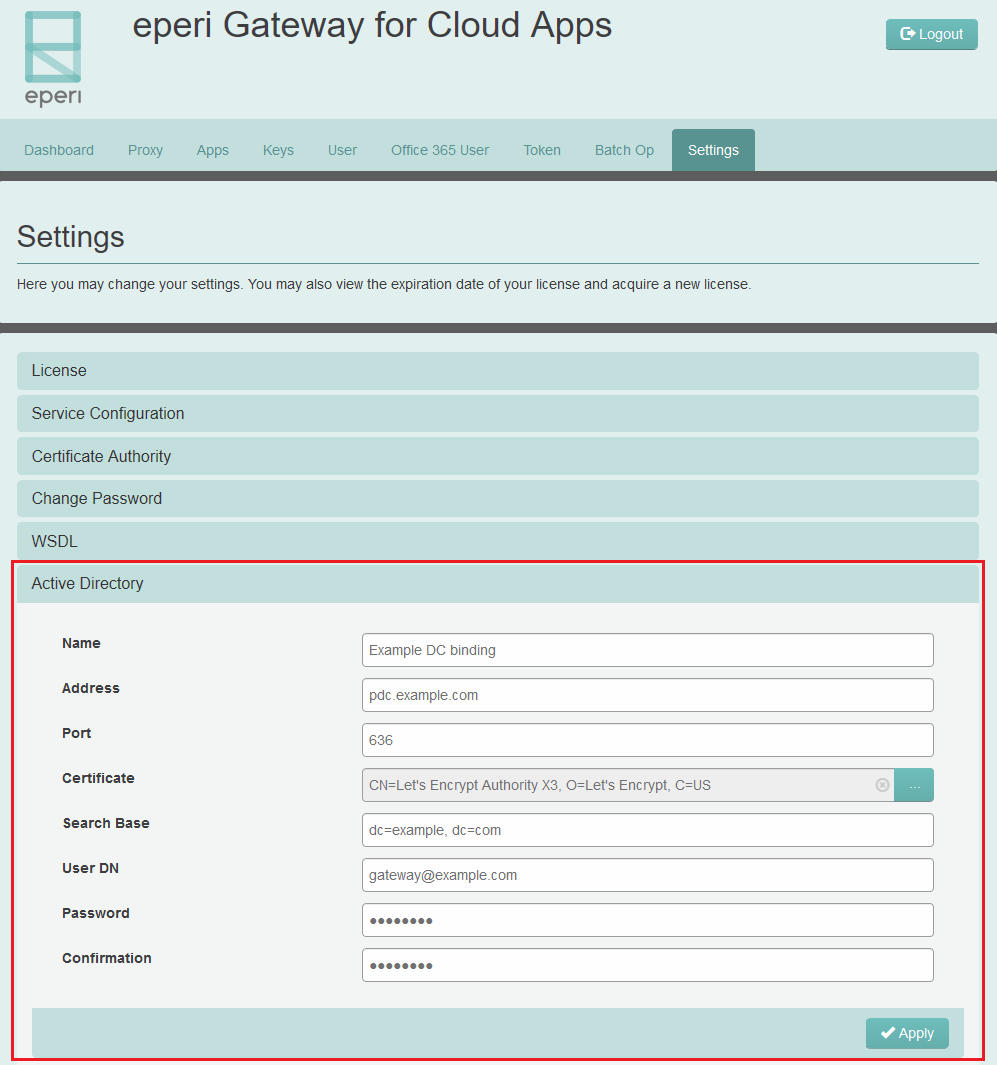
Fill in the configuration parameters for your Active Directory, as
shown in the following example:
-
Fill in the configuration parameters for your Active Directory, as
shown in the following example: