Configuring a custom disclaimer page before Microsoft 365 login (optional)
A default disclaimer page is displayed when somebody accesses the Microsoft 365 login page for the first time. You can optionally configure a custom disclaimer page.
About this task
Some browsers show warning messages in case a phishing threat is detected on a page (e.g., by the Google Safe Browsing API). To prevent the gated Microsoft 365 login page being suspected of phishing while it is being displayed under your eperi sEcure Platform host name, you can activate a disclaimer page before the login. This illustrates to crawlers that the page is intentionally available under a non-Microsoft domain.
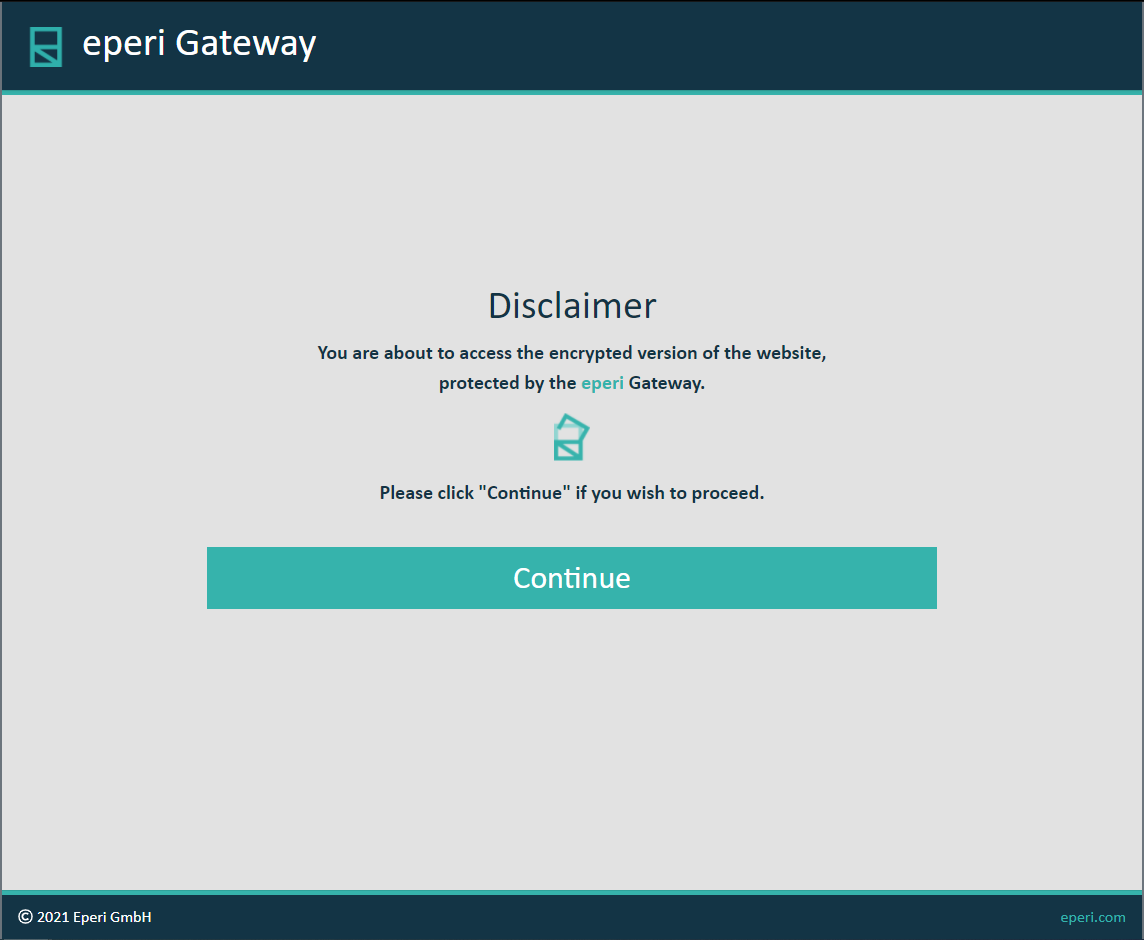
From release 20.6.1.0 the disclaimer page is activated by default and will be displayed as soon as someone accesses the login page of the secured Microsoft 365 for the first time. (The disclaimer page is also displayed if you visit office.<gateway-hostname> while you are logged out.) After clicking on the Continue button the login page will be displayed. Internally, the cookie "disclaimerPageCookie" will be set to true in the browser. As long as the cookie is set, the disclaimer page is no longer displayed. If the cookie is reset or deleted, the page is displayed again the next time the login page is accessed. The default disclaimer page looks like this:
- The file name has to be disclaimerPage.html and must be available in the /opt/eperi/gateway/tomcat/webapps/ROOT/etc folder of the eperi sEcure Platform.
- The HTML file has to be valid HTML and has to contain one and only one
element with the id "continueButton". For
example:
<html lang="en">
<head>
    <meta charset="UTF-8">
    <title>Disclaimer page</title>
</head>
<body>
    <button id="continueButton" >Continue</button>
</body>
</html>
- The element with the id "continueButton" does not need to be a button, but must be clickable.
Procedure
-
To show the default disclaimer page again, delete the
disclaimerPage.html in the
/opt/eperi/gateway/tomcat/webapps/ROOT/etc
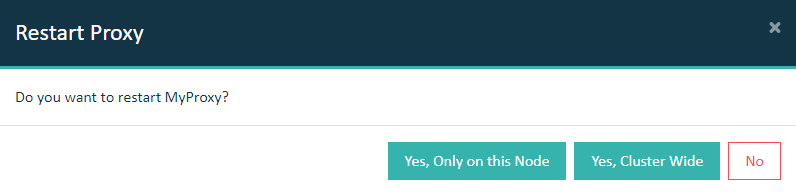
folder and restart the proxy used for Microsoft 365.
Important: In a cluster setup, the proxy must be restarted with Cluster Wide option.