Setting up the applications for Microsoft 365
The following section describes how to set up the various applications and services provided by the eperi sEcure Platform. Many of these will be required for the correct operation of the eperi sEcure Platform.
About this task
Procedure
-
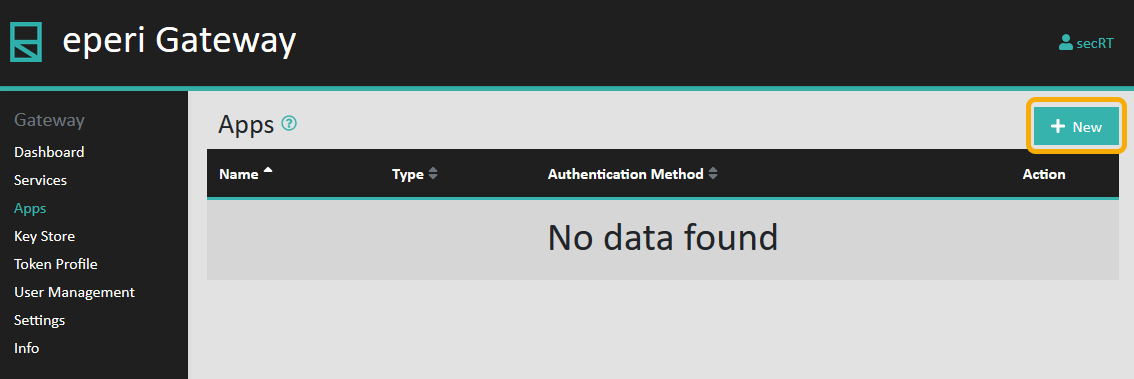
Click + New in the upper right corner:
-
Repeat the above steps (2-3), to add all of the following apps:
- graph.microsoft.com Reverse Proxy App
- Exchange Webservices Reverse Proxy App
- Login Reverse Proxy App
- Microsoft Teams Reverse Proxy App (click the link to view the configuration details for this app)
- Not Supported App
- Office365 OneDrive App
- Office365 Portal Reverse Proxy App
- Office365 SharePoint App (click the link to view the configuration details for this app)
- Office365 Substrate App
- Outlook Web App Reverse Proxy App
- www.office.com Reverse Proxy App
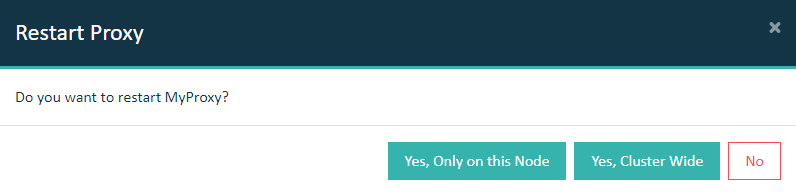
Note: You can go back to these app configuration settings at any point and update the configuration. After adding or changing settings, these new settings will not become active until the reverse proxy is restarted.Important: In a cluster setup, the proxy must be restarted with Cluster Wide option.