
Getting DNS details from your Microsoft 365 tenant
For the further configuration in eperi sEcure Platform, you need to get some DNS details from your Microsoft 365 tenant.
Procedure
- In the Microsoft 365 admin center, open the menu on the left and click Settings > Domains.
- Click your custom domain (e.g. demo.eperi-cdp.com).
- Take a note of the following DNS details for the domain, as displayed on the page.
-
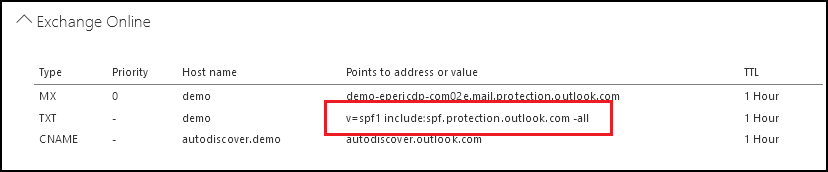
Under the Exchange Online section, take a note of the MX record for the eop
protection address.
This domain name should end with .protection.outlook.com or .mx.microsoft (it's the EOP address and will be added to the Postfix SMTP Relay configuration later).

-
In the Exchange Online section, note the TXT record for
the sender policy framework value (spf).
-
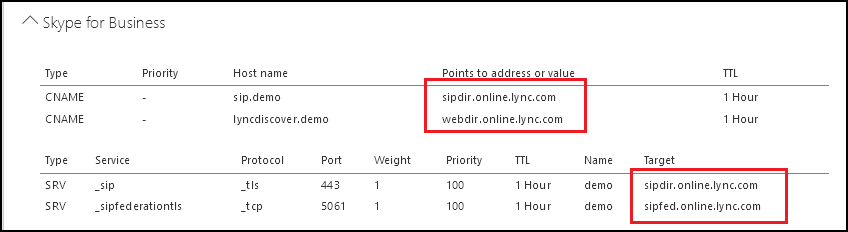
If you are planning to use Skype for Business (Lync) than you will need to take
note of the lync entries under the Skype for Business
section.
- Close the page with the DNS details for your domain.
- Log in to https://portal.azure.com
- Find the Azure Active Directory blade.
-
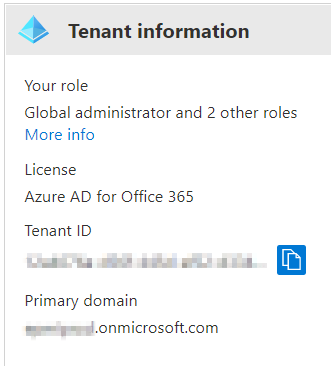
Access the Overview page in your Azure Active Directory.
-
Copy the leading part before .onmicrosoft.com of the Primary domain. Your SharePoint DNS is: <xyz>.sharepoint.com.
Your OneDrive DNS is: <xyz>-my.sharepoint.com
Note: This step is only required, if you plan to set up the eperi sEcure Platform as reverse proxy for Microsoft 365.At a later step, the first URL must be entered into the Sharepoint Tenant DNS entry in the eperi sEcure Admin Console > Settings > Office 365 (e.g., myeperidemo.sharepoint.com).At a later step, the last URL must be entered into the Onedrive Tenant DNS entry in the eperi sEcure Admin Console > Settings > Office 365 (e.g. myeperidemo-my.sharepoint.com).
