In the next section, a mailflow connector will be set up to route email via the eperi sEcure Platform.
Procedure
-
In the Microsoft 365 admin center, open the menu on the
left and click .
The page Exchange admin center opens in a new
browser tab.
-
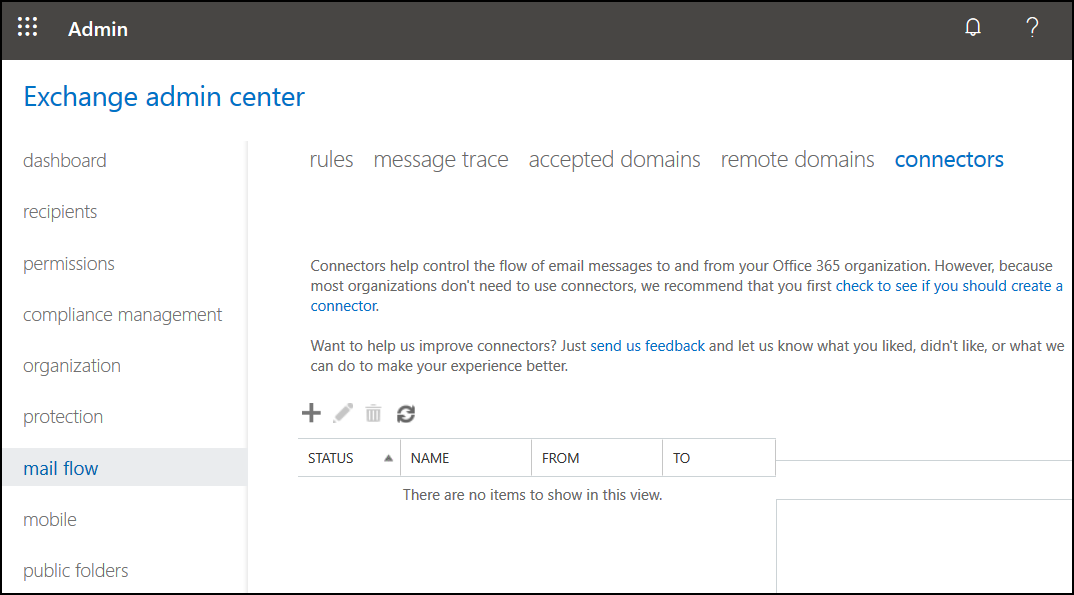
From the vertical menu on the left, click mail
flow.
-
Click the connectors tab from the horizontal list of
tabs as below:
A new forwarding rule will now be created, to
ensure all email is encrypted by the eperi sEcure Platform.
-
Click the + (New Connector) button and enter the
following details:
- From: Office 365
- To: Partner Organisation
-
Click Next.
-
In the New connector menu enter a
Name such as
RemoteConnector@demo.eperi-cdp.com.
-
Tick the Turn it on option after the configuration is
saved.
-
Click Next.
-
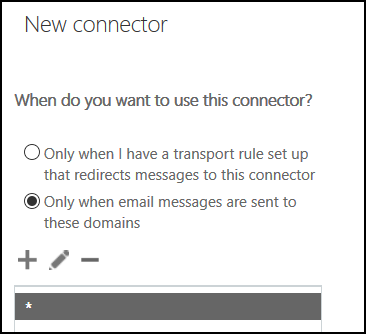
Select the option Only when email messages are sent to these
domains.
-
Click the + (Add Domain) button and add the domain
* as below.
-
Click Next.
-
Choose the option to Route email through these smart
hosts and click the + button below.
-
Enter the host address for your eperi sEcure Platform (e.g.
demo.eperi-cdp.com) then click
Save.
-
Click Next.
-
If you have not yet activated TLS in your Postfix SMTP-Relay, uncheck the option
Always use TLS.
-
Click Next.
-
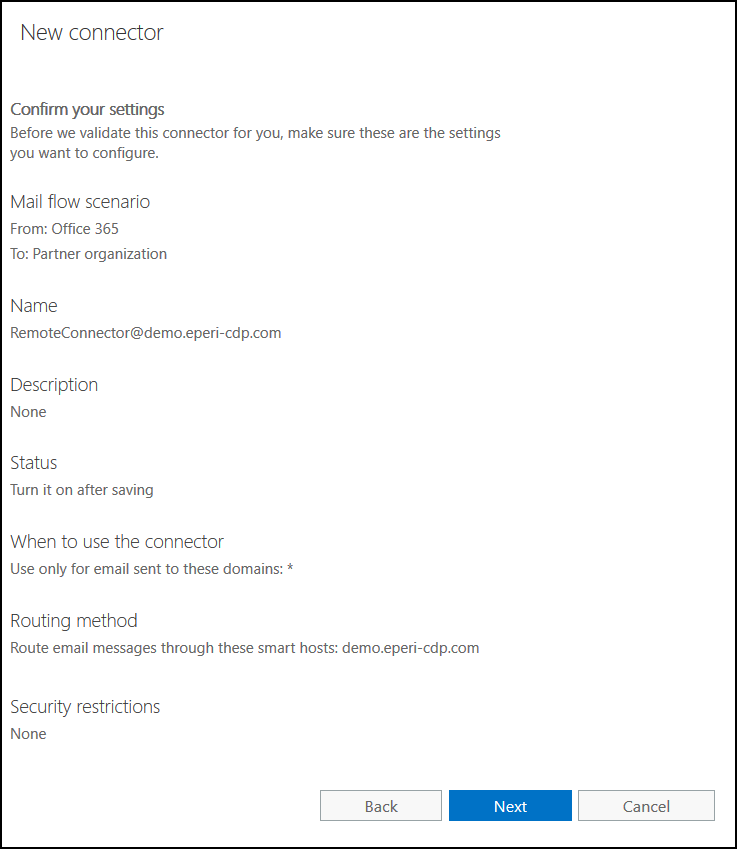
Confirm the details are correct (example screenshot below).
You should be prompted to validate the connector.
-
Enter an external email address (outside this Microsoft 365 domain).
-
Click Validate.
-
If this produces an error, then ignore this as the configuration of the eperi
eperi sEcure Platform may not be complete yet.
-
Click Save.
-
Close the tab Exchange admin center.

 You should be prompted to validate the connector.