
Creating and configuring a connected app inside Salesforce
In order to setup the connection between Salesforce and the eperi sEcure Platform, it is necessary to create and configure a connected app inside Salesforce.
Procedure
-
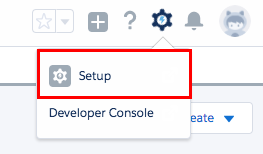
Go to your Salesforce org, log in and click Setup.
-
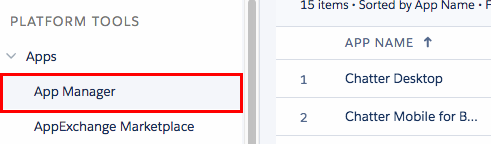
In the left pane of the Setup screen, select .
-
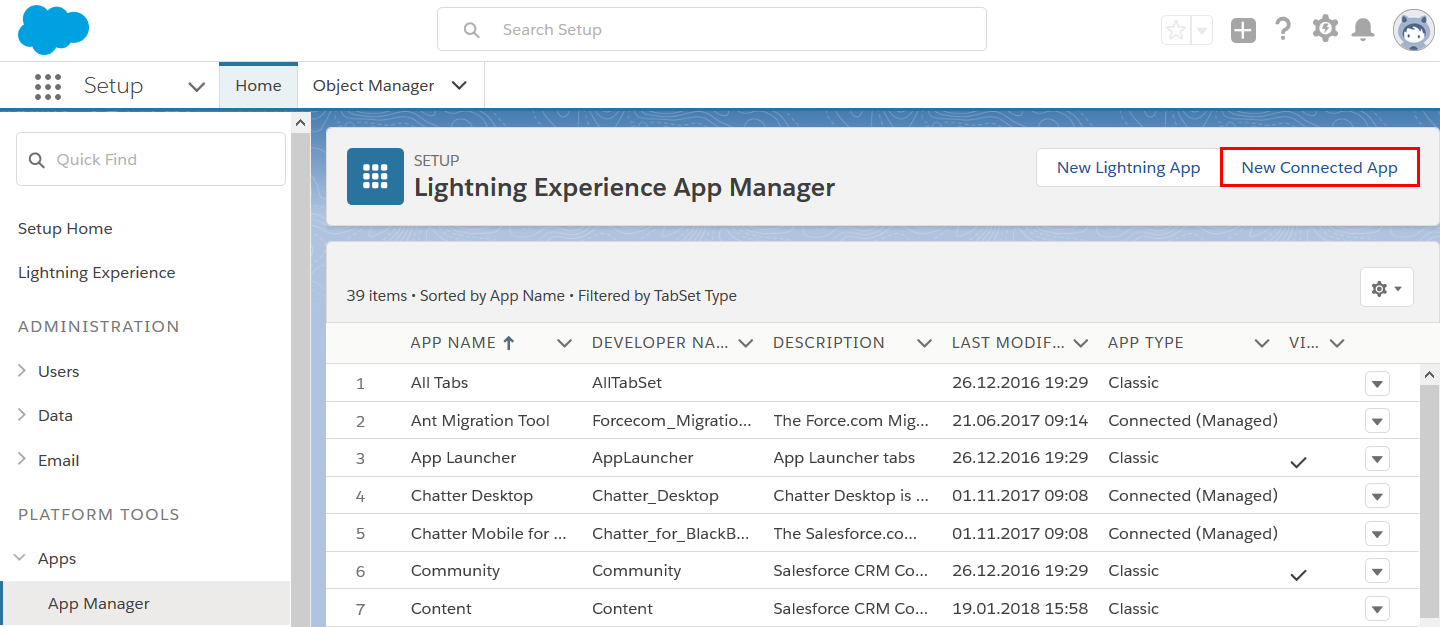
Create a new connected app by clicking New Connected App in the
upper right corner.
-
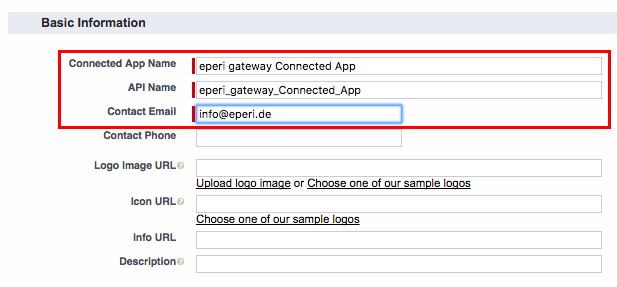
Fill out the required fields in the Basic Information
section.
-
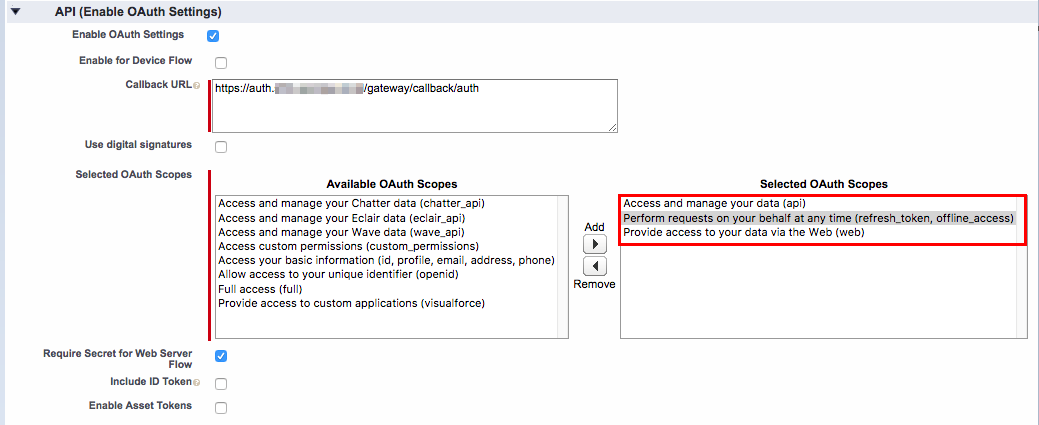
In the API section, perform the following configuration:
-
Click Save at the bottom of the page.
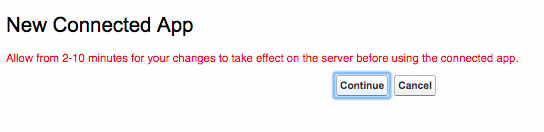
You are now asked to wait for 2 to 10 minutes.
-
Click Continue.
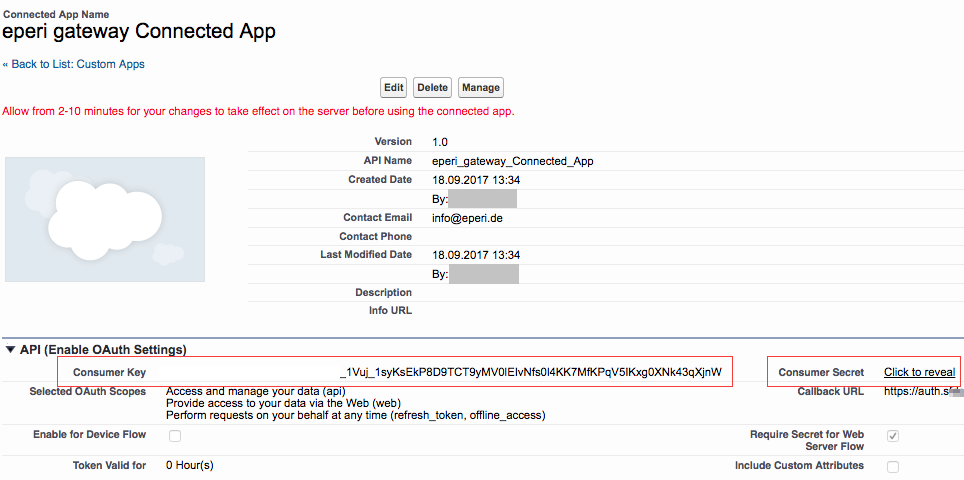
The details of the new connected app are displayed:
-
Switch to the eperi sEcure Platform Admin Console and paste the
Consumer Key in the Salesforce Forward Proxy
App configuration screen into the Salesforce Consumer
Key field:

-
Switch back to Salesforce and besides Consumer Secret, click
Click to reveal.

-
Switch back to the eperi sEcure Platform Admin Console and paste the
Consumer Secret in the Salesforce Forward Proxy
App configuration screen into the Salesforce Consumer
Secret field:
