
Creating and configuring a new Salesforce app in eperi sEcure Platform

In order to set up the connection between Salesforce and eperi sEcure Platform, it is necessary to create and configure a new Salesforce app ineperi sEcure Platform.

Before you begin

The task requires the following:
  • a Salesforce user account that is able to retrieve the metadata from Salesforce and is able to use the Salesforce API
  • the Salesforce security token of the user account (If you do not know your security token, you can reset it in Salesforce. For instructions, please refer to the Salesforce knowledge article Reset Your Security Token.)

Procedure

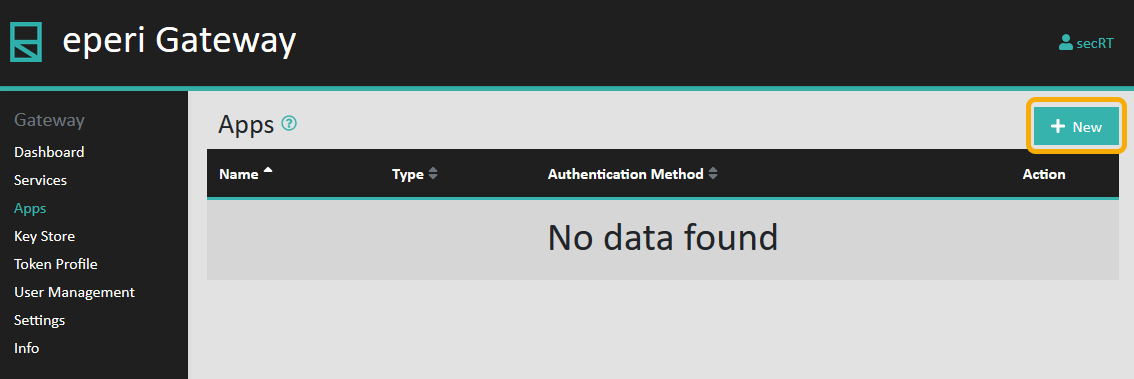
  1. In the eperi sEcure Platform Admin Console, select Apps in the main menu.
  2. Click + New in the upper right corner:
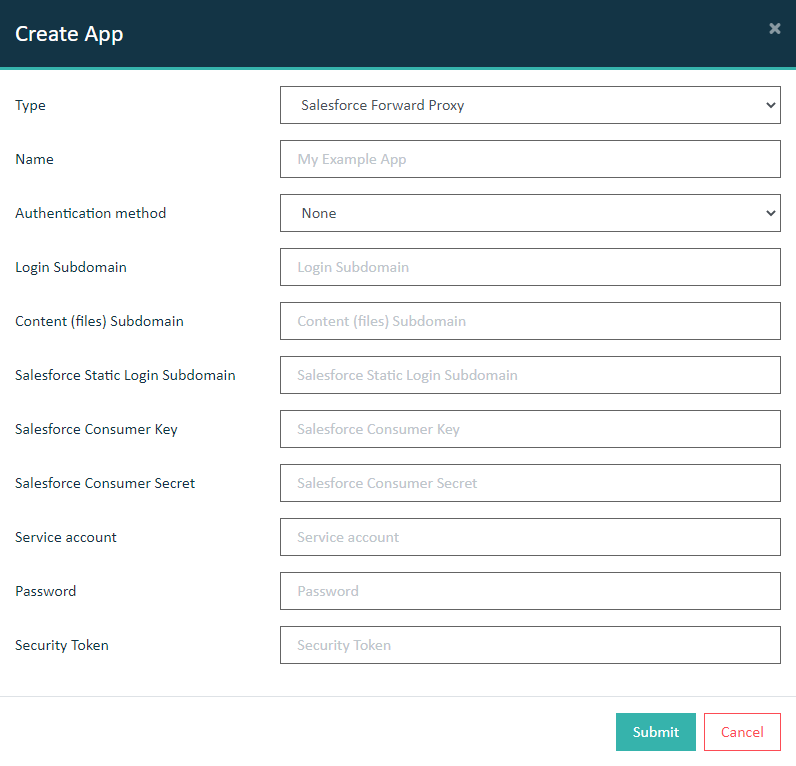
  3. In the Create App menu, select Salesforce Forward Proxy as Type.
    The following configuration screen is displayed:
  4. Determine your Salesforce Instance Subdomain name from your Salesforce org.
    You need this info in order to complete the Salesforce reverse proxy app configuration screen within the eperi sEcure Platform Admin Console.
    1. Log into your Salesforce org (Lightning experience).
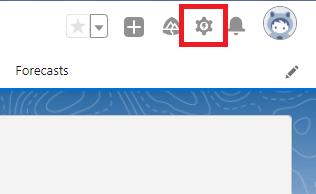
    2. In the upper right corner of the initial screen click Setup.
      eperi Customer Portal Login
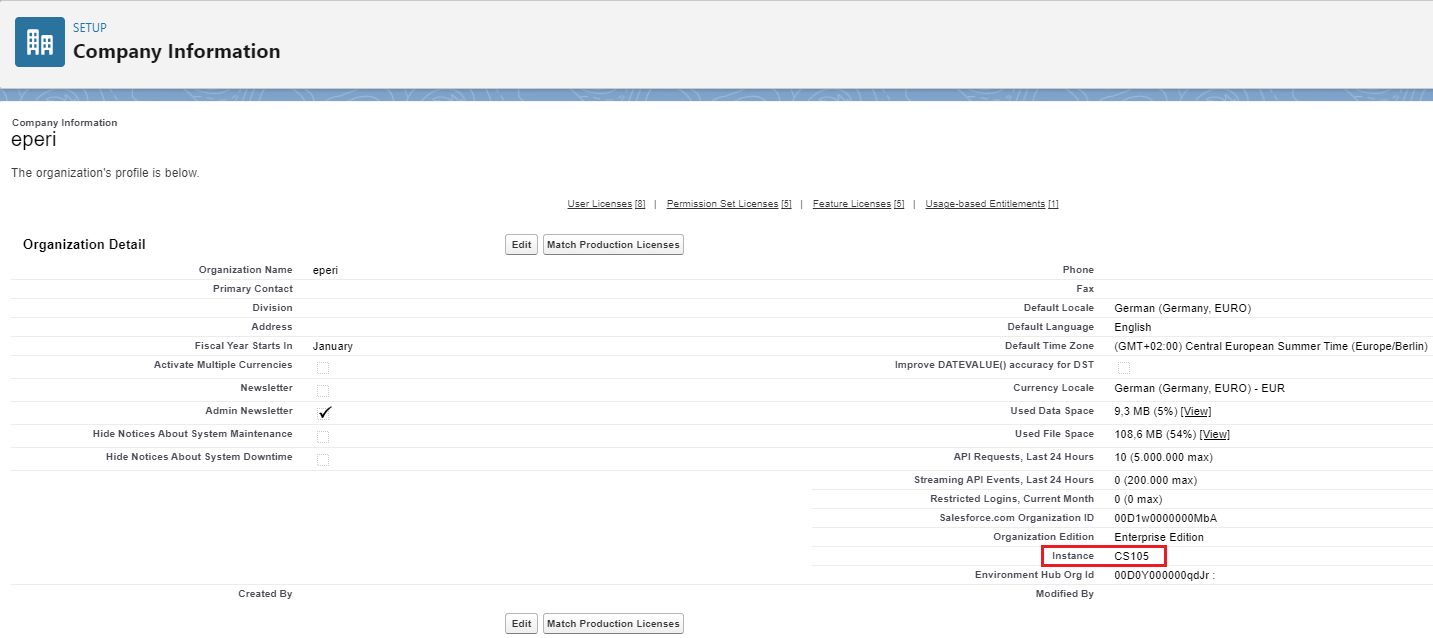
    3. Navigate to Company Information in the Setup menu.
      The instance is presented on the page. And the Salesforce Instance Subdomain is <myInstance>.salesforce.com.
      eperi Customer Portal Login

  5. Switch back to the eperi sEcure Platform Admin Console and in the Create App screen, fill out the required fields, as described below:

    Name: Enter a unique app name of your choice such as Salesforce Reverse Proxy App

    Authentication method: Keep the default value None unless you intend to set up an additional level of authentication for your users (see Managing (additional) authentication)

    Show disclaimer page: Keep the default value off unless you intend to activate a disclaimer page before the Salesforce login (see Activating a disclaimer page before Salesforce login (optional))

    For the entriesSalesforce Static Login Subdomain, Login Subdomain, Content (files) Subdomain please refer to: My Domain URL Formats

    Salesforce login subdomain: login.salesforce.com

    Salesforce Consumer Key: The consumer key of the connected app inside your Salesforce org

    Salesforce Consumer Secret: The consumer secret of the connected app inside your Salesforce org

    Service account: The name of your Salesforce service account (An account with admin rights is recommended.)

    Password: The password of your Salesforce service account

    Security Token: Your Salesforce security token

    Note: You cannot complete the configuration right now, because the Salesforce Consumer Key and the Salesforce Consumer Secret are still missing. You will get this info at a later step.
  6. Click Submit.

Results

You have successfully created a Salesforce Forward Proxy app.