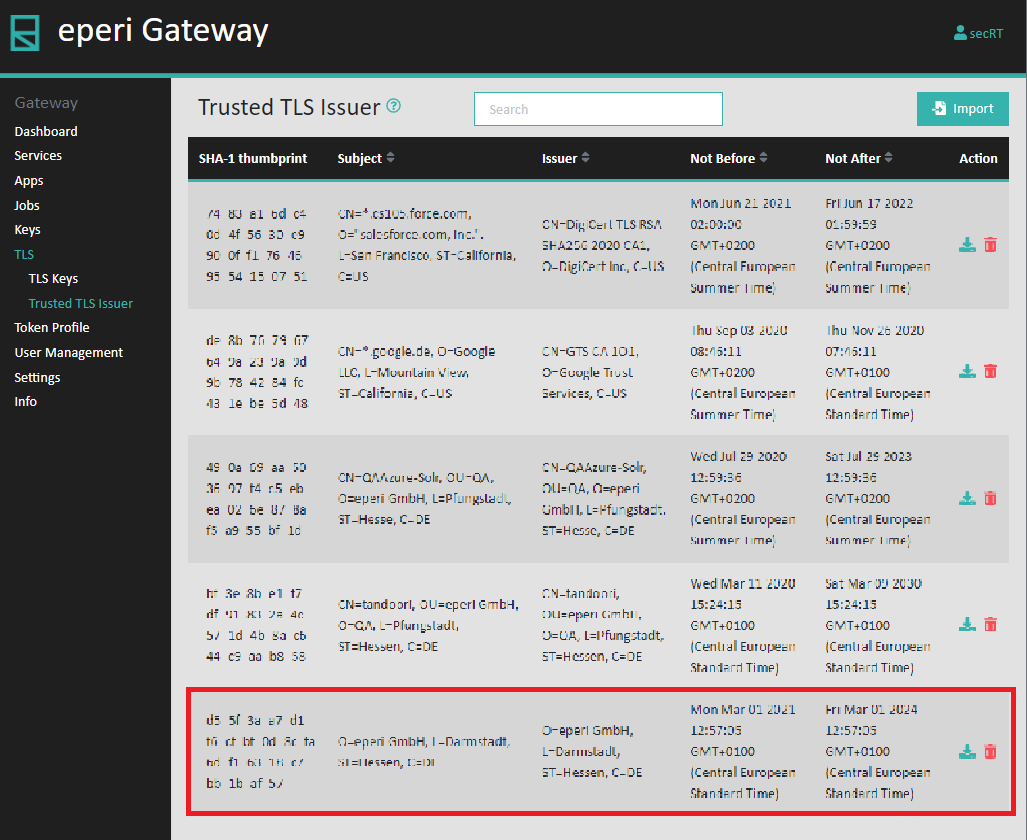
Importing a trusted certificate
A number of public key certificates for your SaaS application are already included in the eperi sEcure Platform installation package. In case that certificates for your SaaS application are missing, you have the option to import additional certificates.
About this task
The log message is as follows:
2018-09-26 09:45:51.279 +0000: WARN - 01-unkn00-2999999 - An unknown error occurred; Can not verify certificate chain for https://[outlook.office365.com:443]/. The server chain is: [...]There are several ways to get the missing certificate. One way is to go to the corresponding URL in the browser and then click on the SSL icon (usually shown as a lock). In the displayed pop-up you will then have the option of displaying and exporting the certificate.
Important: We recommend importing only root or intermediate
certificates.
Procedure
-
Click Import.
Figure 1: Import Trusted Certificate 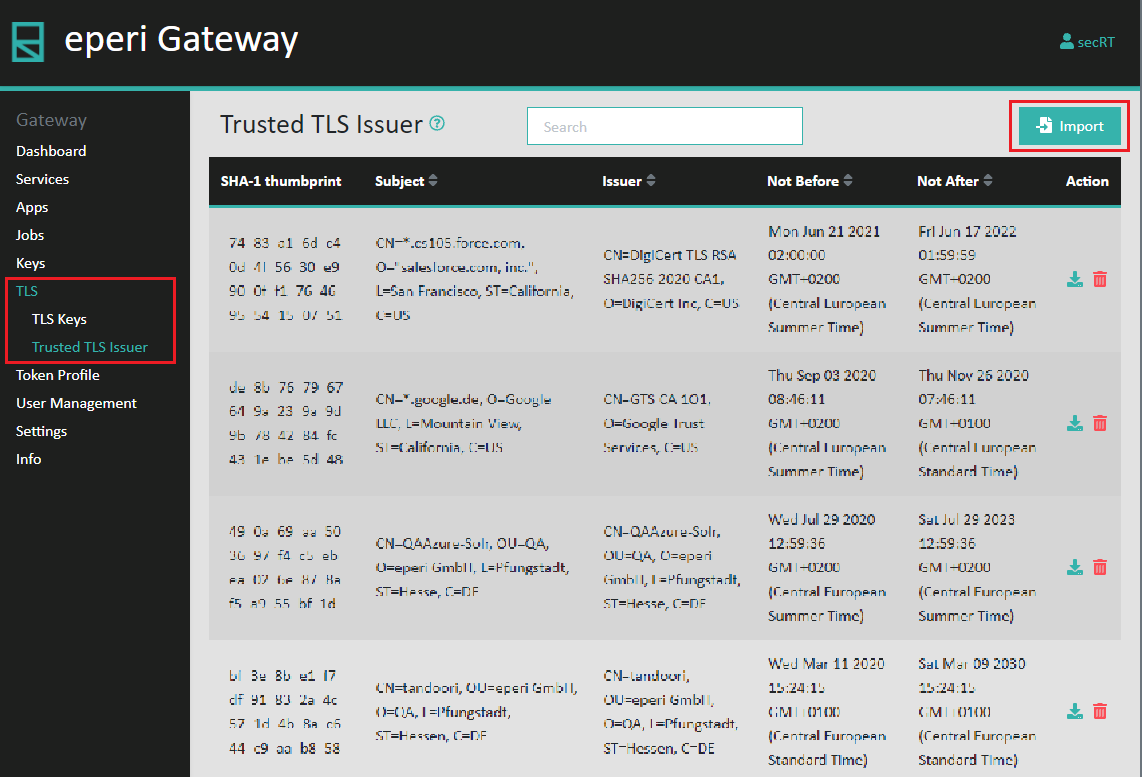
-
In the pop-up menu, select the certificate file and click
Submit.
Figure 2: Select certificate file 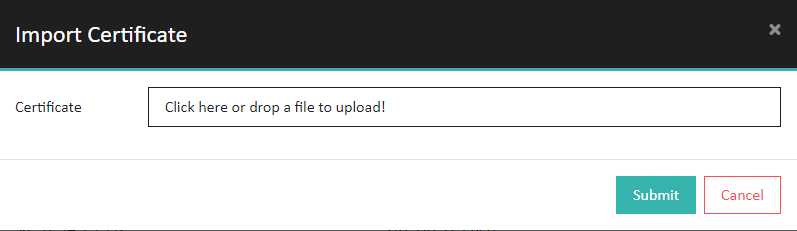 Trusted certificate is successfully imported:
Figure 3: Details of certificate 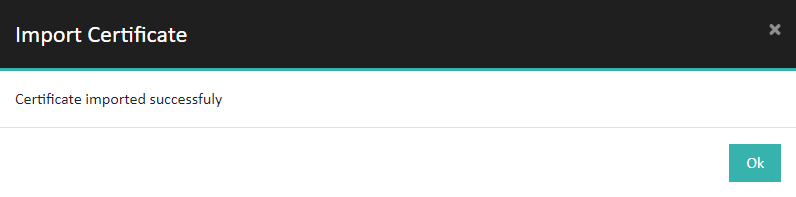
Results