Create a new proxy

How to create a new proxy for your SaaS application. eperi recommends creating a separate proxy for each of your SaaS applications.

About this task

The type of proxy you choose to set up determines the eperi sEcure Platform's operating mode. In most cases, the eperi sEcure Platform operates as a reverse proxy. Depending on the application area, other operating modes are possible, e.g. forward proxy. Furthermore, you configure the port, protocol and SSL certificate for the secure communication of the eperi sEcure Platform with the users. By adding apps to the proxy, you define which functionality the eperi sEcure Platform should support. Which apps are required depends on the particular application area, e.g. Salesforce or Microsoft 365.

Procedure

  1. Select Services > Proxies in the main menu.
  2. Click + New in the upper right corner.
    Figure 1: New proxy
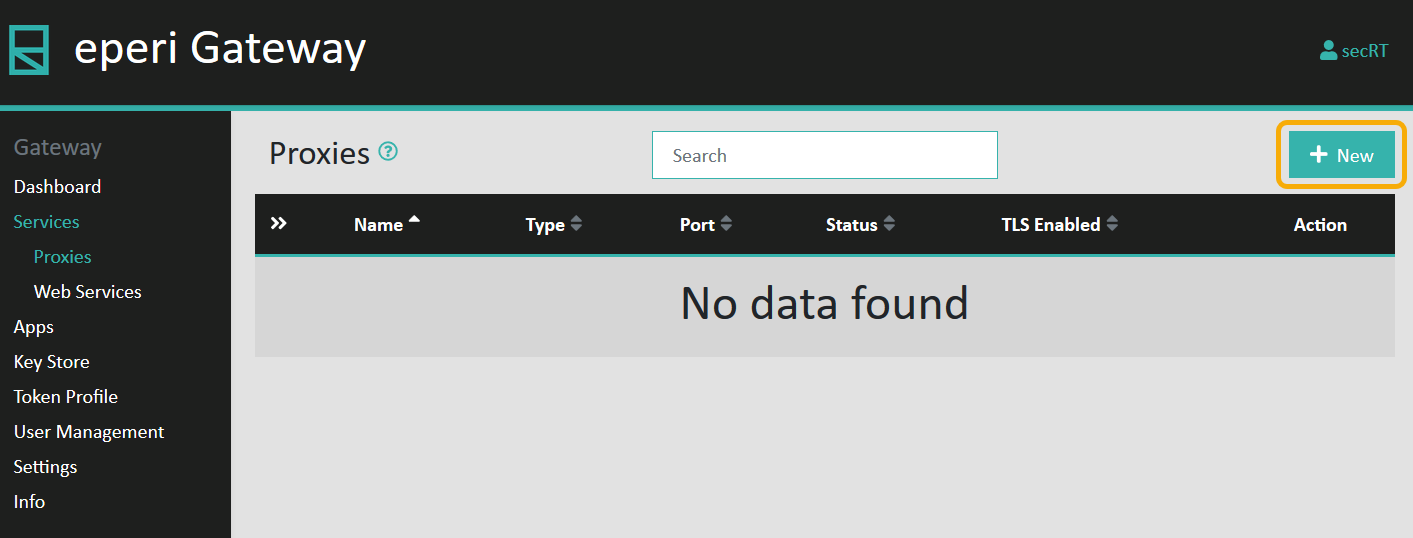
    New proxy
  3. In the pop-up menu, enter a Name for the new proxy, e. g. Salesforce reverse proxy, and choose a proxy Type.
    Table 1. Available proxy types
    Proxy Type Description
    Reverse proxy If configured as a reverse proxy, the eperi sEcure Platform acts as an intermediary between any clients and your SaaS application. It gets data for a client from your SaaS application, decrypts it, and delivers it to the client. Data from the client is received by the Gateway, encrypted, and then stored in encrypted form in your SaaS application. The true address of your SaaS application remains hidden from the client.
    Forward proxy If configured as a forward proxy, the eperi sEcure Platform also acts as an intermediary between any clients and your SaaS application. But there are some differences with regard to the configuration of the eperi sEcure Platform and your clients. In contrast to the reverse proxy, clients access the respective SaaS application with the "real" URL.
  4. For the standard HTTPS configuration, enter Port 443 and activate TLS Enabled.
    Note: Usually, users connect to eperi sEcure Platform using standard transport protocols and ports (e.g. 443 for HTTPS) and the eperi sEcure Platform connects to the SaaS application with the same protocols and ports.
    Figure 2: New proxy configuration
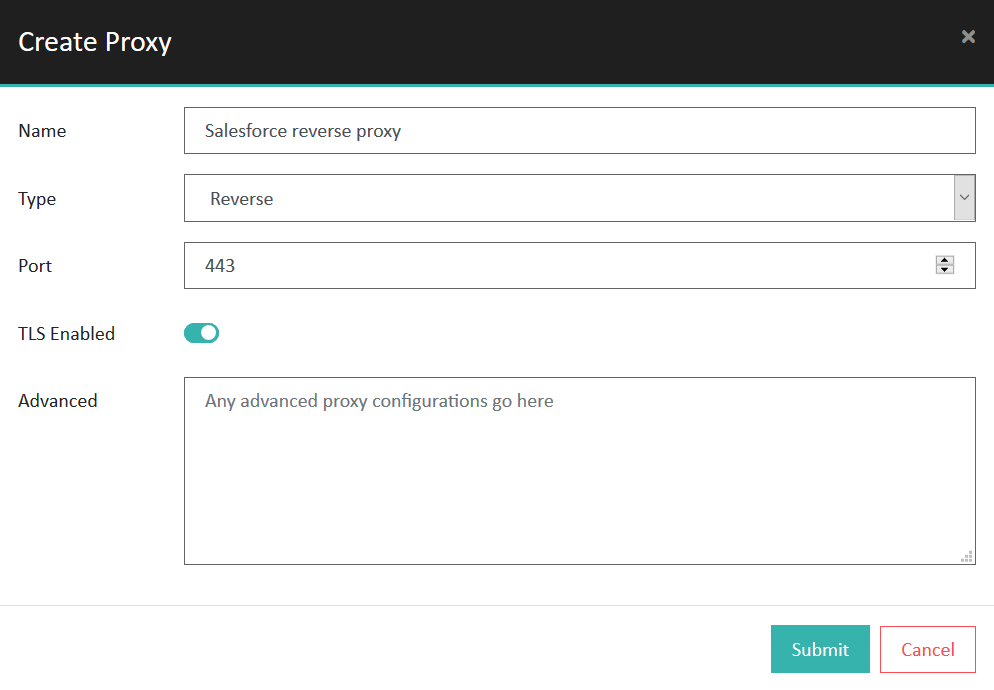
    New proxy configuration
  5. Click Submit.

Results

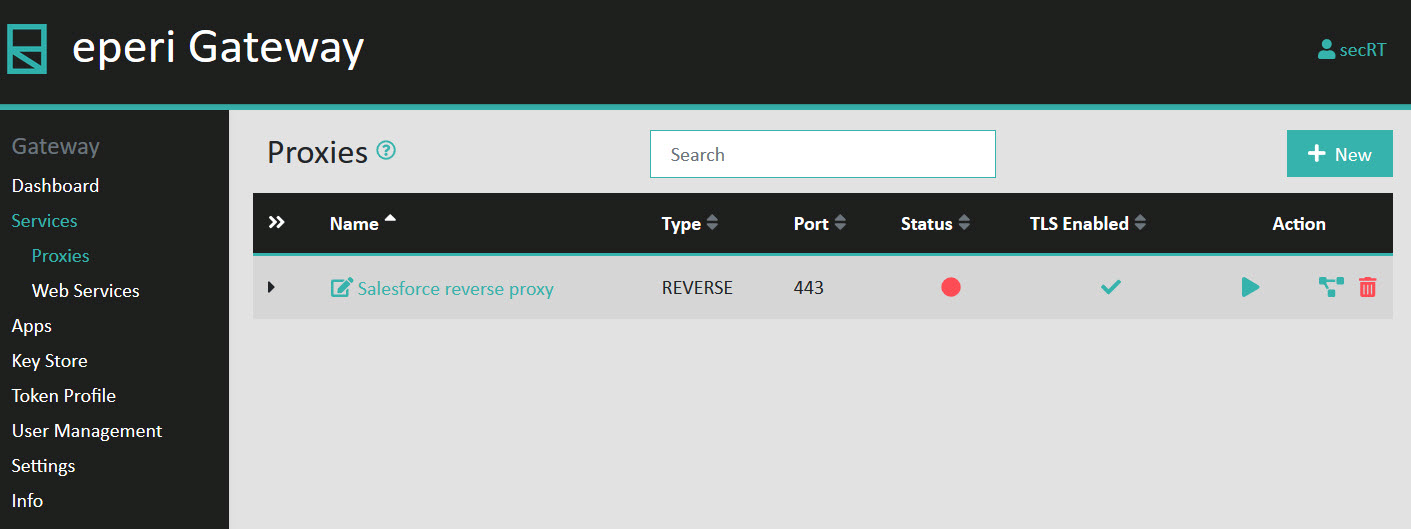
You have successfully created a new proxy.
Figure 3: New proxy created
New proxy created

What to do next

The next step is to further configure the new proxy. See the tasks Select a Server TLS Key and Assign Apps to the proxy.