Advanced Proxy Settings
Optionally, you can add additional settings regarding the Apache Tomcat HTTP Container. For a list of possible settings, please refer to the Apache Tomcat 9 Configuration Reference.
Procedure
-
On the Proxies page, click the
Edit option at the respective proxy:
Figure 1: Edit Proxy 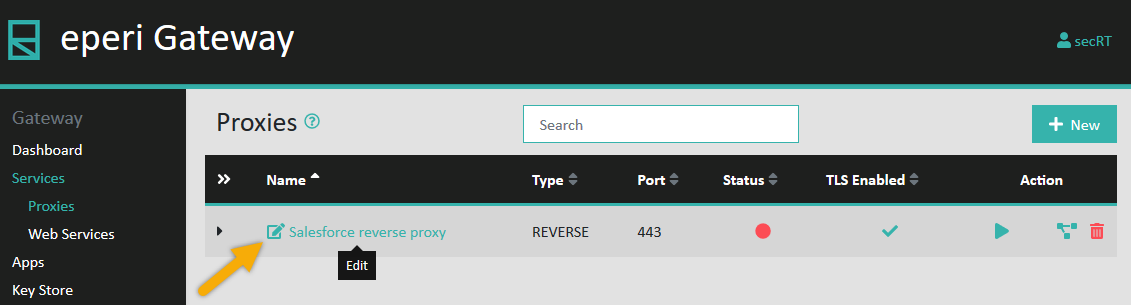
-
In the Edit Proxy pop-up menu, enter the additional
settings for the Apache Tomcat HTTP Container in the
Advanced field.
Enter one setting per line. The format is
<key> =
                        <value>
, e.g. compression = force. At the end of each line, press the Return key and enter the next setting in the next line, as shown in the example below.Figure 2: Example of Advanced Proxy Settings 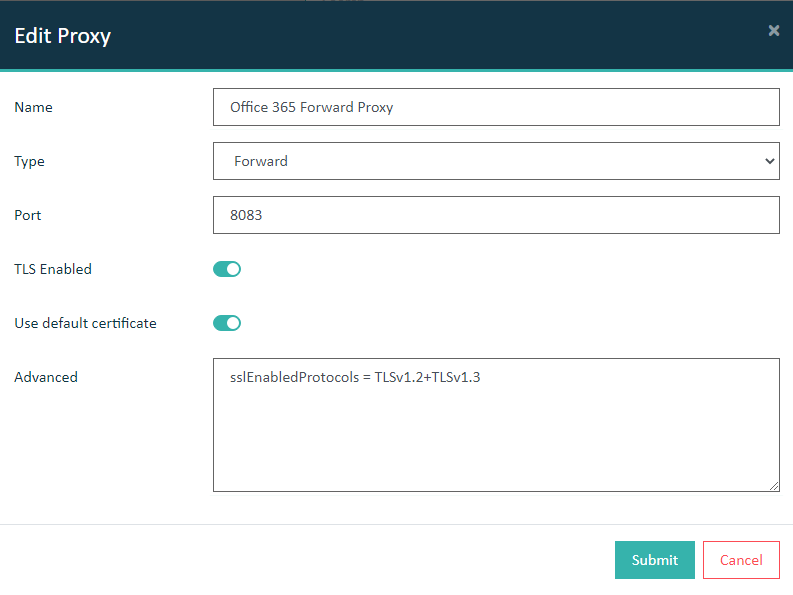
-
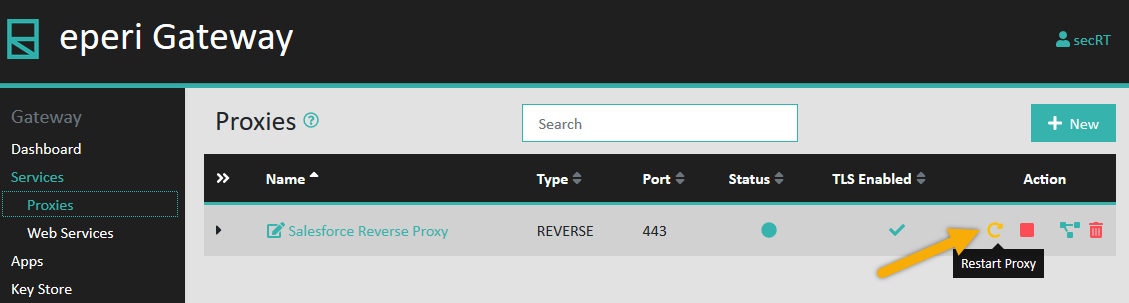
Restart the proxy by clicking the Restart Proxy
action:
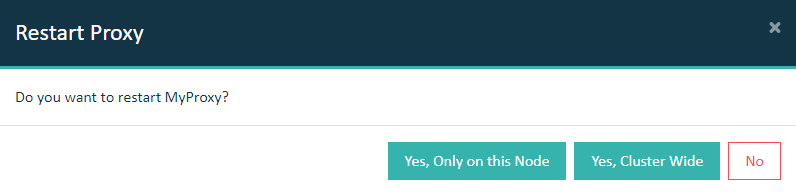
Important: In a cluster setup, the proxy must be restarted with Cluster Wide option.