Defining a data protection policy in eperi sEcure Platform
By defining a data protection policy, you determine which fields within your Salesforce Org are being tokenized/encrypted by eperi sEcure Platform.
About this task
Note: As an example, below the encryption setting for the field
Name of the Salesforce object Account is
described.
Procedure
-
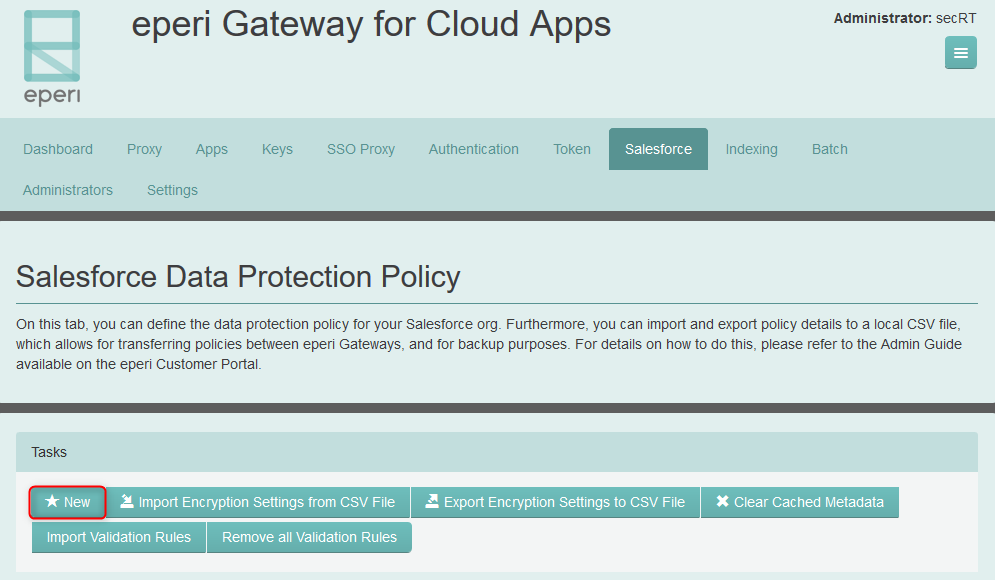
In the eperi sEcure Platform Admin Console, select the
Salesforce Tab and click
New.
-
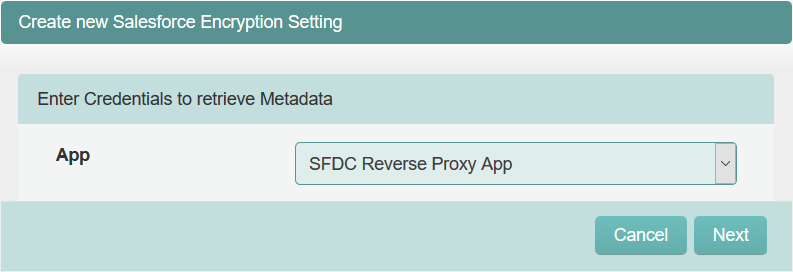
In the next menu, select from which App the credentials
for Salesforce should be used. Then click Next.
 Now, eperi sEcure Platform starts to download the object/fields metadata from your Salesforce org.
 -
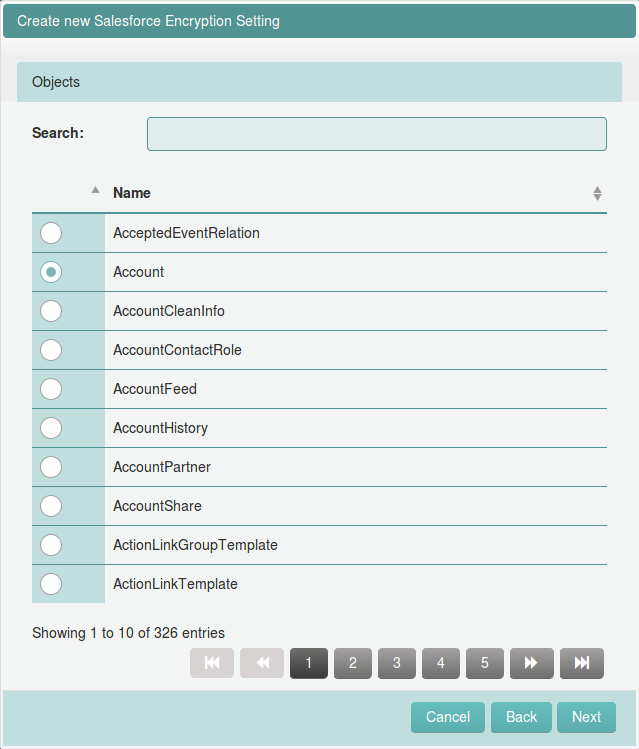
In the next menu, pick an object that should be tokenized or encrypted and
click Next.
Note: In our example, we pick the object Account.
-
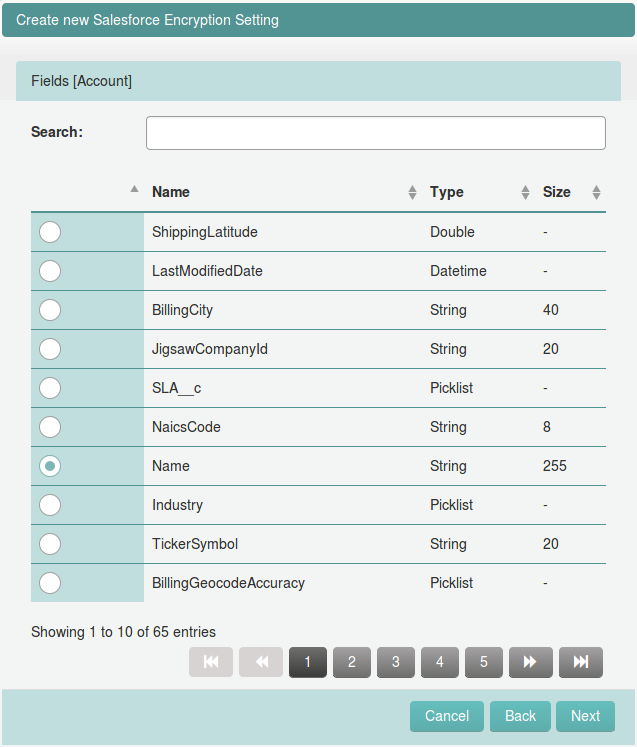
In the next menu, pick a field of the object and click
Next.
Note: In our example, we pick the field Name of the Account object.
-
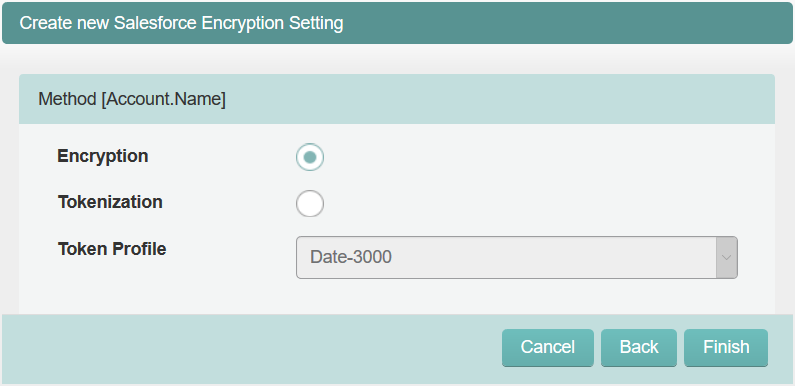
In the next menu, choose the desired encryption method and click
Finish.
Note: In our example, we choose the method Encryption for the field Name of the Account object. The method Encryption can only be used effectively with String fields with a field length of at least 80 characters. For details about the available Token Profiles, please refer to the Reference of default token profiles.
 In the Policy Settings section, an overview of the current encryption settings is displayed. In order to tokenize / encrypt additional fields, repeat the steps described above.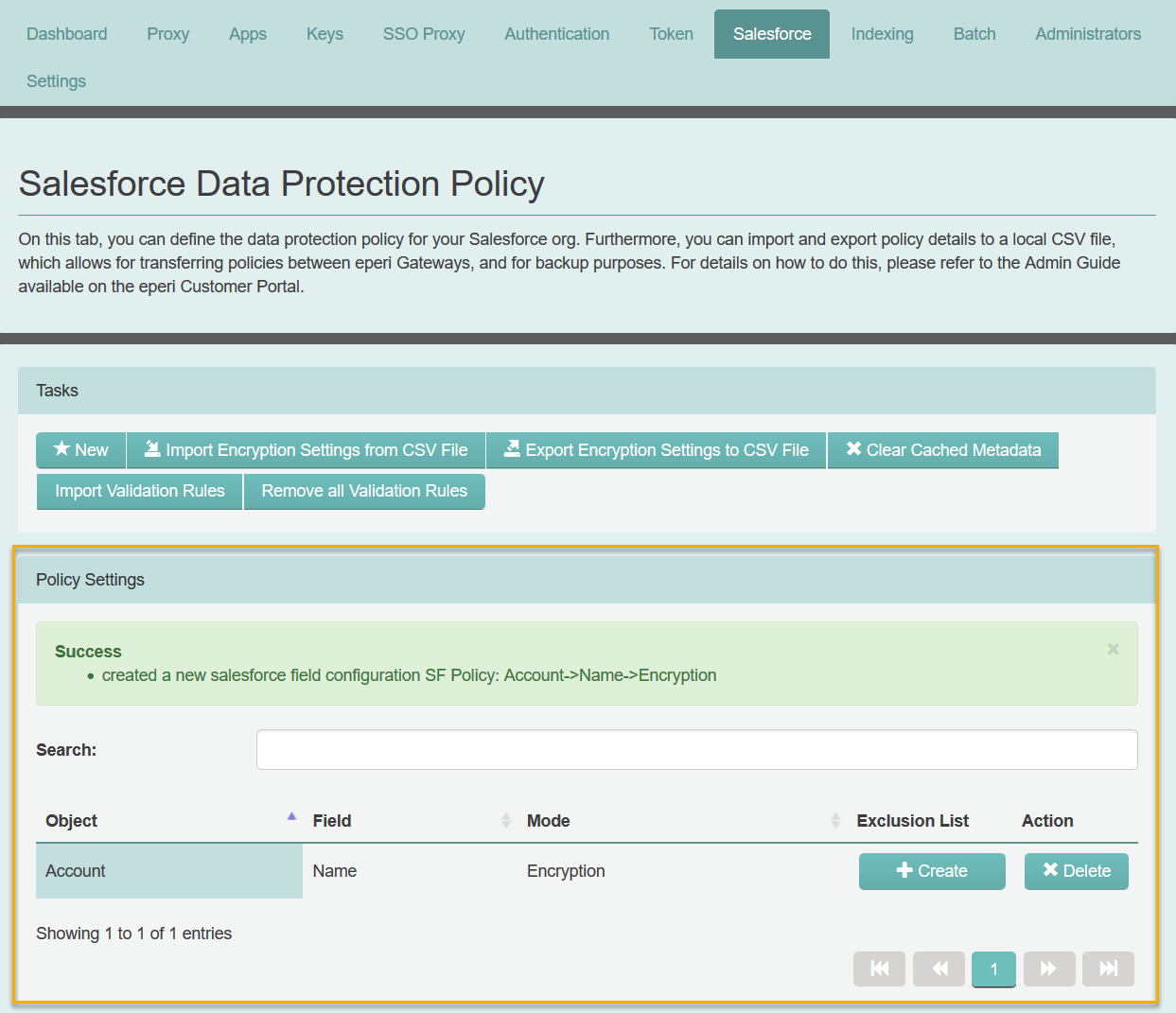
-
Optionally, you may configure that the data protection policy is not applied
when the corresponding Salesforce field contains certain field values. In that
case, please additionally perform the following steps:
-
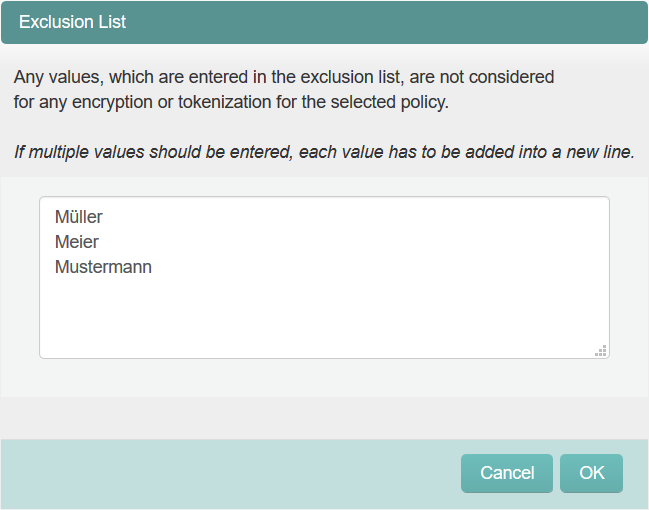
In the pop-up Exclusion List, enter one or
multiple values for which the data protection policy should not be
applied. If you enter multiple values, make sure to separate them by a
line feed (enter key).
 Important:
- Due to technical restrictions exclusion lists only work properly on non-multi-line values. A value from a text area field (e.g., "Description") remains only unaffected from being tokenized/encrypted if the value has no line feed and is contained in one line of the exclusion list.
- The look-up of the values in the Exclusion List by the eperi sEcure Platform is case-insensitive.
- For date fields, it is also possible to enter date values in the list. The data must then be entered in the format yyyy-mm-dd, e.g. 2019-08-02.
-
In the pop-up Exclusion List, enter one or
multiple values for which the data protection policy should not be
applied. If you enter multiple values, make sure to separate them by a
line feed (enter key).
-
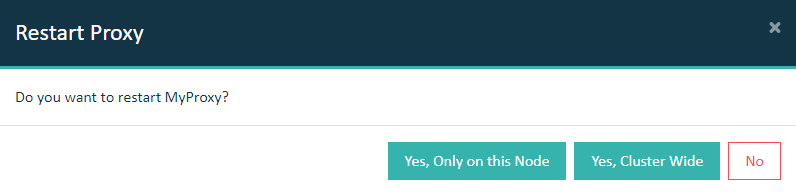
Restart the Salesforce Reverse Proxy in the
Dashboard tab.
Important: In a cluster setup, the proxy must be restarted with Cluster Wide option.