
Setting up the encryption of files uploaded to Salesforce
If necessary, you can additionally configure the eperi sEcure Platform to encrypt files that you upload to your Salesforce org.
About this task
- Title
- Description
- VersionData
Procedure
-
Setup the encryption of the field
ContentVersion.Title:
-
In the eperi sEcure Admin Console, select the
Salesforce Tab and click
New.
Figure 1: Salesforce tab - New encryption 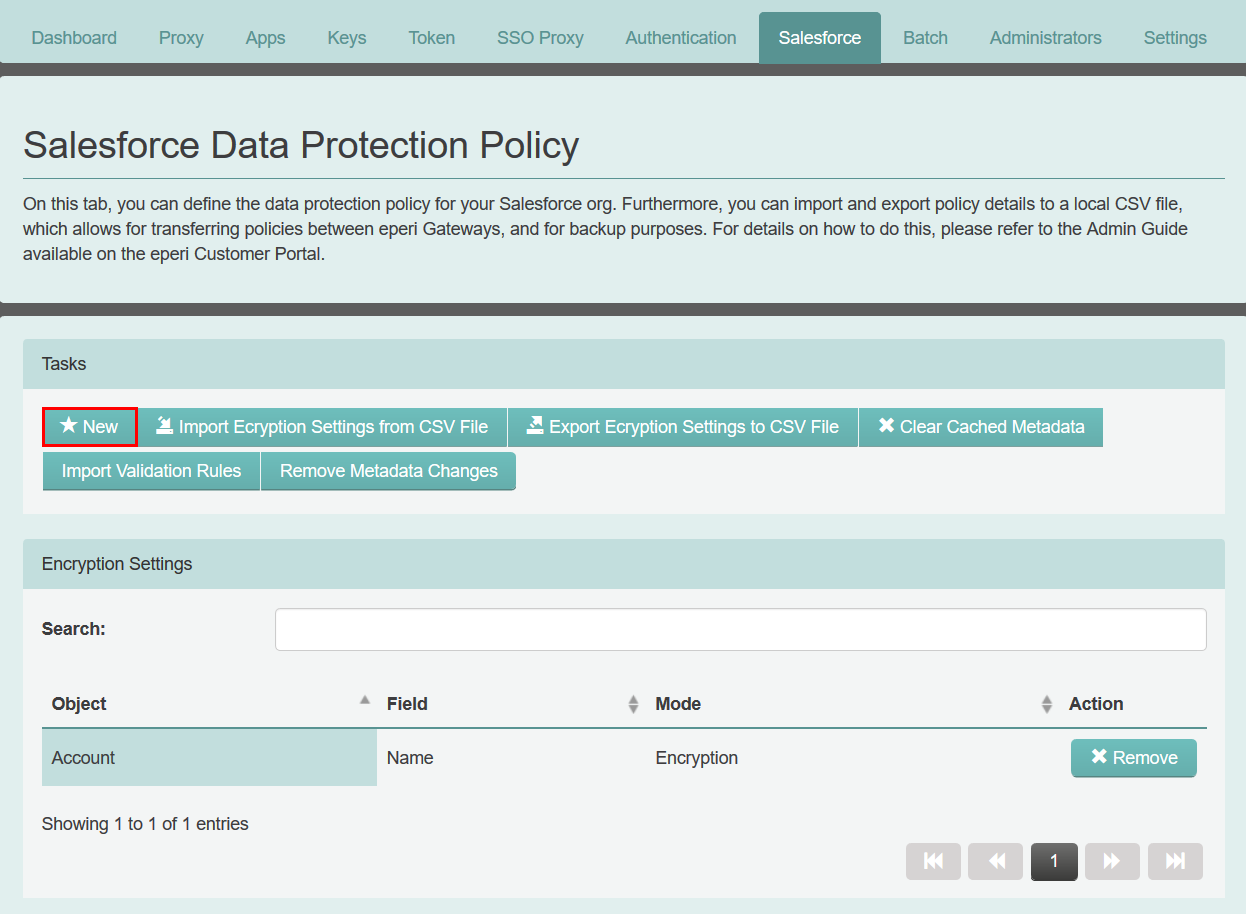
-
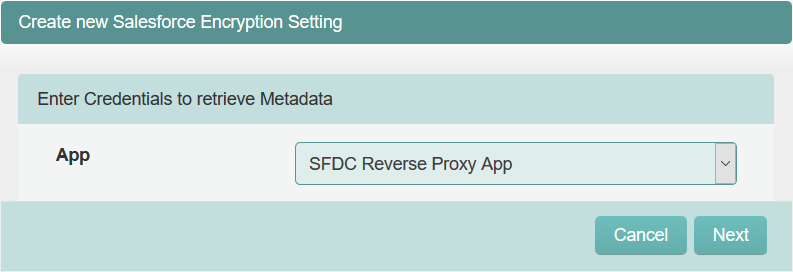
In the next menu, select from which App the
credentials for Salesforce should be used. Then click
Next.
-
In the next menu, search and pick the object
ContentVersion and click
Next.
Figure 2: Select object 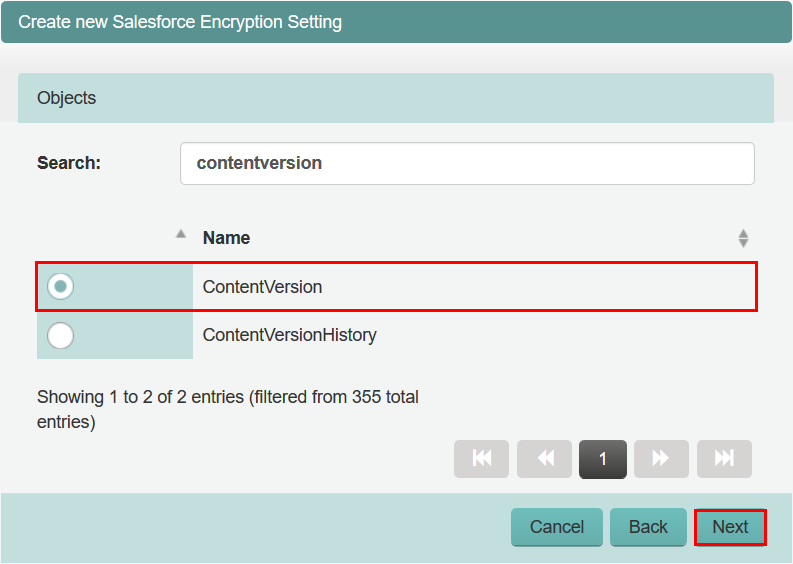
-
In the next menu, search and pick the field
Title of the object
ContentVersion and click
Next.
Figure 3: Select field 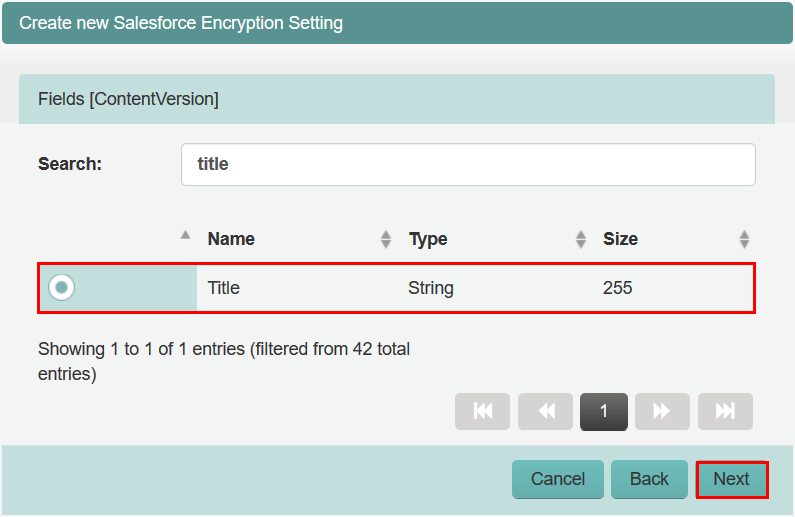
-
In the next menu, select the encryption method
Tokenization and the Tokenizer
String. Then click
Finish.
Figure 4: Select encryption method 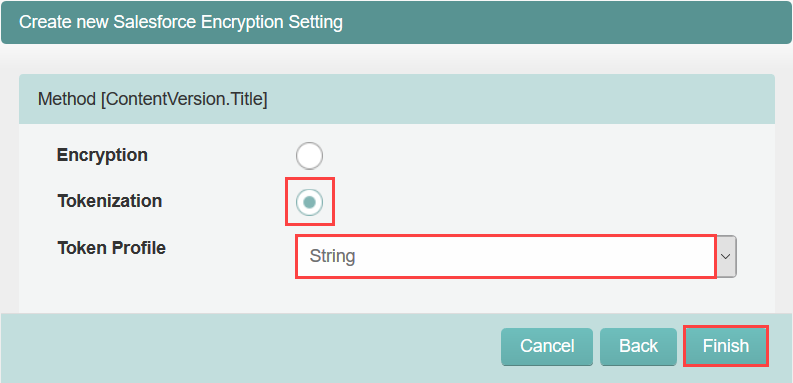
-
In the eperi sEcure Admin Console, select the
Salesforce Tab and click
New.
-
Setup the encryption of the field
ContentVersion.Description:
-
In the next menu, search and pick the field
Description of the object
ContentVersion and click
Next.
Figure 5: Select field 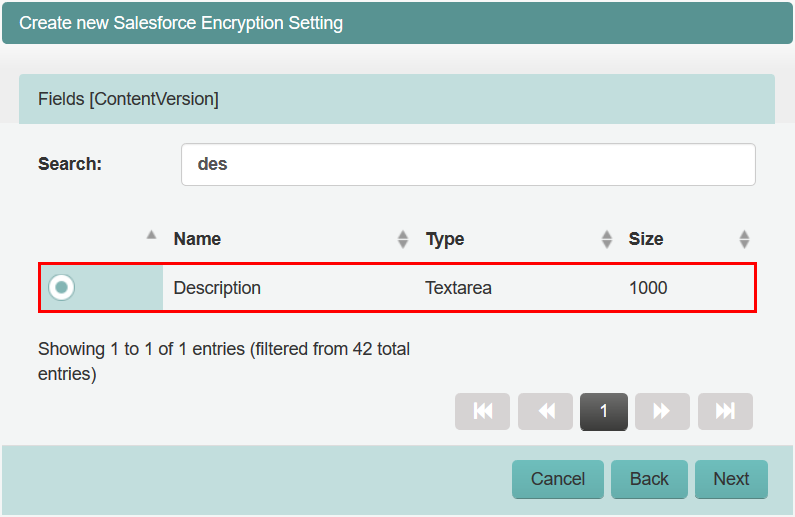
-
In the next menu, select the encryption method
Tokenization and the Tokenizer
String. Then click
Finish.
Figure 6: Select encryption method 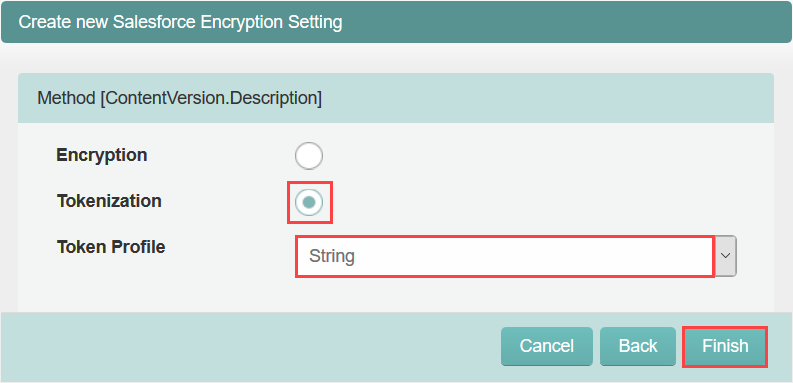
-
In the next menu, search and pick the field
Description of the object
ContentVersion and click
Next.
-
Setup the encryption of the field
ContentVersion.VersionData:
-
In the next menu, search and pick the field
VersionData of the object
ContentVersion and click
Next.
Figure 7: Select field 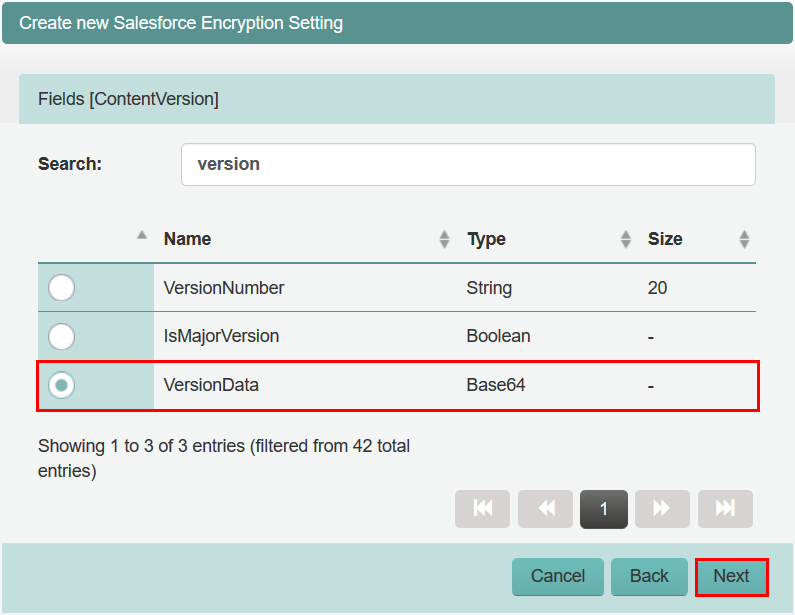
-
In the next menu, select the encryption method
Encryption and click
Finish.
Figure 8: Select encryption method 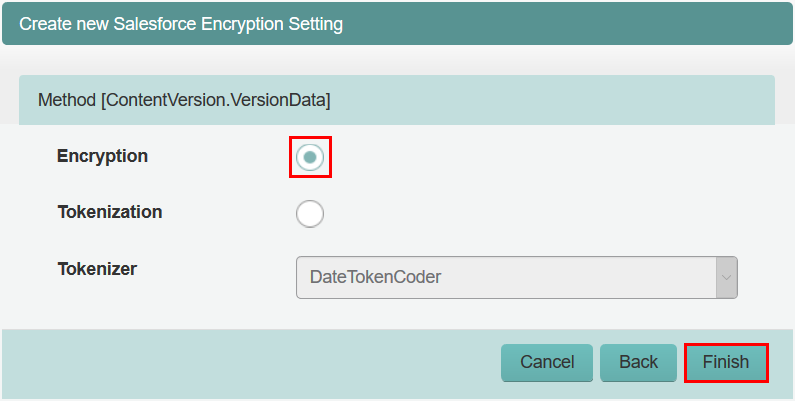
-
In the next menu, search and pick the field
VersionData of the object
ContentVersion and click
Next.
-
Restart the proxy for the settings to take effect:
-
Select the respective proxy in the list of services and click
Restart.
Figure 9: Dashboard - restart proxy 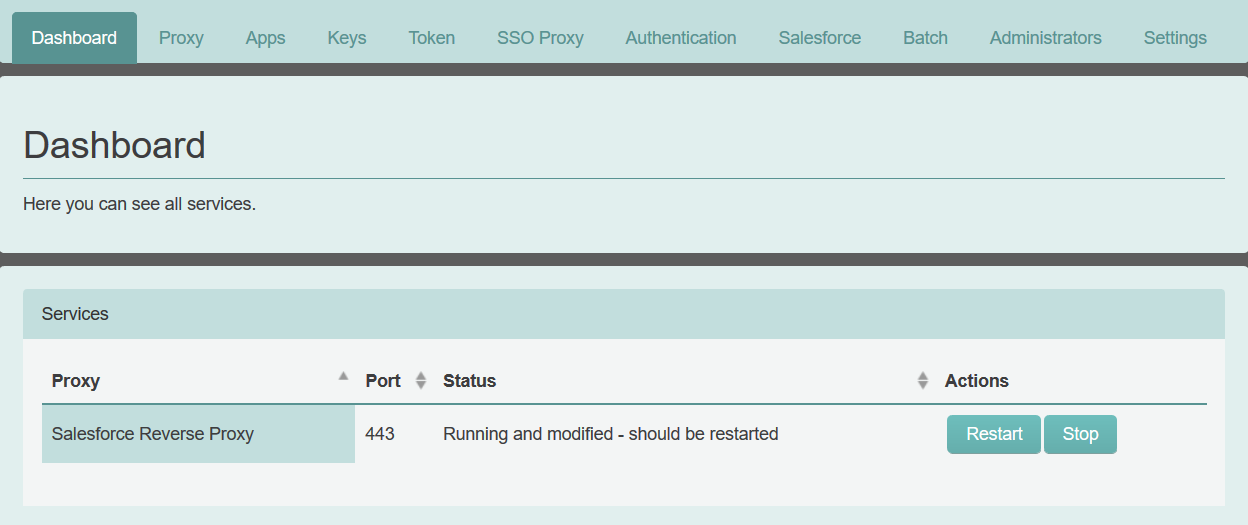 Important: In a cluster setup, the proxy must be restarted with Cluster Wide option.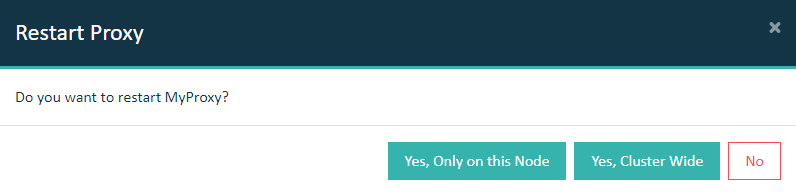
-
Select the respective proxy in the list of services and click
Restart.
Results
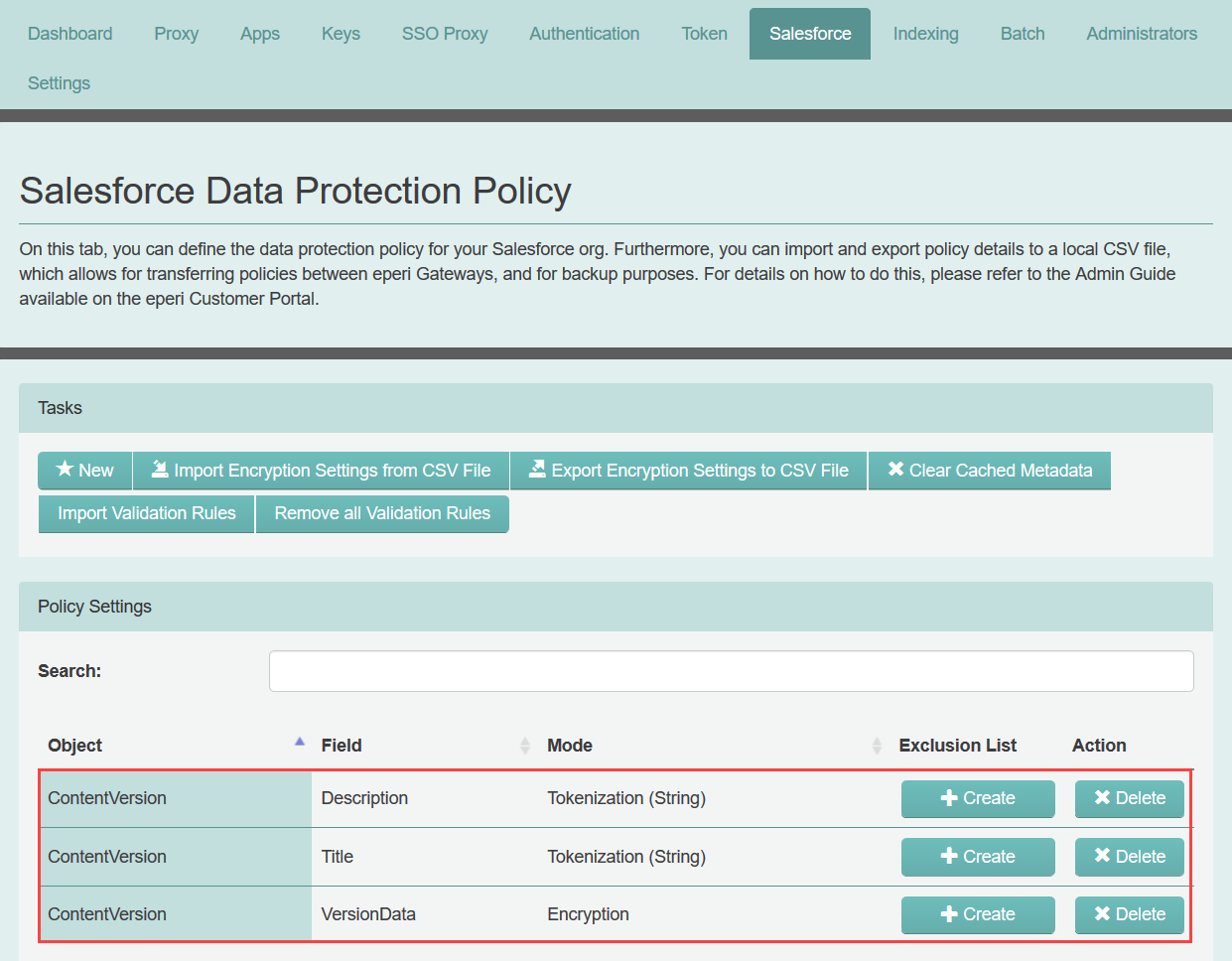
Note: The encryption will only be applied to files uploaded after the encryption
policy has been set up and the proxy has been restarted. Currently, a maximum file
size of 1.5 GB is supported by the eperi sEcure Platform.