Learn which settings are required so that the email address of Salesforce users gets
tokenized while at the same time emails from Salesforce can be received.
Before you begin
The task requires the following:
- An SMTP Relay is set up as described in section Setting up Postfix as SMTP Relay.
- You have set up an MX record which leads from your own email (sub)domain to the
Postfix SMTP Relay.
Procedure
-
Log into the eperi sEcure Admin Console and select the
Token tab.
-
Click New Token Profile.
-
Configure the new token profile as follows:
- Tokenizer: Select
Email
- Domain: Enter the same email (sub)domain you
configured in the MX record mentioned above
- Minimum Length: Enter the minimum token length
for the local-part of the email address
- Maximum Length: Enter the maximum token length
for the local-part of the email address
-
Select the Salesforce tab and click
New.
-
In the next menu, select from which App the credentials
for Salesforce should be used. Then click Next.
-
Select the User object, then click
Next.
-
Select the Email field of the
User object, then click
Next.
-
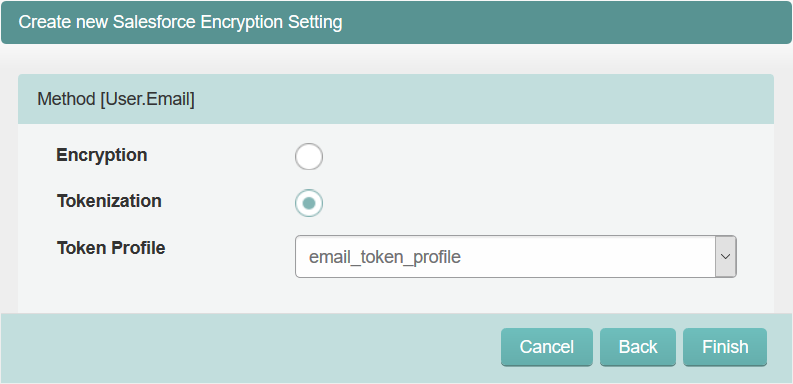
Select Tokenization as method and the Token
Profile you have created before in the
Token tab.
-
Click Finish.
-
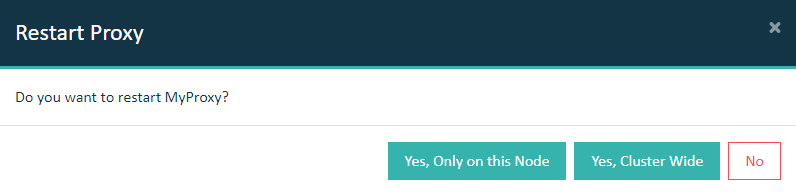
Select the Dashboard tab and restart the
Salesforce Reverse Proxy.
Important: In a cluster setup, the proxy must be restarted with
Cluster Wide option.
-
As Salesforce user, log in to your Salesforce org via the eperi sEcure Platform and access the user settings.
-
Select Personal Information and click
Save.
Hereby the user's email address is tokenized. The respective Salesforce
user will receive an email from Salesforce requesting to confirm the new
(tokenized) email address.
-
As Salesforce user, confirm your new email address.
Results
You have successfully set up the tokenization of the email
address of Salesforce users.