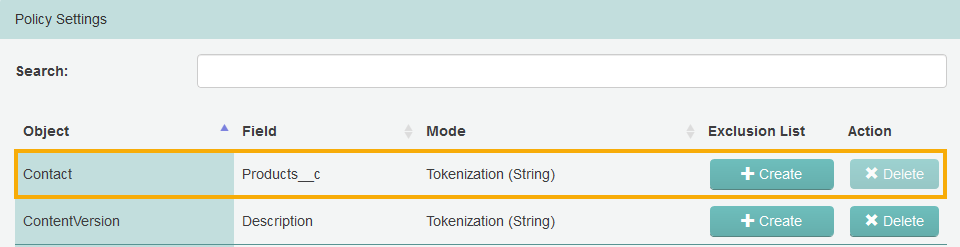
Protecting global picklist value sets
How to set up the data protection of a global picklist value set.
Before you begin
- You have created at least one global picklist value set in your Salesforce org.
- You have created at least one custom picklist field which uses a global picklist value set.
About this task
- Only the default String Token Profile is applied. Therefore picklists for numbers and emails are not supported.
- Importing and exporting policies to a CSV file and validation rules are not supported.
- An approval process (four-eyes principle) is not supported.
-
Warning: Only one administrator should set up the feature in the eperi sEcure Platform at the same time.
- Important: A default picklist value can only be set in Salesforce while the picklist is not protected. This also applies to any other change, such as adding or removing values, etc.
- Warning: Protected picklists with two columns where the selected value is moved from one side to the other to change the category it belongs to are not supported.
Procedure
-
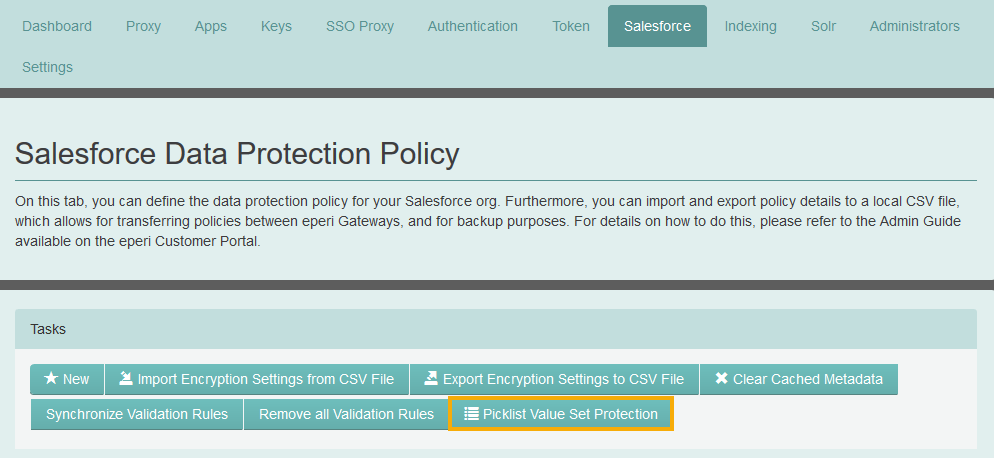
In the eperi sEcure Admin Console, select the
Salesforce tab and click Picklist Value
Set Protection.
-
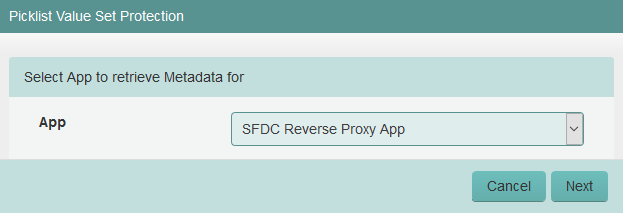
In the next menu, select from which App the credentials
for Salesforce should be used. Then click Next.
-
In the next menu, provide the required information and then click
Next.
Note: Please wait for the indicated time before clicking on Next. Meanwhile the cache is being built in the background.
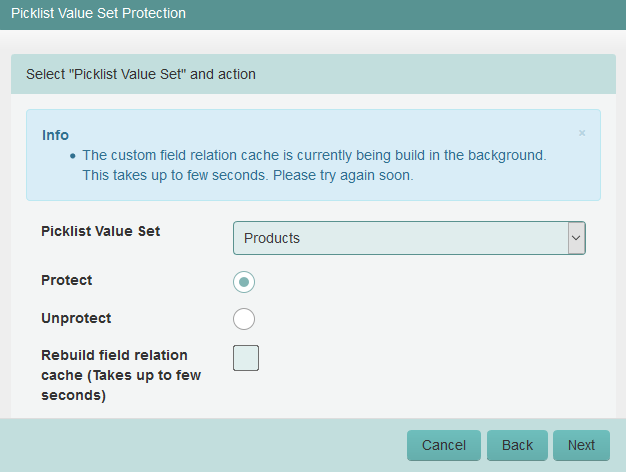
Option Description Picklist Value Set Select a picklist value set to be protected or unprotected. Protect Choose this option to protect the selected picklist value set. The values of the selected picklist are then tokenized by the eperi sEcure Platform. Unprotect Choose this option to unprotect the selected picklist value set. The values of the selected picklist are then detokenized by the eperi sEcure Platform. Rebuild field relation cache Check this option to let the eperi sEcure Platform rebuild the field relation cache. This is necessary, if you have created a new custom field which uses a picklist value set to be protected. -
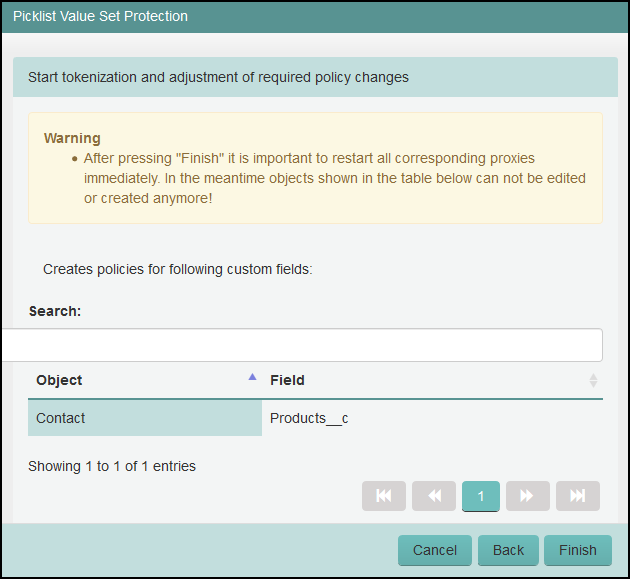
In the next menu, click Finish.
-
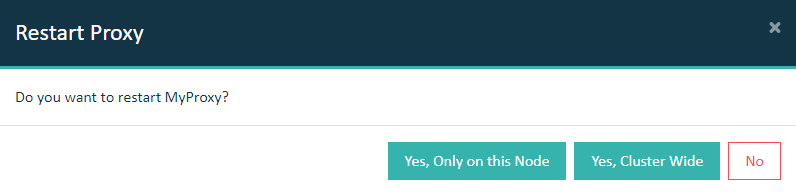
Restart the Salesforce Reverse Proxy in the
Dashboard tab.
Important: In a cluster setup, the proxy must be restarted with Cluster Wide option.
Results