
Password policy settings
The eperi sEcure Platform is shipped with a default password policy for admin accounts, but you may configure a custom policy as needed. This includes for example the minimum / maximum password length, certain characters that must be included and a list of banned passwords.
Procedure
-
Select Password Policy in the main menu.
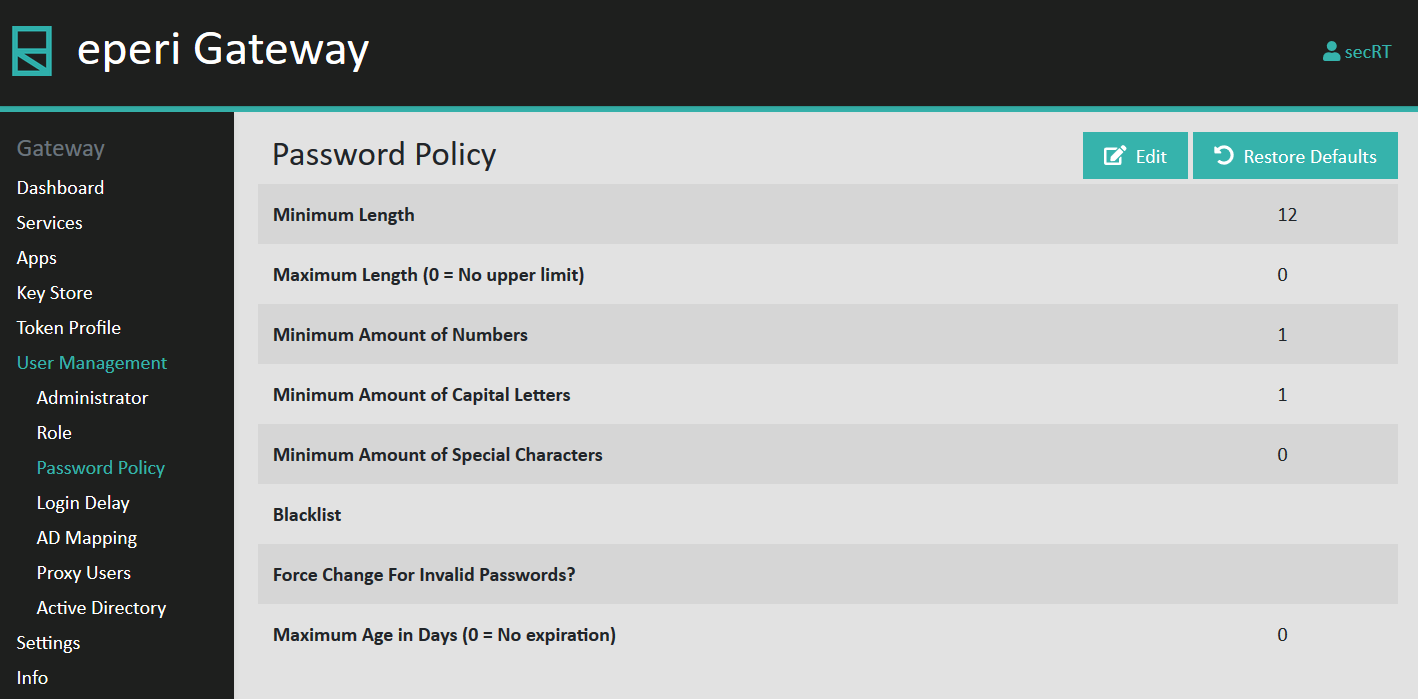
The default password policy is displayed:
-
Click Edit to adjust the password policy to your
needs.
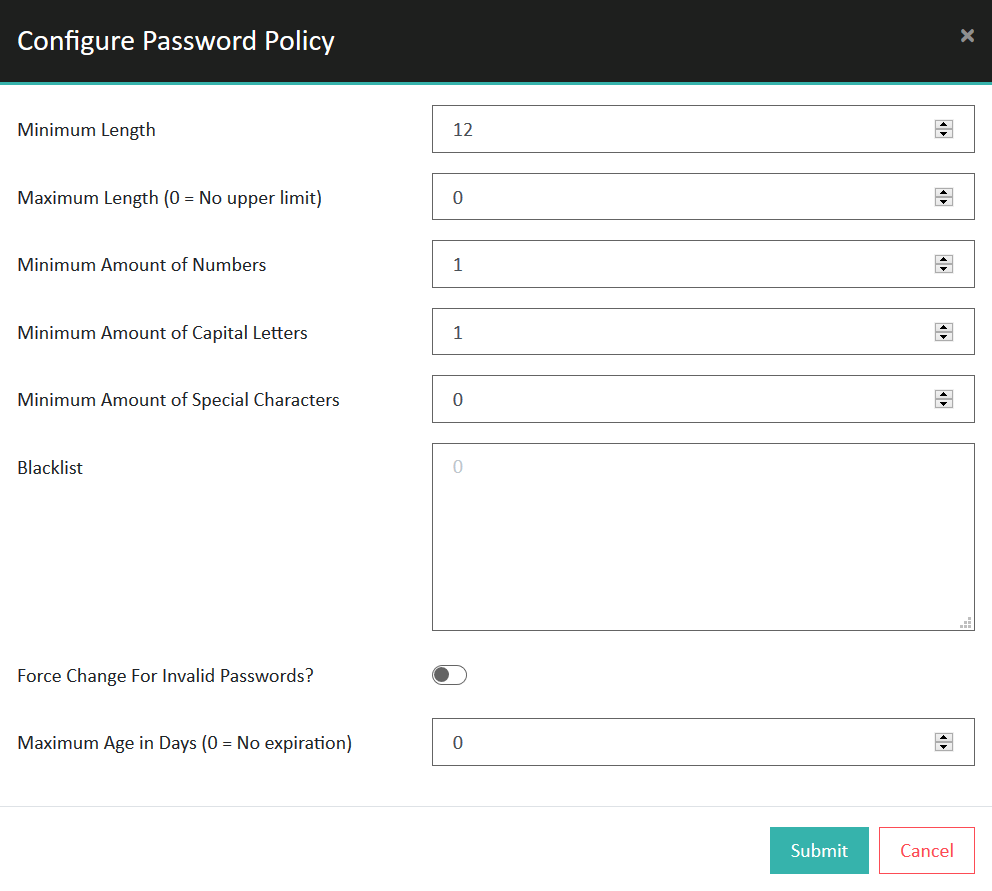
Option Description Minimum Length Enter the minimum password length. Maximum Length (0 = No upper limit) Enter the maximum password length. If you enter 0, there is no upper limit for the password length. Minimum Amount of Numbers Enter the minimum amount of numbers that the password must contain. Minimum Amount of Capital Letters Enter the minimum amount of capital letters that the password must contain. Minimum Amount of Special Characters Enter the minimum amount of special characters that the password must contain. Blacklist Enter a list of passwords that should not be used when an administrator changes his password. Enter exactly one password per line. - If a newly added password matches an existing password, the corresponding user is forced to change their password on his next login attempt.
- Permutations of forbidden passwords are automatically taken into account by the eperi Gateway. For example, if you enter "password", "passw0rd", "p4ssword", "p4ssw0rd", etc. will also be scanned.
- For the permutations, only the letter-number equivalents on this site are considered.
- Permutations are case insensitive, e.g. "A" and "a" both have the equivalent "4".
- Permutations are considered only in letter -> number direction. E.g., if the password "asdf" is blacklisted, "4sdf" is also invalid. But if "123456" is blacklisted "I23456" is still valid.
Force Change For Invalid Passwords? Switch it on if you want passwords that do not conform to the current password policy to be changed at the next login. Maximum Age in Days (0 = No expiration) Enter an expiration time (in days) for passwords. After the expiration time is up, administrators are forced to change their passwords. If you enter 0, administrator passwords have no expiration time. Important: The configured expiration time does not apply to the built-in user secRT. The password of the user secRT has no expiration date.