Creating a new administrator account

How to create a new administrator account for eperi sEcure Platform Admin Console.

Procedure

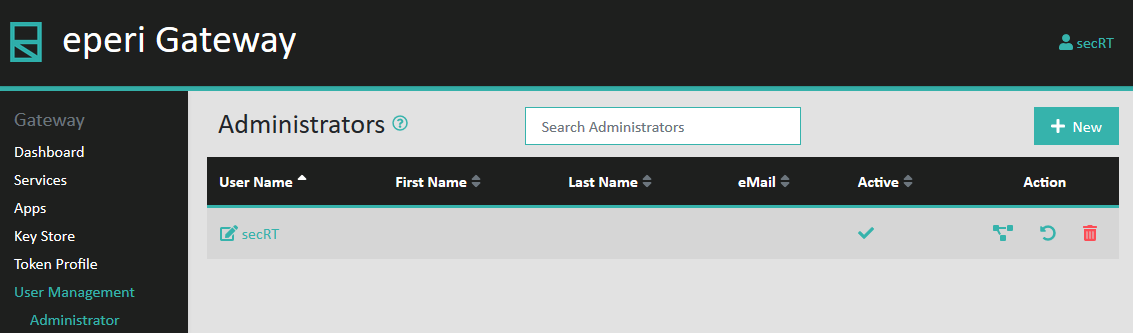
  1. Select User Management > Administrator in the main menu.


  2. Click + New in the upper right corner.
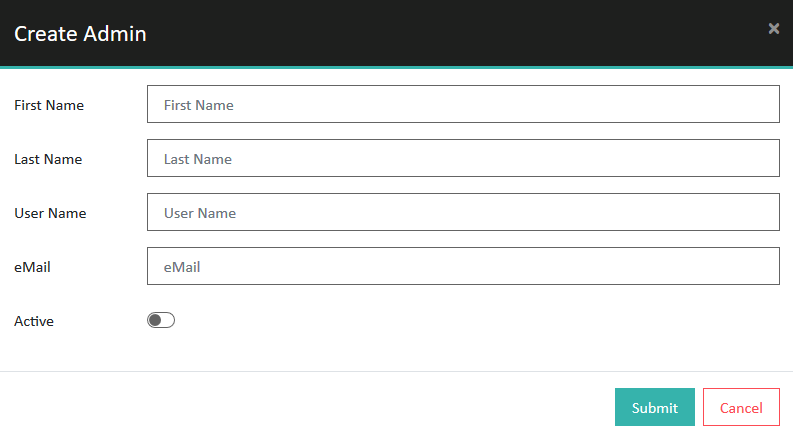
    A pop-up will open, prompting you to enter the details for the new administrator account.
    Figure 1: Details for the new admin account
    Details for the new admin account
  3. Provide the required information and then click Submit.
    Option Description
    First Name Enter the first name of the person using the account.
    Last Name Enter the last name of the person using the account.
    User Name Enter a unique username. It must be 4 - 50 alphanumeric characters in length and may contain the following characters: -, _ or ..
    eMail Enter the e-mail address of the person using the account.
    Active (Optional) To activate the user account immediately, turn the Active switch on. Otherwise, the user is deactivated and cannot log in to the eperi sEcure Admin Console. The user can be activated at any time via the eperi sEcure Admin Console by an authorized administrator.
  4. The temporary password for the new admin account is displayed on a pop-up and should be reported to the new administrator.
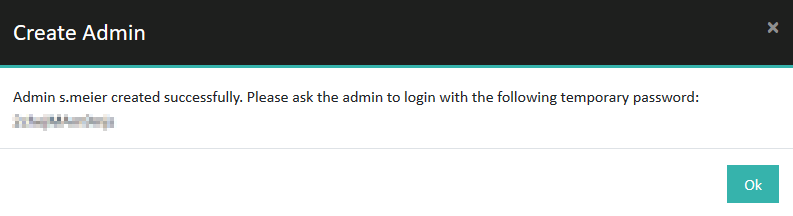

    Note: As soon as the new administrator logs in for the first time, he is asked to change his password.

Results

You have successfully created a new administrator account for eperi sEcure Admin Console.

What to do next

  • Assign the required authorization roles to the newly created administrator account, as described in section Assigning roles to an administrator account.
  • Report the login credentials to the respective person, so that they can log into the eperi sEcure Admin Console.