Resetting the password of an administrator account
How to reset the password of an administrator account.
Procedure
-
In the list of administrators, click the Reset Admin
action for the corresponding entry.
Figure 1: Reset admin action 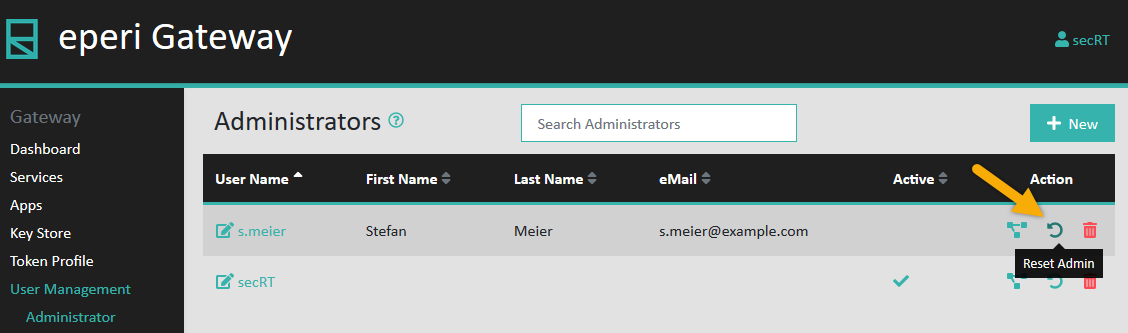 A pop-up will open, asking you to confirm the password reset.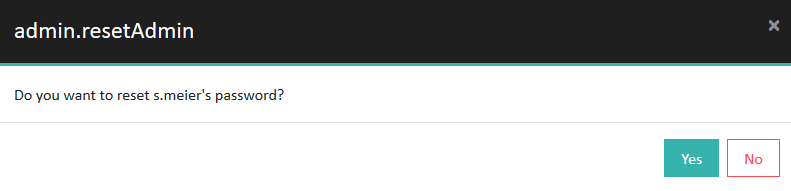
-
Click Yes to confirm the password reset.
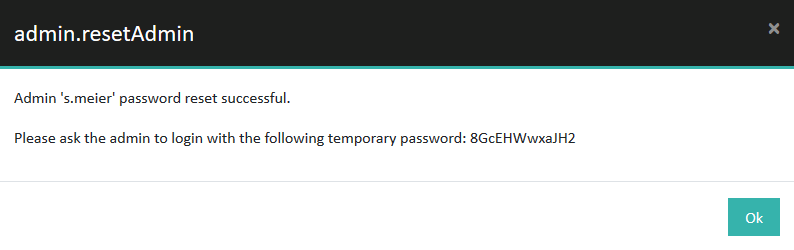
The new temporary password is displayed: