
Reactivating an administrator account
How to reactivate an administrator account which is currently deactivated.
Procedure
-
In the list of administrators, click the Edit action for
the corresponding entry.
Figure 1: Edit the admin account 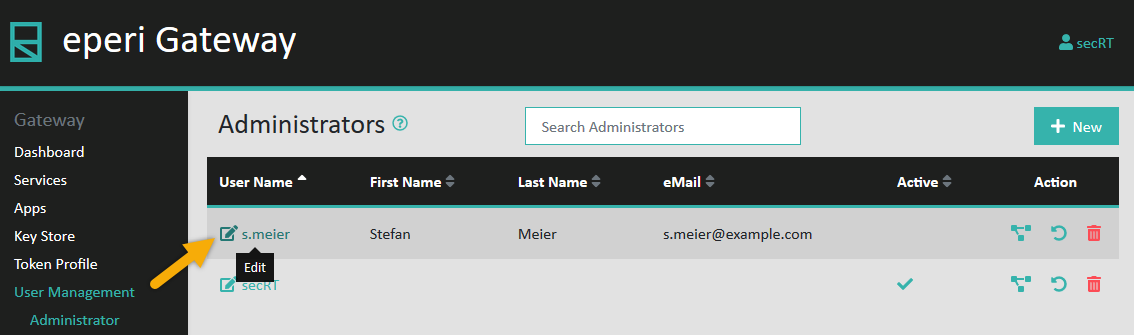 A pop-up will open, showing you the details of the administrator account.
Figure 2: Details of the admin account 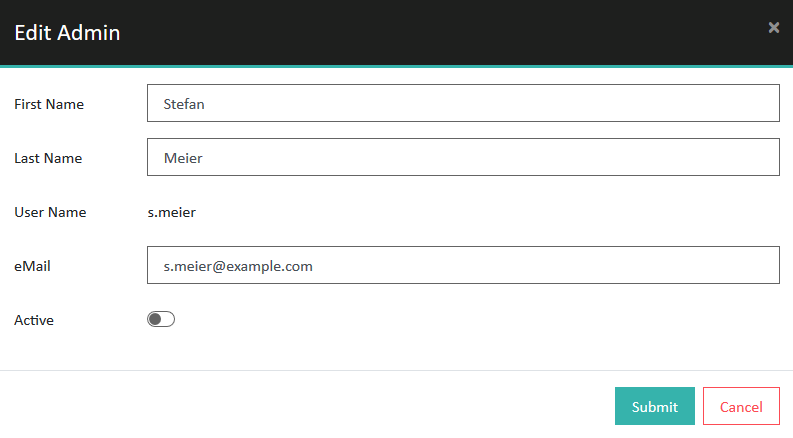
Results
